1# Completions
2
3Zed supports two sources for completions:
4
51. "Code Completions" provided by Language Servers (LSPs) automatically installed by Zed or via [Zed Language Extensions](languages.md).
62. "Edit Predictions" provided by Zed's own Zeta model or by external providers like [GitHub Copilot](#github-copilot) or [Supermaven](#supermaven).
7
8## Language Server Code Completions {#code-completions}
9
10When there is an appropriate language server available, Zed will provide completions of variable names, functions, and other symbols in the current file. You can disable these by adding the following to your Zed `settings.json` file:
11
12```json
13"show_completions_on_input": false
14```
15
16You can manually trigger completions with `ctrl-space` or by triggering the `editor::ShowCompletions` action from the command palette.
17
18For more information, see:
19
20- [Configuring Supported Languages](./configuring-languages.md)
21- [List of Zed Supported Languages](./languages.md).
22
23## Edit Predictions {#edit-predictions}
24
25Zed has built-in support for predicting multiple edits at a time [via Zeta](https://huggingface.co/zed-industries/zeta), Zed's open-source and open-data model.
26Edit predictions appear as you type, and most of the time, you can accept them by pressing `tab`.
27
28### Configuring Zeta
29
30Zed's Edit Prediction was initially introduced via a banner on the title bar.
31Clicking on it would take you to a modal with a button ("Enable Edit Prediction") that sets `zed` as your `edit_prediction_provider`.
32
33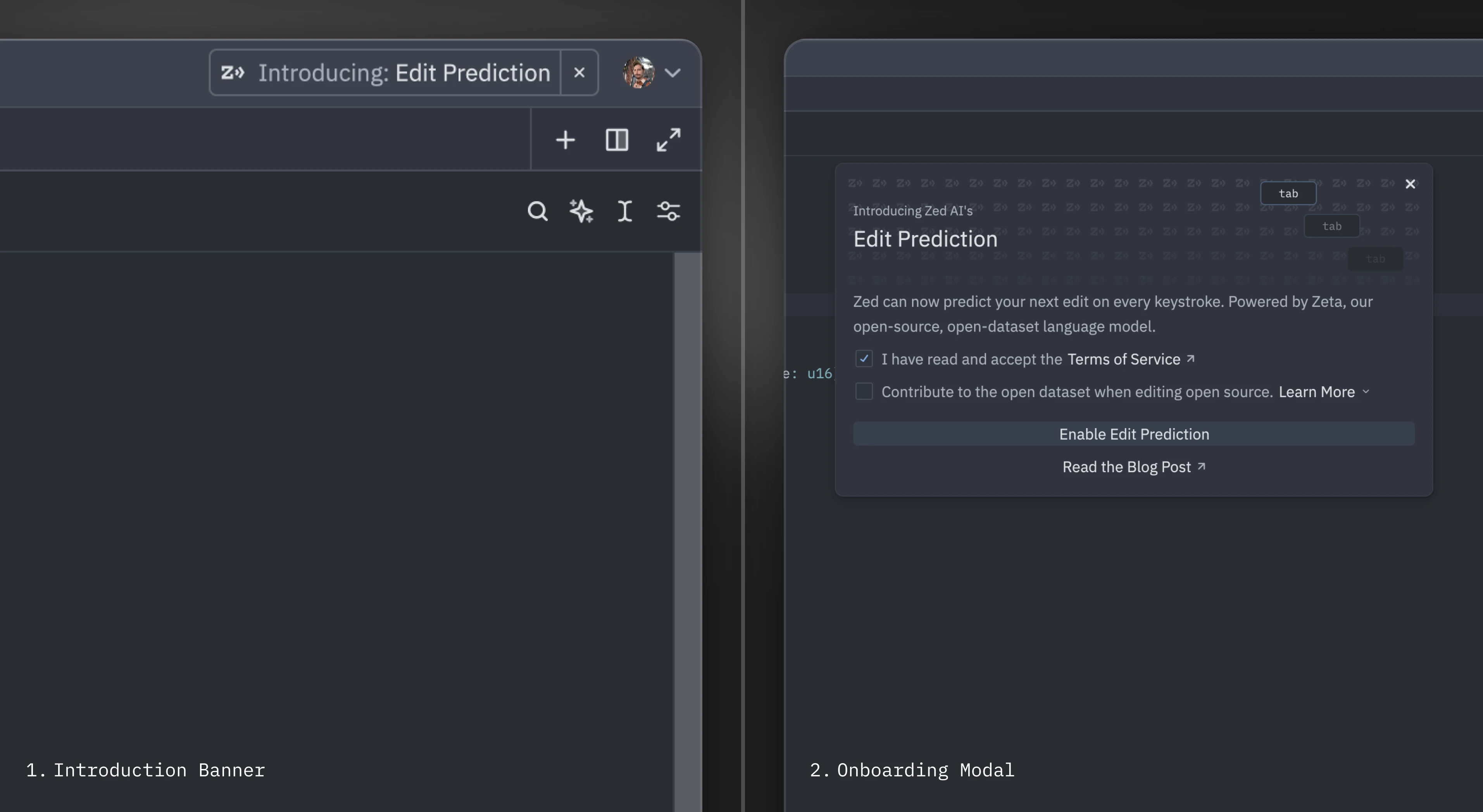
34
35But, if you haven't come across the banner, start using Zed's Edit Prediction by adding this to your settings:
36
37```json
38"features": {
39 "edit_prediction_provider": "zed"
40},
41```
42
43### Conflict With Other `tab` Actions {#edit-predictions-conflict}
44
45By default, when `tab` would normally perform a different action, Zed requires a modifier key to accept predictions:
46
471. When the language server completions menu is visible.
482. When your cursor isn't at the right indentation level.
49
50In these cases, `alt-tab` is used instead to accept the prediction. When the language server completions menu is open, holding `alt` first will cause it to temporarily disappear in order to preview the prediction within the buffer.
51
52On Linux, `alt-tab` is often used by the window manager for switching windows, so `alt-l` is provided as the default binding for accepting predictions. `tab` and `alt-tab` also work, but aren't displayed by default.
53
54{#action editor::AcceptPartialEditPrediction} ({#kb editor::AcceptPartialEditPrediction}) can be used to accept the current edit prediction up to the next word boundary.
55
56See the [Configuring GitHub Copilot](#github-copilot) and [Configuring Supermaven](#supermaven) sections below for configuration of other providers. Only text insertions at the current cursor are supported for these providers, whereas the Zeta model provides multiple predictions including deletions.
57
58## Configuring Edit Prediction Keybindings {#edit-predictions-keybinding}
59
60By default, `tab` is used to accept edit predictions. You can use another keybinding by inserting this in your keymap:
61
62```json
63{
64 "context": "Editor && edit_prediction",
65 "bindings": {
66 // Here we also allow `alt-enter` to accept the prediction
67 "alt-enter": "editor::AcceptEditPrediction"
68 }
69}
70```
71
72When there's a [conflict with the `tab` key](#edit-predictions-conflict), Zed uses a different context to accept keybindings (`edit_prediction_conflict`). If you want to use a different one, you can insert this in your keymap:
73
74```json
75{
76 "context": "Editor && edit_prediction_conflict",
77 "bindings": {
78 "ctrl-enter": "editor::AcceptEditPrediction" // Example of a modified keybinding
79 }
80}
81```
82
83If your keybinding contains a modifier (`ctrl` in the example above), it will also be used to preview the edit prediction and temporarily hide the language server completion menu.
84
85You can also bind this action to keybind without a modifier. In that case, Zed will use the default modifier (`alt`) to preview the edit prediction.
86
87```json
88{
89 "context": "Editor && edit_prediction_conflict",
90 "bindings": {
91 // Here we bind tab to accept even when there's a language server completion
92 // or the cursor isn't at the correct indentation level
93 "tab": "editor::AcceptEditPrediction"
94 }
95}
96```
97
98To maintain the use of the modifier key for accepting predictions when there is a language server completions menu, but allow `tab` to accept predictions regardless of cursor position, you can specify the context further with `showing_completions`:
99
100```json
101{
102 "context": "Editor && edit_prediction_conflict && !showing_completions",
103 "bindings": {
104 // Here we don't require a modifier unless there's a language server completion
105 "tab": "editor::AcceptEditPrediction"
106 }
107}
108```
109
110### Keybinding Example: Always Use Alt-Tab
111
112The keybinding example below causes `alt-tab` to always be used instead of sometimes using `tab`. You might want this in order to have just one keybinding to use for accepting edit predictions, since the behavior of `tab` varies based on context.
113
114```json
115 {
116 "context": "Editor && edit_prediction",
117 "bindings": {
118 "alt-tab": "editor::AcceptEditPrediction"
119 }
120 },
121 // Bind `tab` back to its original behavior.
122 {
123 "context": "Editor",
124 "bindings": {
125 "tab": "editor::Tab"
126 }
127 },
128 {
129 "context": "Editor && showing_completions",
130 "bindings": {
131 "tab": "editor::ComposeCompletion"
132 }
133 },
134```
135
136If `"vim_mode": true` is set within `settings.json`, then additional bindings are needed after the above to return `tab` to its original behavior:
137
138```json
139 {
140 "context": "(VimControl && !menu) || vim_mode == replace || vim_mode == waiting",
141 "bindings": {
142 "tab": "vim::Tab"
143 }
144 },
145 {
146 "context": "vim_mode == literal",
147 "bindings": {
148 "tab": ["vim::Literal", ["tab", "\u0009"]]
149 }
150 },
151```
152
153### Keybinding Example: Displaying Tab and Alt-Tab on Linux
154
155While `tab` and `alt-tab` are supported on Linux, `alt-l` is displayed instead. If your window manager does not reserve `alt-tab`, and you would prefer to use `tab` and `alt-tab`, include these bindings in `keymap.json`:
156
157```json
158 {
159 "context": "Editor && edit_prediction",
160 "bindings": {
161 "tab": "editor::AcceptEditPrediction",
162 // Optional: This makes the default `alt-l` binding do nothing.
163 "alt-l": null
164 }
165 },
166 {
167 "context": "Editor && edit_prediction_conflict",
168 "bindings": {
169 "alt-tab": "editor::AcceptEditPrediction",
170 // Optional: This makes the default `alt-l` binding do nothing.
171 "alt-l": null
172 }
173 },
174```
175
176### Missing keybind {#edit-predictions-missing-keybinding}
177
178Zed requires at least one keybinding for the {#action editor::AcceptEditPrediction} action in both the `Editor && edit_prediction` and `Editor && edit_prediction_conflict` contexts ([learn more above](#edit-predictions-keybinding)).
179
180If you have previously bound the default keybindings to different actions in the global context, you will not be able to preview or accept edit predictions. For example:
181
182```json
183[
184 // Your keymap
185 {
186 "bindings": {
187 // Binds `alt-tab` to a different action globally
188 "alt-tab": "menu::SelectNext"
189 }
190 }
191]
192```
193
194To fix this, you can specify your own keybinding for accepting edit predictions:
195
196```json
197[
198 // ...
199 {
200 "context": "Editor && edit_prediction_conflict",
201 "bindings": {
202 "alt-l": "editor::AcceptEditPrediction"
203 }
204 }
205]
206```
207
208If you would like to use the default keybinding, you can free it up by either moving yours to a more specific context or changing it to something else.
209
210## Disabling Automatic Edit Prediction
211
212To disable predictions that appear automatically as you type, set this within `settings.json`:
213
214```json
215{
216 "show_edit_predictions": false
217}
218```
219
220You can trigger edit predictions manually by executing {#action editor::ShowEditPrediction} ({#kb editor::ShowEditPrediction}).
221
222You can also add this as a language-specific setting in your `settings.json` to disable edit predictions for a specific language:
223
224```json
225{
226 "language": {
227 "python": {
228 "show_edit_predictions": false
229 }
230 }
231}
232```
233
234## Configuring GitHub Copilot {#github-copilot}
235
236To use GitHub Copilot, set this within `settings.json`:
237
238```json
239{
240 "features": {
241 "edit_prediction_provider": "copilot"
242 }
243}
244```
245
246You should be able to sign-in to GitHub Copilot by clicking on the Copilot icon in the status bar and following the setup instructions.
247
248Copilot can provide multiple completion alternatives, and these can be navigated with the following actions:
249
250- {#action editor::NextEditPrediction} ({#kb editor::NextEditPrediction}): To cycle to the next edit prediction
251- {#action editor::PreviousEditPrediction} ({#kb editor::PreviousEditPrediction}): To cycle to the previous edit prediction
252
253## Configuring Supermaven {#supermaven}
254
255To use Supermaven, set this within `settings.json`:
256
257```json
258{
259 "features": {
260 "edit_prediction_provider": "supermaven"
261 }
262}
263```
264
265You should be able to sign-in to Supermaven by clicking on the Supermaven icon in the status bar and following the setup instructions.
266
267## See also
268
269You may also use the Assistant Panel or the Inline Assistant to interact with language models, see the [assistant](assistant/assistant.md) documentation for more information.