1# Edit Prediction
2
3Edit Prediction is Zed's LLM mechanism for predicting the code you want to write.
4Each keystroke sends a new request to the edit prediction provider, which returns individual or multi-line suggestions that can be quickly accepted by pressing `tab`.
5
6The default provider is [Zeta, a proprietary open source and open dataset model](https://huggingface.co/zed-industries/zeta), but you can also use [other providers](#other-providers) like GitHub Copilot, Supermaven, and Codestral.
7
8## Configuring Zeta
9
10To use Zeta, the only thing you need to do is [to sign in](../authentication.md#what-features-require-signing-in).
11After doing that, you should already see predictions as you type on your files.
12
13You can confirm that Zeta is properly configured either by verifying whether you have the following code in your `settings.json`:
14
15```json [settings]
16"features": {
17 "edit_prediction_provider": "zed"
18},
19```
20
21Or you can also look for a little Z icon in the right of your status bar at the bottom.
22
23### Pricing and Plans
24
25From just signing in, while in Zed's free plan, you get 2,000 Zeta-powered edit predictions per month.
26But you can get _**unlimited edit predictions**_ by upgrading to [the Pro plan](../ai/plans-and-usage.md).
27More information can be found in [Zed's pricing page](https://zed.dev/pricing).
28
29### Switching Modes {#switching-modes}
30
31Zed's Edit Prediction comes with two different display modes:
32
331. `eager` (default): predictions are displayed inline as long as it doesn't conflict with language server completions
342. `subtle`: predictions only appear inline when holding a modifier key (`alt` by default)
35
36Toggle between them via the `mode` key:
37
38```json [settings]
39"edit_predictions": {
40 "mode": "eager" // or "subtle"
41},
42```
43
44Or directly via the UI through the status bar menu:
45
46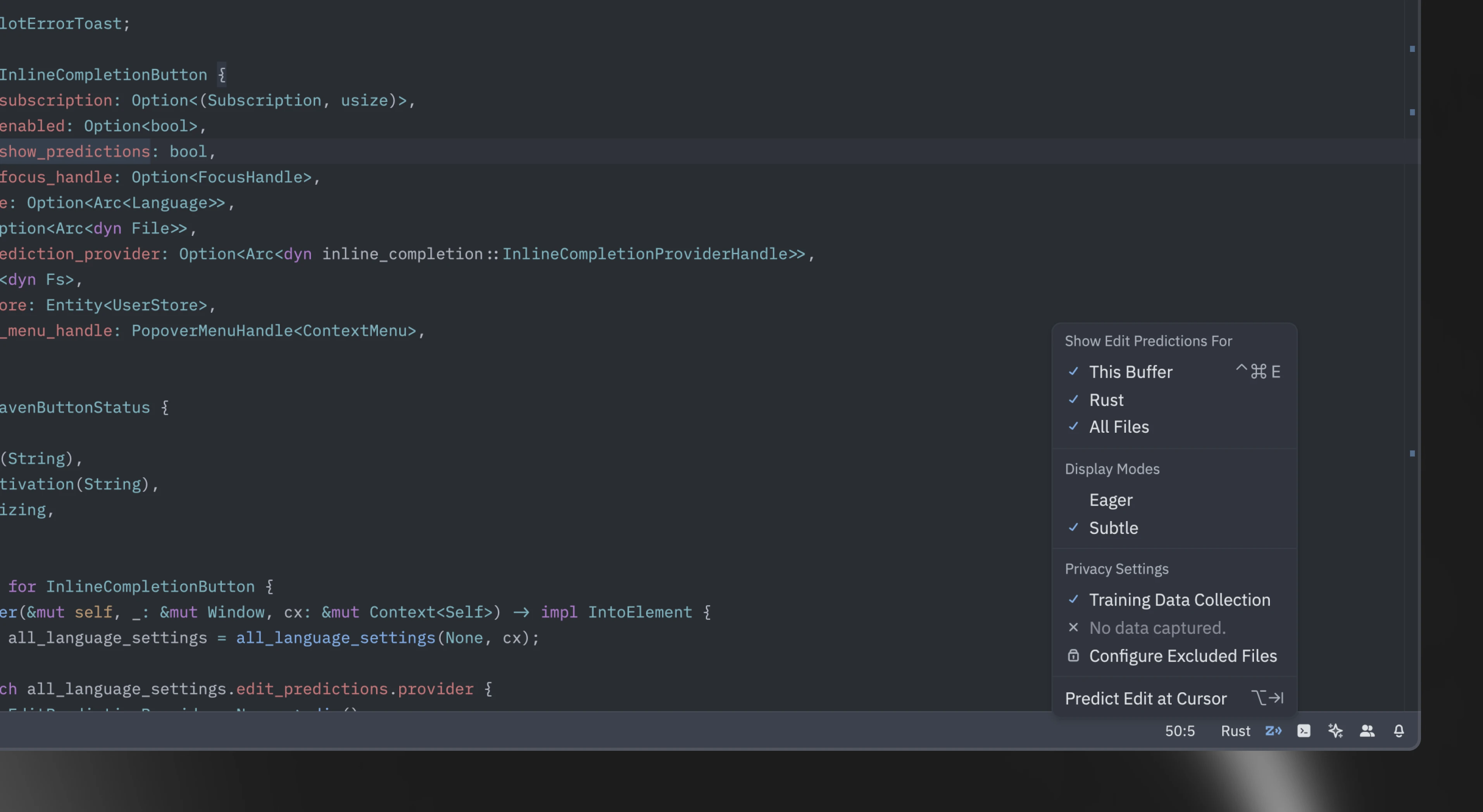
47
48> Note that edit prediction modes work with any prediction provider.
49
50### Conflict With Other `tab` Actions {#edit-predictions-conflict}
51
52By default, when `tab` would normally perform a different action, Zed requires a modifier key to accept predictions:
53
541. When the language server completions menu is visible.
552. When your cursor isn't at the right indentation level.
56
57In these cases, `alt-tab` is used instead to accept the prediction. When the language server completions menu is open, holding `alt` first will cause it to temporarily disappear in order to preview the prediction within the buffer.
58
59On Linux, `alt-tab` is often used by the window manager for switching windows, so `alt-l` is provided as the default binding for accepting predictions. `tab` and `alt-tab` also work, but aren't displayed by default.
60
61{#action editor::AcceptPartialEditPrediction} ({#kb editor::AcceptPartialEditPrediction}) can be used to accept the current edit prediction up to the next word boundary.
62
63## Configuring Edit Prediction Keybindings {#edit-predictions-keybinding}
64
65By default, `tab` is used to accept edit predictions. You can use another keybinding by inserting this in your keymap:
66
67```json [settings]
68{
69 "context": "Editor && edit_prediction",
70 "bindings": {
71 // Here we also allow `alt-enter` to accept the prediction
72 "alt-enter": "editor::AcceptEditPrediction"
73 }
74}
75```
76
77When there's a [conflict with the `tab` key](#edit-predictions-conflict), Zed uses a different key context to accept keybindings (`edit_prediction_conflict`).
78If you want to use a different one, you can insert this in your keymap:
79
80```json [settings]
81{
82 "context": "Editor && edit_prediction_conflict",
83 "bindings": {
84 "ctrl-enter": "editor::AcceptEditPrediction" // Example of a modified keybinding
85 }
86}
87```
88
89If your keybinding contains a modifier (`ctrl` in the example above), it will also be used to preview the edit prediction and temporarily hide the language server completion menu.
90
91You can also bind this action to keybind without a modifier.
92In that case, Zed will use the default modifier (`alt`) to preview the edit prediction.
93
94```json [settings]
95{
96 "context": "Editor && edit_prediction_conflict",
97 "bindings": {
98 // Here we bind tab to accept even when there's a language server completion
99 // or the cursor isn't at the correct indentation level
100 "tab": "editor::AcceptEditPrediction"
101 }
102}
103```
104
105To maintain the use of the modifier key for accepting predictions when there is a language server completions menu, but allow `tab` to accept predictions regardless of cursor position, you can specify the context further with `showing_completions`:
106
107```json [settings]
108{
109 "context": "Editor && edit_prediction_conflict && !showing_completions",
110 "bindings": {
111 // Here we don't require a modifier unless there's a language server completion
112 "tab": "editor::AcceptEditPrediction"
113 }
114}
115```
116
117### Keybinding Example: Always Use Tab
118
119If you want to use `tab` to always accept edit predictions, you can use the following keybinding:
120
121```json [keymap]
122{
123 "context": "Editor && edit_prediction_conflict && showing_completions",
124 "bindings": {
125 "tab": "editor::AcceptEditPrediction"
126 }
127}
128```
129
130This will make `tab` work to accept edit predictions _even when_ you're also seeing language server completions.
131That means that you need to rely on `enter` for accepting the latter.
132
133### Keybinding Example: Always Use Alt-Tab
134
135The keybinding example below causes `alt-tab` to always be used instead of sometimes using `tab`.
136You might want this in order to have just one (alternative) keybinding to use for accepting edit predictions, since the behavior of `tab` varies based on context.
137
138```json [keymap]
139 {
140 "context": "Editor && edit_prediction",
141 "bindings": {
142 "alt-tab": "editor::AcceptEditPrediction"
143 }
144 },
145 // Bind `tab` back to its original behavior.
146 {
147 "context": "Editor",
148 "bindings": {
149 "tab": "editor::Tab"
150 }
151 },
152 {
153 "context": "Editor && showing_completions",
154 "bindings": {
155 "tab": "editor::ComposeCompletion"
156 }
157 },
158```
159
160If you are using [Vim mode](../vim.md), then additional bindings are needed after the above to return `tab` to its original behavior:
161
162```json [keymap]
163 {
164 "context": "(VimControl && !menu) || vim_mode == replace || vim_mode == waiting",
165 "bindings": {
166 "tab": "vim::Tab"
167 }
168 },
169 {
170 "context": "vim_mode == literal",
171 "bindings": {
172 "tab": ["vim::Literal", ["tab", "\u0009"]]
173 }
174 },
175```
176
177### Keybinding Example: Displaying Tab and Alt-Tab on Linux
178
179While `tab` and `alt-tab` are supported on Linux, `alt-l` is displayed instead.
180If your window manager does not reserve `alt-tab`, and you would prefer to use `tab` and `alt-tab`, include these bindings in `keymap.json`:
181
182```json [keymap]
183 {
184 "context": "Editor && edit_prediction",
185 "bindings": {
186 "tab": "editor::AcceptEditPrediction",
187 // Optional: This makes the default `alt-l` binding do nothing.
188 "alt-l": null
189 }
190 },
191 {
192 "context": "Editor && edit_prediction_conflict",
193 "bindings": {
194 "alt-tab": "editor::AcceptEditPrediction",
195 // Optional: This makes the default `alt-l` binding do nothing.
196 "alt-l": null
197 }
198 },
199```
200
201### Missing keybind {#edit-predictions-missing-keybinding}
202
203Zed requires at least one keybinding for the {#action editor::AcceptEditPrediction} action in both the `Editor && edit_prediction` and `Editor && edit_prediction_conflict` contexts ([learn more above](#edit-predictions-keybinding)).
204
205If you have previously bound the default keybindings to different actions in the global context, you will not be able to preview or accept edit predictions. For example:
206
207```json [keymap]
208[
209 // Your keymap
210 {
211 "bindings": {
212 // Binds `alt-tab` to a different action globally
213 "alt-tab": "menu::SelectNext"
214 }
215 }
216]
217```
218
219To fix this, you can specify your own keybinding for accepting edit predictions:
220
221```json [keymap]
222[
223 // ...
224 {
225 "context": "Editor && edit_prediction_conflict",
226 "bindings": {
227 "alt-l": "editor::AcceptEditPrediction"
228 }
229 }
230]
231```
232
233If you would like to use the default keybinding, you can free it up by either moving yours to a more specific context or changing it to something else.
234
235## Disabling Automatic Edit Prediction
236
237There are different levels in which you can disable edit predictions to be displayed, including not having it turned on at all.
238
239Alternatively, if you have Zed set as your provider, consider [using Subtle Mode](#switching-modes).
240
241### On Buffers
242
243To not have predictions appear automatically as you type, set this within `settings.json`:
244
245```json [settings]
246{
247 "show_edit_predictions": false
248}
249```
250
251This hides every indication that there is a prediction available, regardless of [the display mode](#switching-modes) you're in (valid only if you have Zed as your provider).
252Still, you can trigger edit predictions manually by executing {#action editor::ShowEditPrediction} or hitting {#kb editor::ShowEditPrediction}.
253
254### For Specific Languages
255
256To not have predictions appear automatically as you type when working with a specific language, set this within `settings.json`:
257
258```json [settings]
259{
260 "language": {
261 "python": {
262 "show_edit_predictions": false
263 }
264 }
265}
266```
267
268### In Specific Directories
269
270To disable edit predictions for specific directories or files, set this within `settings.json`:
271
272```json [settings]
273{
274 "edit_predictions": {
275 "disabled_globs": ["~/.config/zed/settings.json"]
276 }
277}
278```
279
280### Turning Off Completely
281
282To completely turn off edit prediction across all providers, explicitly set the settings to `none`, like so:
283
284```json [settings]
285"features": {
286 "edit_prediction_provider": "none"
287},
288```
289
290## Configuring Other Providers {#other-providers}
291
292Zed's Edit Prediction also work with other completion model providers aside from Zeta.
293Learn about the available ones below.
294
295### GitHub Copilot {#github-copilot}
296
297To use GitHub Copilot as your provider, set this within `settings.json`:
298
299```json [settings]
300{
301 "features": {
302 "edit_prediction_provider": "copilot"
303 }
304}
305```
306
307You should be able to sign-in to GitHub Copilot by clicking on the Copilot icon in the status bar and following the setup instructions.
308
309#### Using GitHub Copilot Enterprise
310
311If your organization uses GitHub Copilot Enterprise, you can configure Zed to use your enterprise instance by specifying the enterprise URI in your `settings.json`:
312
313```json [settings]
314{
315 "edit_predictions": {
316 "copilot": {
317 "enterprise_uri": "https://your.enterprise.domain"
318 }
319 }
320}
321```
322
323Replace `"https://your.enterprise.domain"` with the URL provided by your GitHub Enterprise administrator (e.g., `https://foo.ghe.com`).
324
325Once set, Zed will route Copilot requests through your enterprise endpoint.
326When you sign in by clicking the Copilot icon in the status bar, you will be redirected to your configured enterprise URL to complete authentication.
327All other Copilot features and usage remain the same.
328
329Copilot can provide multiple completion alternatives, and these can be navigated with the following actions:
330
331- {#action editor::NextEditPrediction} ({#kb editor::NextEditPrediction}): To cycle to the next edit prediction
332- {#action editor::PreviousEditPrediction} ({#kb editor::PreviousEditPrediction}): To cycle to the previous edit prediction
333
334### Supermaven {#supermaven}
335
336To use Supermaven as your provider, set this within `settings.json`:
337
338```json [settings]
339{
340 "features": {
341 "edit_prediction_provider": "supermaven"
342 }
343}
344```
345
346You should be able to sign-in to Supermaven by clicking on the Supermaven icon in the status bar and following the setup instructions.
347
348### Codestral {#codestral}
349
350To use Mistral's Codestral as your provider, start by going to the Agent Panel settings view by running the {#action agent::OpenSettings} action.
351Look for the Mistral item and add a Codestral API key in the corresponding text input.
352
353After that, you should be able to switch your provider to it in your `settings.json` file:
354
355```json [settings]
356{
357 "features": {
358 "edit_prediction_provider": "codestral"
359 }
360}
361```
362
363## See also
364
365To learn about other ways to interact with AI in Zed, you may also want to see more about the [Agent Panel](./agent-panel.md) or the [Inline Assistant](./inline-assistant.md) feature.