Tab Switcher
The Tab Switcher provides a quick way to navigate between open tabs in Zed. It displays a list of your open tabs sorted by recent usage, making it easy to jump back to whatever you were just working on.
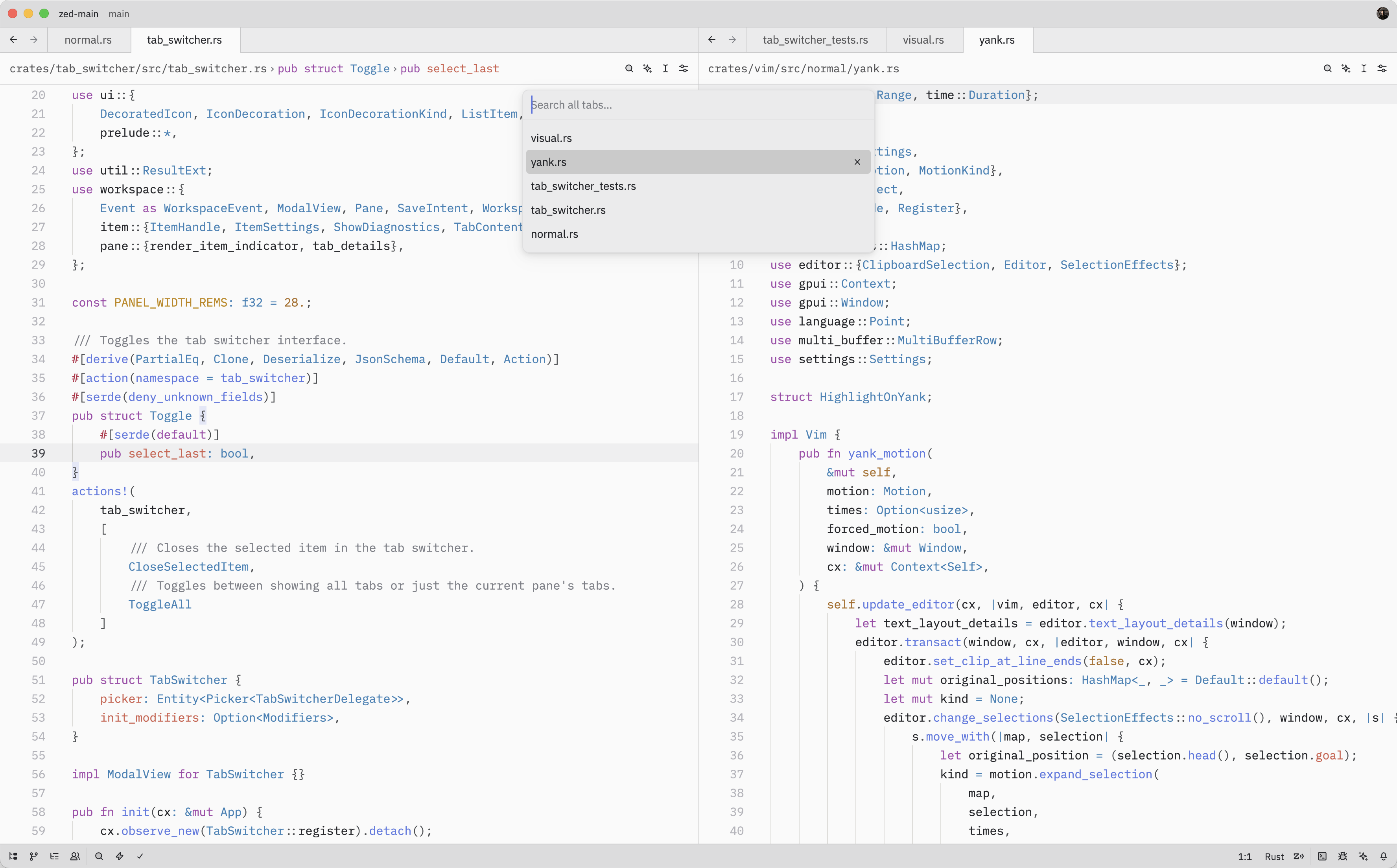
Quick Switching
When the Tab Switcher is opened using {#kb tab_switcher::Toggle}, instead of running the {#action tab_switcher::Toggle} from the command palette, it'll stay active as long as the ctrl key is held down.
While holding down ctrl, each subsequent tab press cycles to the next item (shift to cycle backwards) and, when ctrl is released, the selected item is confirmed and the switcher is closed.
Opening the Tab Switcher
The Tab Switcher can also be opened with either {#action tab_switcher::Toggle} or {#action tab_switcher::ToggleAll}. Using {#kb tab_switcher::Toggle} will show only the tabs for the current pane, while {#kb tab_switcher::ToggleAll} shows all tabs for all panes.
While the Tab Switcher is open, you can:
- Press {#kb menu::SelectNext} to move to the next tab in the list
- Press {#kb menu::SelectPrevious} to move to the previous tab
- Press enter to confirm the selected tab and close the switcher
- Press escape to close the switcher and return to the original tab from which the switcher was opened
- Press {#kb tab_switcher::CloseSelectedItem} to close the currently selected tab
As you navigate through the list, Zed will update the pane's active item to match the selected tab.
Action Reference
| Action | Description |
|---|---|
| {#action tab_switcher::Toggle} | Open the Tab Switcher for the current pane |
| {#action tab_switcher::ToggleAll} | Open the Tab Switcher showing tabs from all panes |
| {#action tab_switcher::CloseSelectedItem} | Close the selected tab in the Tab Switcher |