1---
2title: Troubleshooting
3description: "Common issues and solutions for Zed on all platforms."
4---
5
6# Troubleshooting
7
8This guide covers common troubleshooting techniques for Zed.
9Sometimes you'll be able to identify and resolve issues on your own using this information.
10Other times, troubleshooting means gathering the right information (logs, profiles, or reproduction steps) to help us diagnose and fix the problem.
11
12> **Note**: To open the command palette, use `cmd-shift-p` on macOS or `ctrl-shift-p` on Windows / Linux.
13
14## Retrieve Zed and System Information
15
16When reporting issues or seeking help, it's useful to know your Zed version and system specifications. You can retrieve this information using the following actions from the command palette:
17
18- {#action zed::About}: Find your Zed version number
19- {#action zed::CopySystemSpecsIntoClipboard}: Populate your clipboard with Zed version number, operating system version, and hardware specs
20
21## Zed Log
22
23Often, a good first place to look when troubleshooting any issue in Zed is the Zed log, which might contain clues about what's going wrong.
24You can review the most recent 1000 lines of the log by running the {#action zed::OpenLog} action from the command palette.
25If you want to view the full file, you can reveal it in your operating system's native file manager via {#action zed::RevealLogInFileManager} from the command palette.
26
27You'll find the Zed log in the respective location on each operating system:
28
29- macOS: `~/Library/Logs/Zed/Zed.log`
30- Windows: `C:\Users\YOU\AppData\Local\Zed\logs\Zed.log`
31- Linux: `~/.local/share/zed/logs/Zed.log` or `$XDG_DATA_HOME`
32
33> **Note:** In some cases, it might be useful to monitor the log live, such as when [developing a Zed extension](https://zed.dev/docs/extensions/developing-extensions).
34> Example: `tail -f ~/Library/Logs/Zed/Zed.log`
35
36The log may contain enough context to help you debug the issue yourself, or you may find specific errors that are useful when filing a [GitHub issue](https://github.com/zed-industries/zed/issues/new/choose) or when talking to Zed staff in our [Discord server](https://zed.dev/community-links#forums-and-discussions).
37
38## Performance Issues (Profiling)
39
40If you're running into performance issues in Zed (hitches, hangs, or general unresponsiveness), having a performance profile attached to your issue will help us zero in on what is getting stuck.
41
42### macOS
43
44Xcode Instruments (which comes bundled with your [Xcode](https://apps.apple.com/us/app/xcode/id497799835) download) is the standard tool for profiling on macOS.
45
461. With Zed running, open Instruments
471. Select `Time Profiler` as the profiling template
48 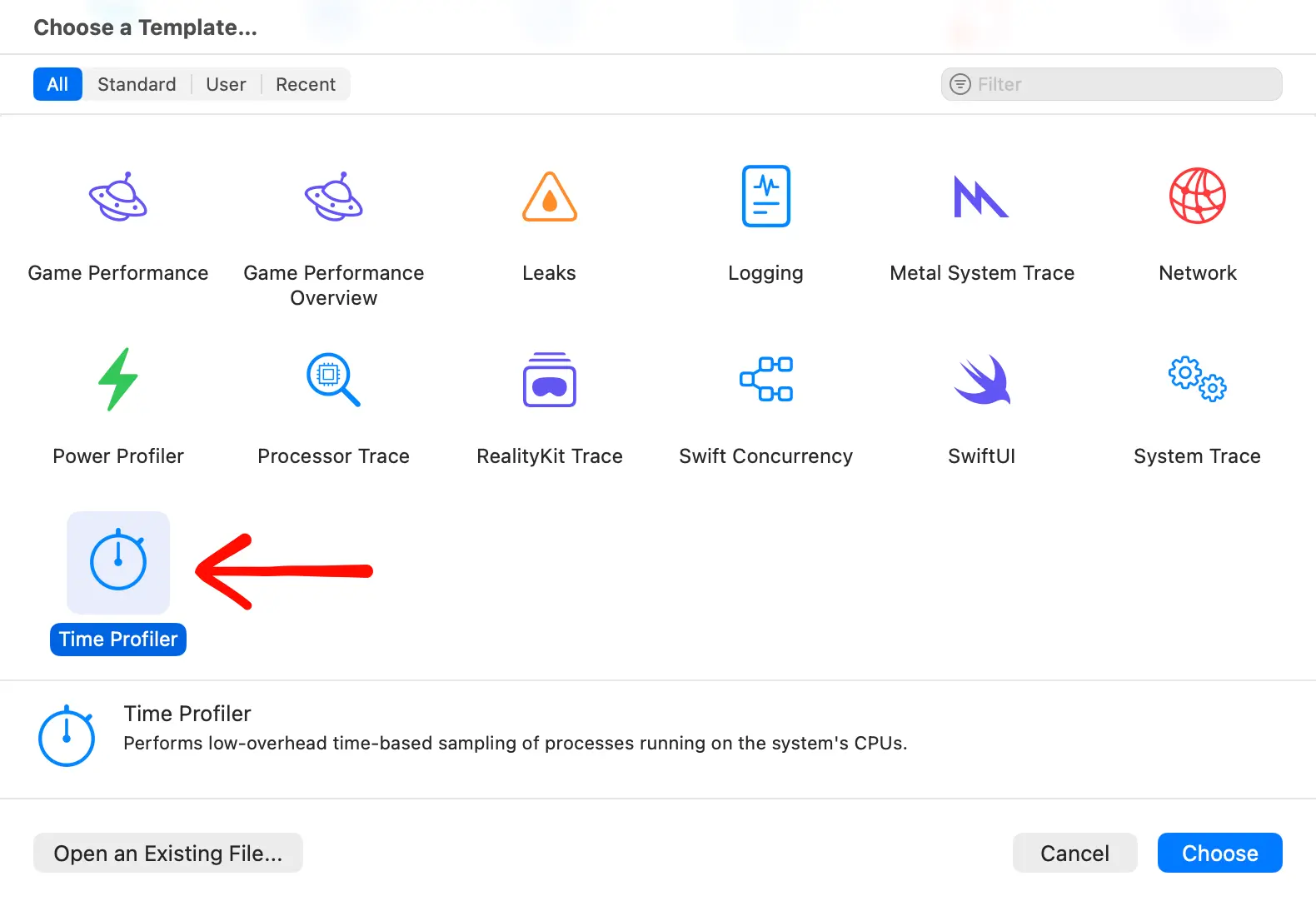
491. In the `Time Profiler` configuration, set the target to the running Zed process
501. Start recording
51 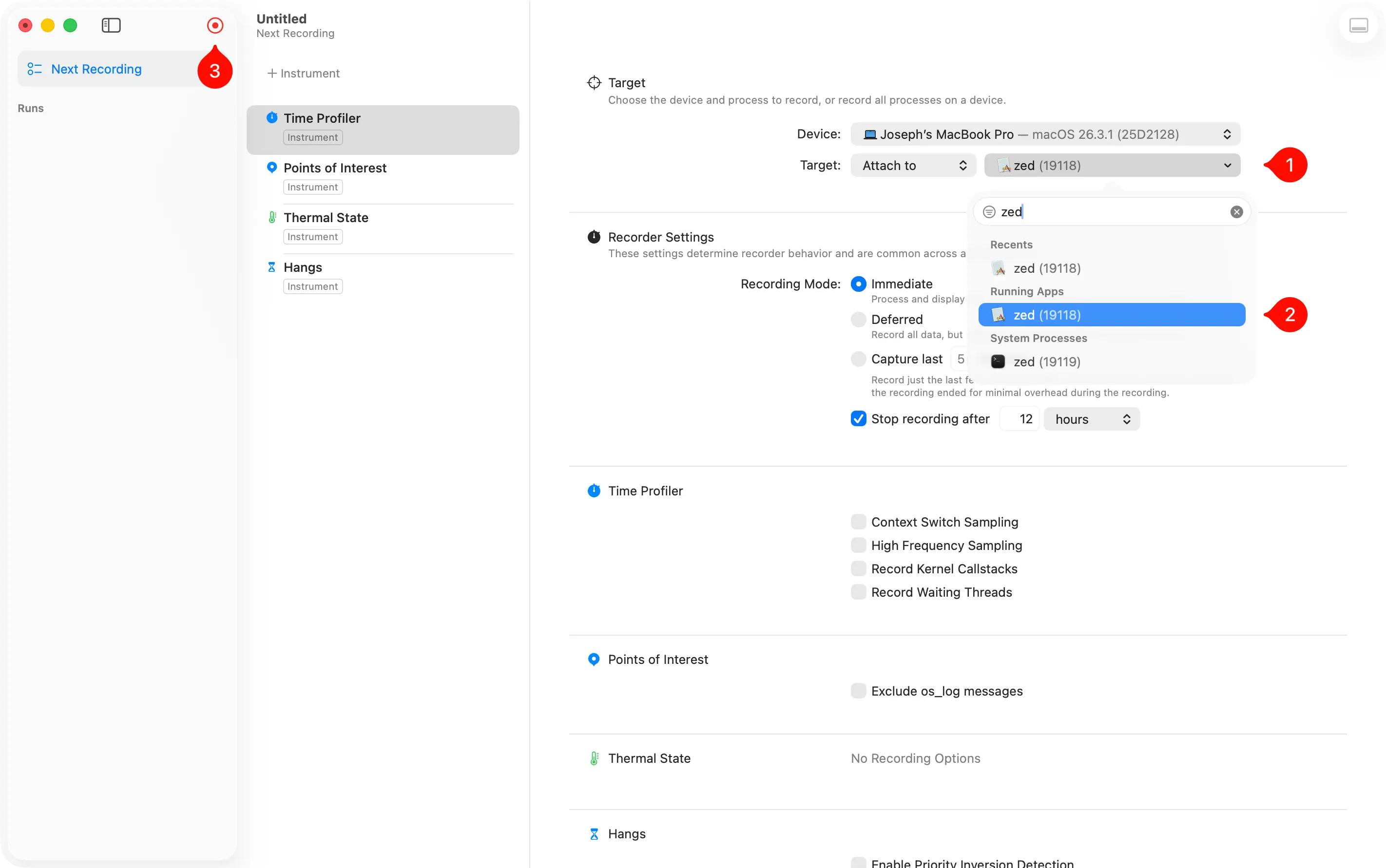
521. Perform the action in Zed that causes performance issues
531. Stop recording
54 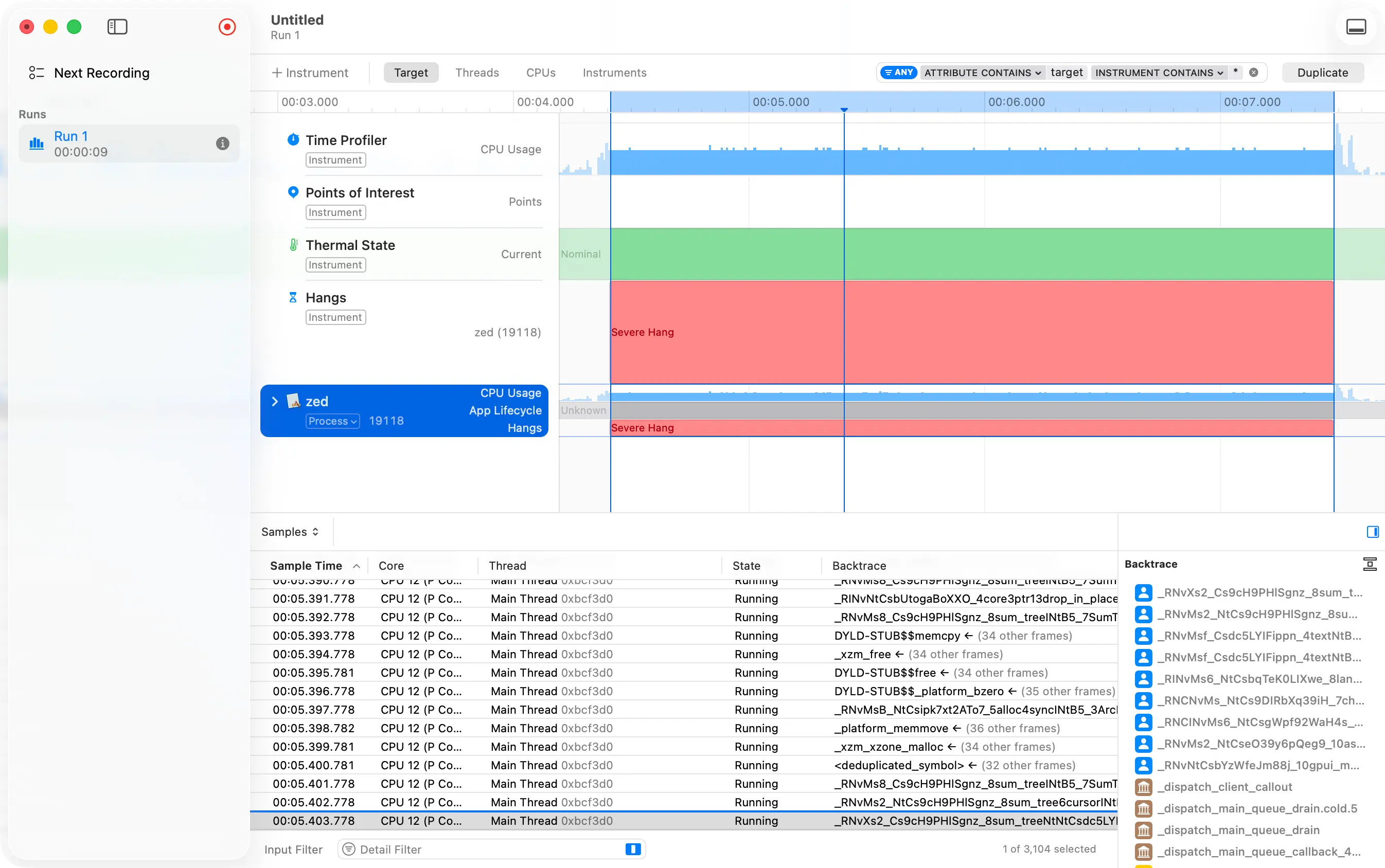
551. Save the trace file
561. Compress the trace file into a zip archive
571. File a [GitHub issue](https://github.com/zed-industries/zed/issues/new/choose) with the trace zip attached
58
59<!--### Windows-->
60
61<!--### Linux-->
62
63## Startup and Workspace Issues
64
65Zed creates local SQLite databases to persist data relating to its workspace and your projects. These databases store, for instance, the tabs and panes you have open in a project, the scroll position of each open file, the list of all projects you've opened (for the recent projects modal picker), etc. You can find and explore these databases in the following locations:
66
67- macOS: `~/Library/Application Support/Zed/db`
68- Linux and FreeBSD: `~/.local/share/zed/db` (or within `XDG_DATA_HOME` or `FLATPAK_XDG_DATA_HOME`)
69- Windows: `%LOCALAPPDATA%\Zed\db`
70
71The naming convention of these databases takes on the form of `0-<zed_channel>`:
72
73- Stable: `0-stable`
74- Preview: `0-preview`
75- Nightly: `0-nightly`
76- Dev: `0-dev`
77
78While rare, we've seen a few cases where workspace databases became corrupted, which prevented Zed from starting.
79If you're experiencing startup issues, you can test whether it's workspace-related by temporarily moving the database from its location, then trying to start Zed again.
80
81> **Note**: Moving the workspace database will cause Zed to create a fresh one.
82> Your recent projects, open tabs, etc. will be reset to "factory".
83
84If your issue persists after regenerating the database, please [file an issue](https://github.com/zed-industries/zed/issues/new/choose).
85
86## Language Server Issues
87
88If you're experiencing language-server related issues, such as stale diagnostics or issues jumping to definitions, restarting the language server via {#action editor::RestartLanguageServer} from the command palette will often resolve the issue.
89
90## Agent Error Messages
91
92### "Max tokens reached"
93
94You see this error when the agent's response exceeds the model's maximum token limit. This happens when:
95
96- The agent generates an extremely long response
97- The conversation context plus the response exceeds the model's capacity
98- Tool outputs are large and consume the available token budget
99
100**To resolve this:**
101
1021. Start a new thread to reduce context size
1032. Use a model with a larger token limit in AI settings
1043. Break your request into smaller, focused tasks
1054. Clear tool outputs or previous messages using the thread controls
106
107The token limit varies by model—check your model provider's documentation for specific limits.