1# Getting Started
2
3Welcome to Zed! We are excited to have you. Here is a jumping-off point to getting started.
4
5## Download Zed
6
7### macOS
8
9Get the latest stable builds via [the download page](https://zed.dev/download). If you want to download our preview build, you can find it on its [releases page](https://zed.dev/releases/preview). After the first manual installation, Zed will periodically check for install updates.
10
11You can also install Zed stable via Homebrew:
12
13```sh
14brew install --cask zed
15```
16
17As well as Zed preview:
18
19```sh
20brew install --cask zed@preview
21```
22
23### Linux
24
25For most Linux users, the easiest way to install Zed is through our installation script:
26
27```sh
28curl -f https://zed.dev/install.sh | sh
29```
30
31If you'd like to help us test our new features, you can also install our preview build:
32
33```sh
34curl -f https://zed.dev/install.sh | ZED_CHANNEL=preview sh
35```
36
37This script supports `x86_64` and `AArch64`, as well as common Linux distributions: Ubuntu, Arch, Debian, RedHat, CentOS, Fedora, and more.
38
39If Zed is installed using this installation script, it can be uninstalled at any time by running the shell command `zed --uninstall`. The shell will then prompt you whether you'd like to keep your preferences or delete them. After making a choice, you should see a message that Zed was successfully uninstalled.
40
41If this script is insufficient for your use case, you run into problems running Zed, or there are errors in uninstalling Zed, please see our [Linux-specific documentation](./linux.md).
42
43## Command Palette
44
45The Command Palette is the main way to access pretty much any functionality that's available in Zed. Its keybinding is the first one you should make yourself familiar with. To open it, hit: {#kb command_palette::Toggle}.
46
47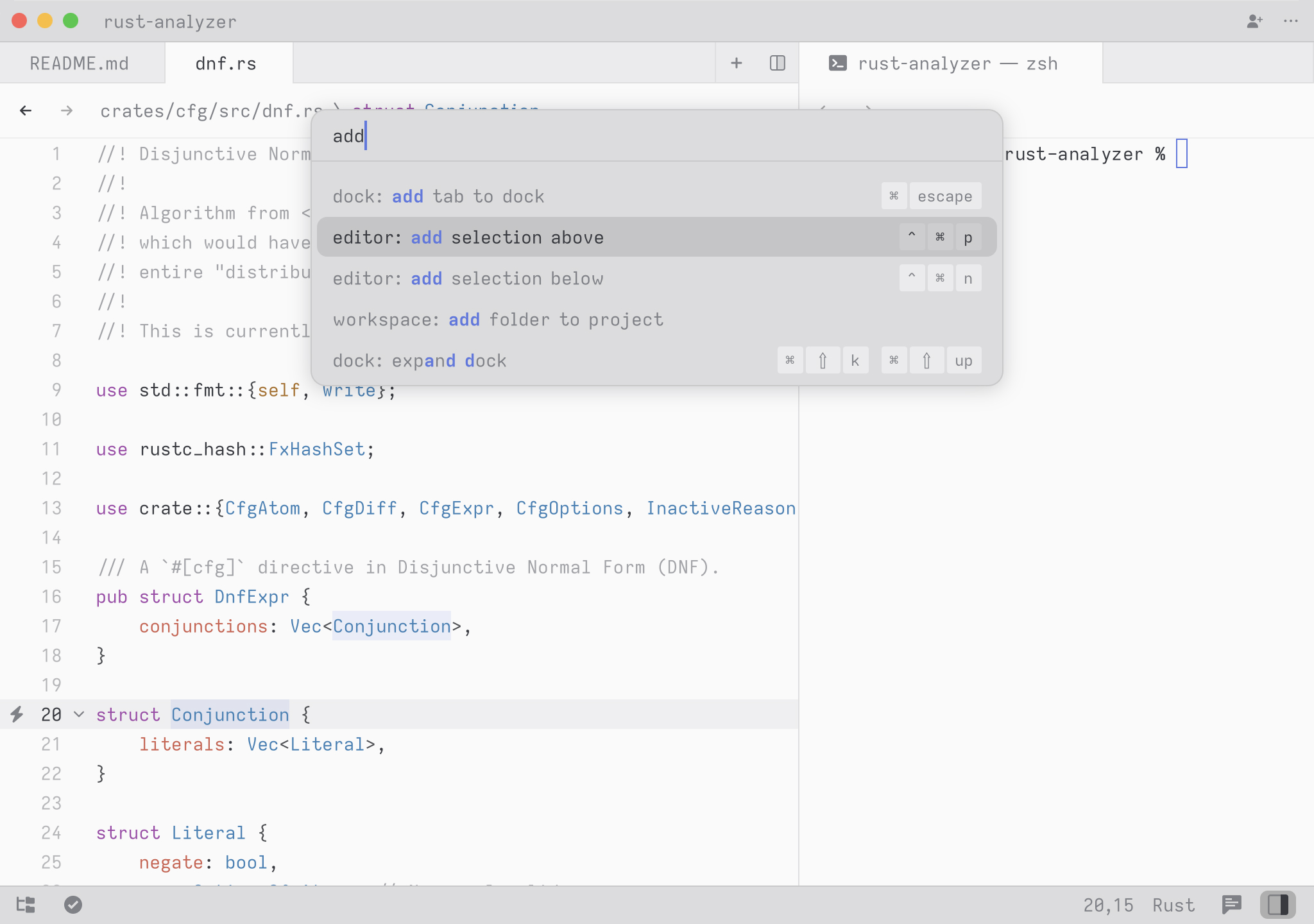
48
49Try it! Open the Command Palette and type in `new file`. You should see the list of commands being filtered down to `workspace: new file`. Hit return and you end up with a new buffer.
50
51Any time you see instructions that include commands of the form `zed: ...` or `editor: ...` and so on that means you need to execute them in the Command Palette.
52
53## Configure Zed
54
55To open your custom settings to set things like fonts, formatting settings, per-language settings, and more, use the {#kb zed::OpenSettings} keybinding.
56
57To see all available settings, open the Command Palette with {#kb command_palette::Toggle} and search for `zed: open default settings`.
58You can also check them all out in the [Configuring Zed](./configuring-zed.md) documentation.
59
60## Configure AI in Zed
61
62Zed smoothly integrates LLMs in multiple ways across the editor.
63Visit [the AI overview page](./ai/overview.md) to learn how to quickly get started with LLMs on Zed.
64
65## Set up your key bindings
66
67To open your custom keymap to add your key bindings, use the {#kb zed::OpenKeymap} keybinding.
68
69To access the default key binding set, open the Command Palette with {#kb command_palette::Toggle} and search for "zed: open default keymap". See [Key Bindings](./key-bindings.md) for more info.