1# Text Threads
2
3## Overview {#overview}
4
5Text threads in the [Agent Panel](./agent-panel.md) function similarly to any other editor. You can use custom key bindings and work with multiple cursors, allowing for seamless transitions between coding and engaging in discussions with the language models.
6
7However, the text threads differ with the inclusion of message blocks. These blocks serve as containers for text that correspond to different roles within the context. These roles include:
8
9- `You`
10- `Assistant`
11- `System`
12
13To begin, type a message in a `You` block.
14
15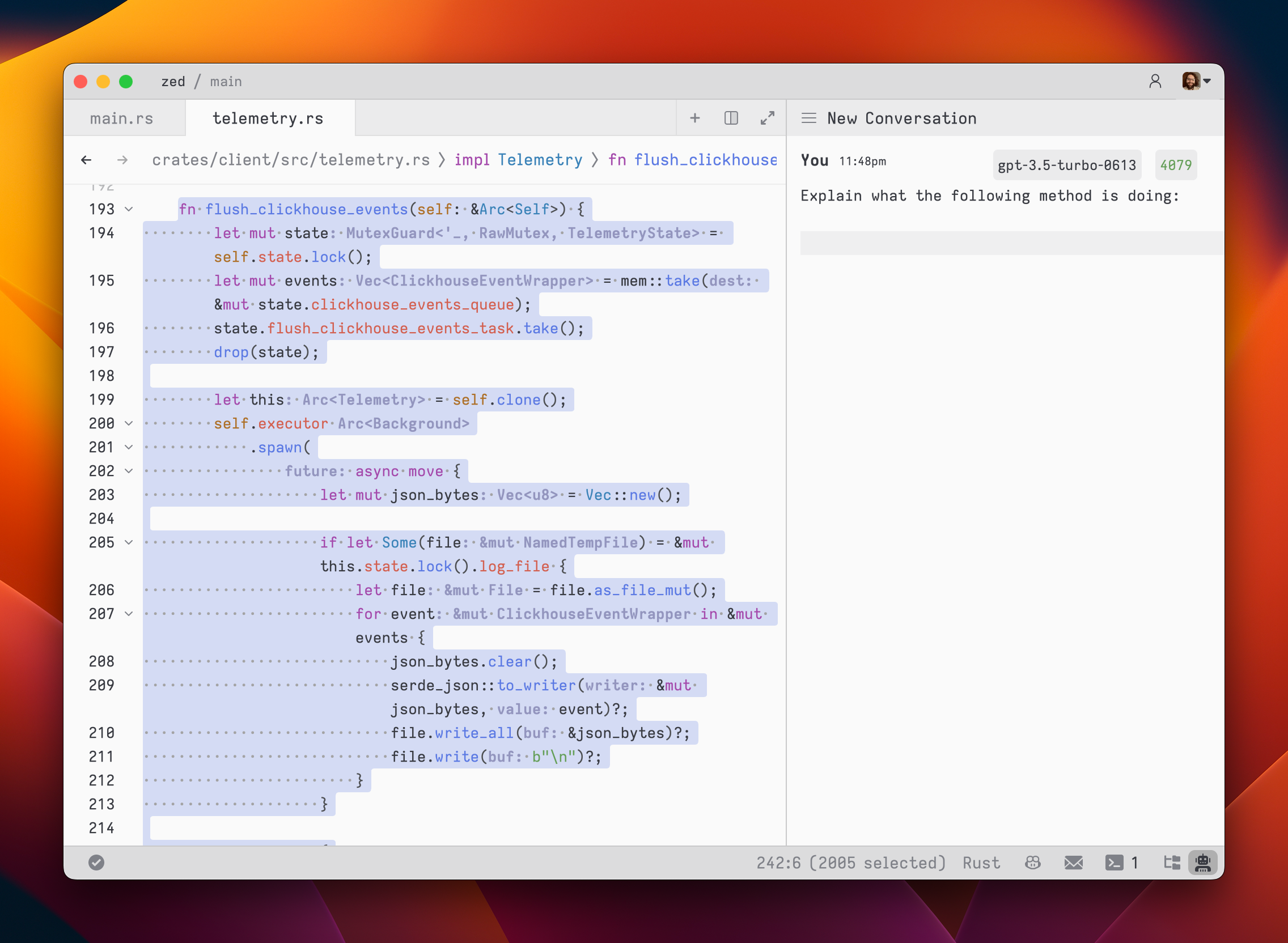
16
17As you type, the remaining tokens count for the selected model is updated.
18
19Inserting text from an editor is as simple as highlighting the text and running `assistant: quote selection` ({#kb assistant::QuoteSelection}); Zed will wrap it in a fenced code block if it is code.
20
21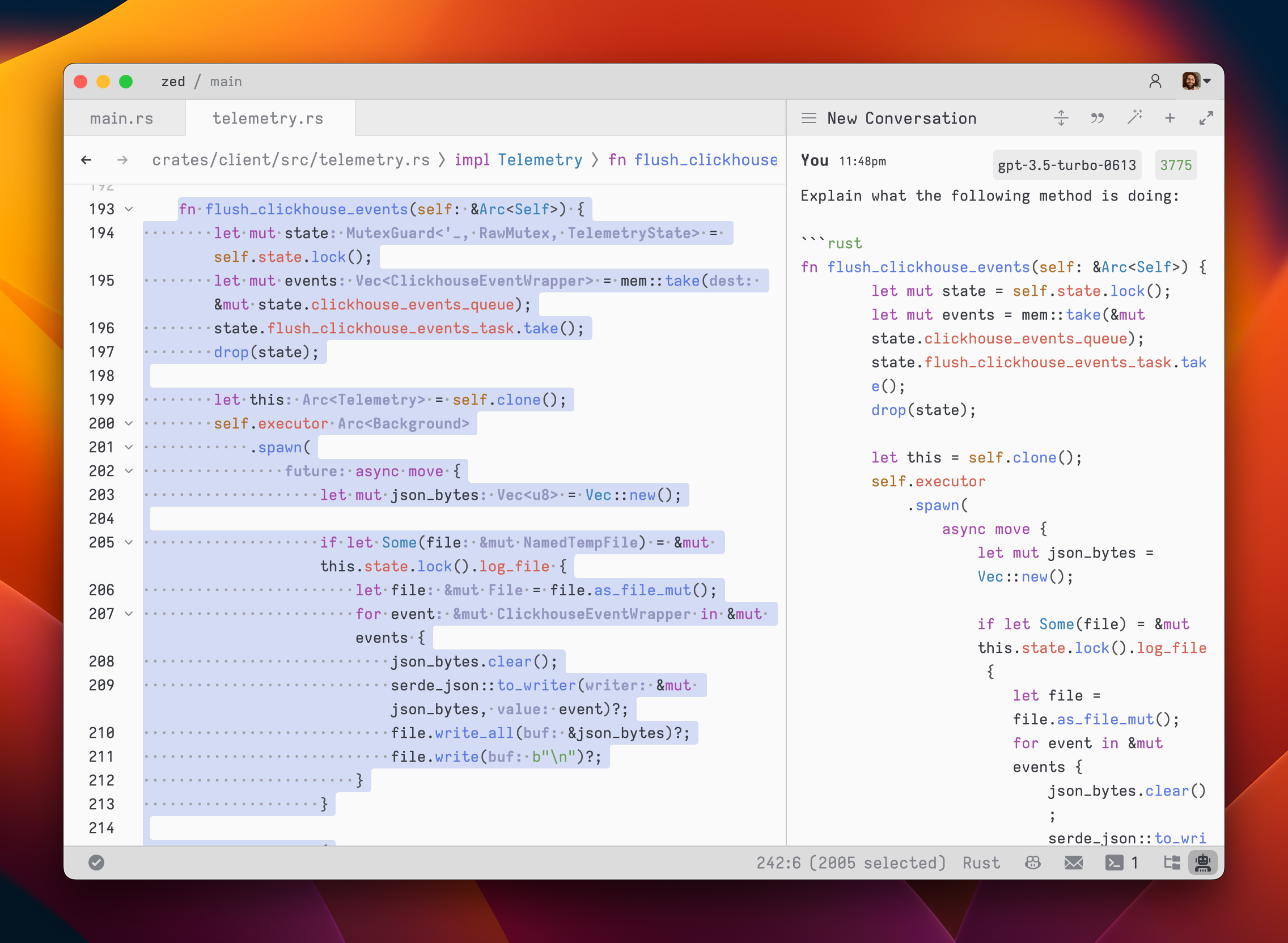
22
23To submit a message, use {#kb assistant::Assist}(`assistant: assist`). Unlike normal threads, where pressing <kbd>enter</kbd> would submit the message, in text threads, our goal is to make it feel as close to a regular editor as possible. So, pressing {#kb editor::Newline} simply inserts a new line.
24
25After submitting a message, the response will be streamed below, in an `Assistant` message block.
26
27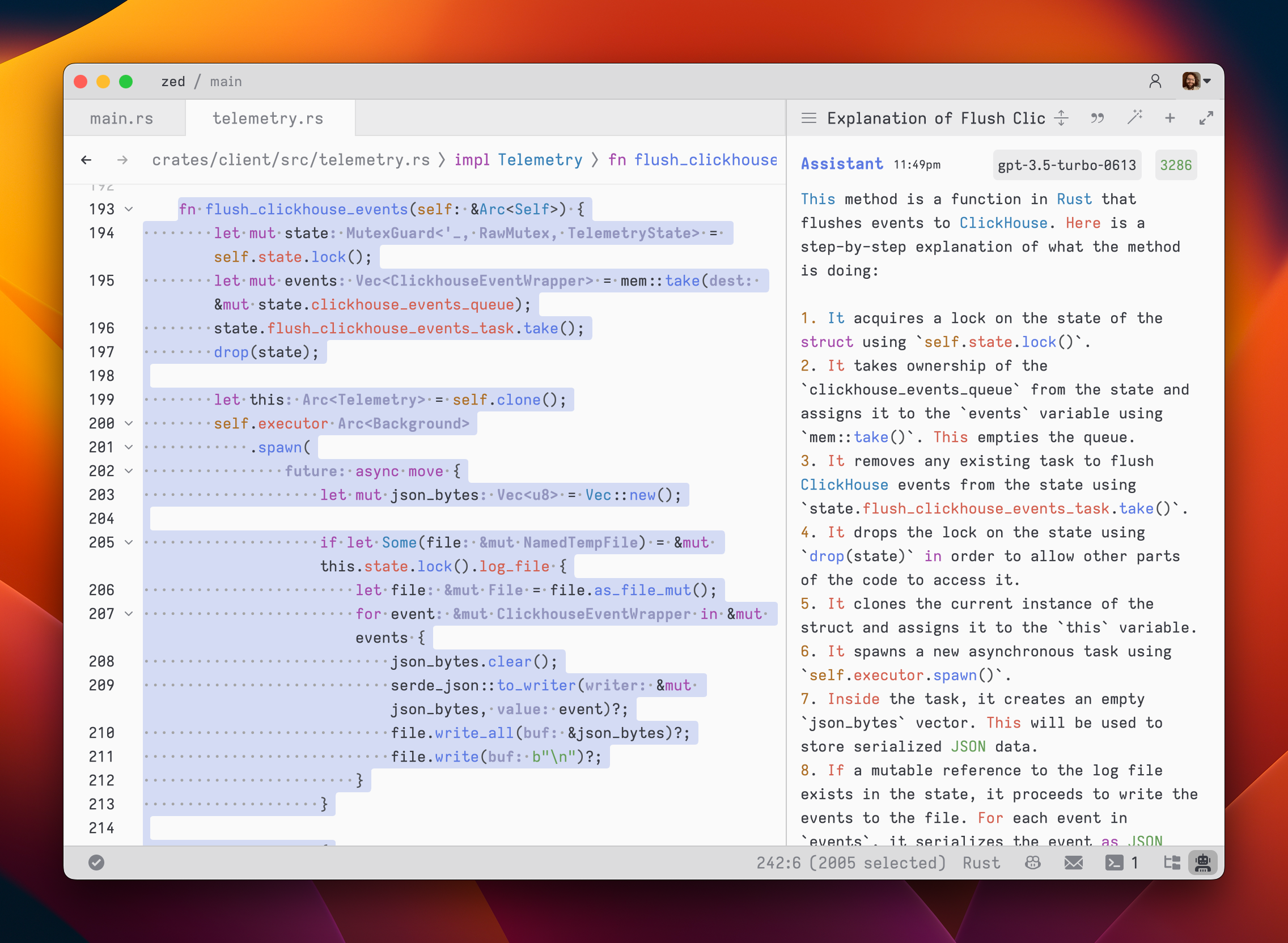
28
29The stream can be canceled at any point with <kbd>escape</kbd>. This is useful if you realize early on that the response is not what you were looking for.
30
31If you want to start a new conversation at any time, you can hit <kbd>cmd-n|ctrl-n</kbd> or use the `New Chat` menu option in the hamburger menu at the top left of the panel.
32
33Simple back-and-forth conversations work well with the text threads. However, there may come a time when you want to modify the previous text in the conversation and steer it in a different direction.
34
35## Editing a Context {#edit-context}
36
37> **Note**: Wondering about Context vs. Conversation? [Read more here](./contexts.md).
38
39Text threads give you the flexibility to have control over the context. You can freely edit any previous text, including the responses from the LLM. If you want to remove a message block entirely, simply place your cursor at the beginning of the block and use the `delete` key. A typical workflow might involve making edits and adjustments throughout the context to refine your inquiry or provide additional information. Here's an example:
40
411. Write text in a `You` block.
422. Submit the message with {#kb assistant::Assist}.
433. Receive an `Assistant` response that doesn't meet your expectations.
444. Cancel the response with <kbd>escape</kbd>.
455. Erase the content of the `Assistant` message block and remove the block entirely.
466. Add additional context to your original message.
477. Submit the message with {#kb assistant::Assist}.
48
49Being able to edit previous messages gives you control over how tokens are used. You don't need to start up a new chats to correct a mistake or to add additional information, and you don't have to waste tokens by submitting follow-up corrections.
50
51> **Note**: The act of editing past messages is often referred to as "Rewriting History" in the context of the language models.
52
53Some additional points to keep in mind:
54
55- You can cycle the role of a message block by clicking on the role, which is useful when you receive a response in an `Assistant` block that you want to edit and send back up as a `You` block.
56
57## Commands Overview {#commands}
58
59Slash commands enhance the assistant's capabilities. Begin by typing a `/` at the beginning of the line to see a list of available commands:
60
61- `/default`: Inserts the default prompt into the context
62- `/diagnostics`: Injects errors reported by the project's language server into the context
63- `/fetch`: Fetches the content of a webpage and inserts it into the context
64- `/file`: Inserts a single file or a directory of files into the context
65- `/now`: Inserts the current date and time into the context
66- `/prompt`: Adds a custom-configured prompt to the context ([see Rules Library](./rules.md#rules-library))
67- `/symbols`: Inserts the current tab's active symbols into the context
68- `/tab`: Inserts the content of the active tab or all open tabs into the context
69- `/terminal`: Inserts a select number of lines of output from the terminal
70- `/selection`: Inserts the selected text into the context
71
72### Other Commands:
73
74- `/search`: Performs semantic search for content in your project based on natural language
75 - Not generally available yet, but some users may have access to it.
76
77> **Note:** Remember, commands are only evaluated when the context is created or when the command is inserted, so a command like `/now` won't continuously update, or `/file` commands won't keep their contents up to date.
78
79#### `/default`
80
81Read more about `/default` in the [Rules: Editing the Default Rules](./rules.md#default-rules) section.
82
83Usage: `/default`
84
85#### `/diagnostics`
86
87The `/diagnostics` command injects errors reported by the project's language server into the context. This is useful for getting an overview of current issues in your project.
88
89Usage: `/diagnostics [--include-warnings] [path]`
90
91- `--include-warnings`: Optional flag to include warnings in addition to errors.
92- `path`: Optional path to limit diagnostics to a specific file or directory.
93
94#### `/file`
95
96The `/file` command inserts the content of a single file or a directory of files into the context. This allows you to reference specific parts of your project in your conversation with the assistant.
97
98Usage: `/file <path>`
99
100You can use glob patterns to match multiple files or directories.
101
102Examples:
103
104- `/file src/index.js` - Inserts the content of `src/index.js` into the context.
105- `/file src/*.js` - Inserts the content of all `.js` files in the `src` directory.
106- `/file src` - Inserts the content of all files in the `src` directory.
107
108#### `/now`
109
110The `/now` command inserts the current date and time into the context. This can be useful letting the language model know the current time (and by extension, how old their current knowledge base is).
111
112Usage: `/now`
113
114#### `/prompt`
115
116The `/prompt` command inserts a prompt from the prompt library into the context. It can also be used to nest prompts within prompts.
117
118Usage: `/prompt <prompt_name>`
119
120Related: `/default`
121
122#### `/symbols`
123
124The `/symbols` command inserts the active symbols (functions, classes, etc.) from the current tab into the context. This is useful for getting an overview of the structure of the current file.
125
126Usage: `/symbols`
127
128#### `/tab`
129
130The `/tab` command inserts the content of the active tab or all open tabs into the context. This allows you to reference the content you're currently working on.
131
132Usage: `/tab [tab_name|all]`
133
134- `tab_name`: Optional name of a specific tab to insert.
135- `all`: Insert content from all open tabs.
136
137Examples:
138
139- `/tab` - Inserts the content of the active tab.
140- `/tab "index.js"` - Inserts the content of the tab named "index.js".
141- `/tab all` - Inserts the content of all open tabs.
142
143#### `/terminal`
144
145The `/terminal` command inserts a select number of lines of output from the terminal into the context. This is useful for referencing recent command outputs or logs.
146
147Usage: `/terminal [<number>]`
148
149- `<number>`: Optional parameter to specify the number of lines to insert (default is a 50).
150
151#### `/selection`
152
153The `/selection` command inserts the selected text in the editor into the context. This is useful for referencing specific parts of your code.
154
155This is equivalent to the `assistant: quote selection` command ({#kb assistant::QuoteSelection}).
156
157Usage: `/selection`
158
159## Commands in the Rules Library (previously known as Prompt Library) {#slash-commands-in-rules}
160
161[Commands](#commands) can be used in rules to insert dynamic content or perform actions. For example, if you want to create a rule where it is important for the model to know the date, you can use the `/now` command to insert the current date.
162
163> **Warn:** Slash commands in rules **only** work when they are used in text threads. Using them in non-text threads is not supported.
164
165> **Note:** Slash commands in rules **must** be on their own line.
166
167See the [list of commands](#commands) above for more information on commands, and what slash commands are available.
168
169### Example:
170
171```plaintext
172You are an expert Rust engineer. The user has asked you to review their project and answer some questions.
173
174Here is some information about their project:
175
176/file Cargo.toml
177```
178
179In the above example, the `@file` command is used to insert the contents of the `Cargo.toml` file (or all `Cargo.toml` files present in the project) into the rule.
180
181## Nesting Rules
182
183Similar to adding rules to the default rules, you can nest rules within other rules with the `/prompt` command (only supported in Text Threads currently).
184
185You might want to nest rules to:
186
187- Create templates on the fly
188- Break collections like docs or references into smaller, mix-and-matchable parts
189- Create variants of a similar rule (e.g., `Async Rust - Tokio` vs. `Async Rust - Async-std`)
190
191### Example:
192
193```plaintext
194Title: Zed-Flavored Rust
195
196## About Zed
197
198/prompt Zed: Zed (a rule about what Zed is)
199
200## Rust - Zed Style
201
202/prompt Rust: Async - Async-std (zed doesn't use tokio)
203/prompt Rust: Zed-style Crates (we have some unique conventions)
204/prompt Rust - Workspace deps (bias towards reusing deps from the workspace)
205```
206
207_The text in parentheses above are comments and are not part of the rule._
208
209> **Note:** While you technically _can_ nest a rule within itself, we wouldn't recommend it (in the strongest of terms.) Use at your own risk!
210
211By using nested rules, you can create modular and reusable rule components that can be combined in various ways to suit different scenarios.
212
213> **Note:** When using slash commands to bring in additional context, the injected content can be edited directly inline in the text thread—edits here will not propagate to the saved rules.
214
215## Extensibility
216
217Additional slash commands can be provided by extensions.
218
219See [Extension: Slash Commands](../extensions/slash-commands.md) to learn how to create your own.
220
221## Advanced Concepts
222
223### Rule Templates {#rule-templates}
224
225Zed uses rule templates to power internal assistant features, like the terminal assistant, or the content rules used in the inline assistant.
226
227Zed has the following internal rule templates:
228
229- `content_prompt.hbs`: Used for generating content in the editor.
230- `terminal_assistant_prompt.hbs`: Used for the terminal assistant feature.
231
232At this point it is unknown if we will expand templates further to be user-creatable.
233
234### Overriding Templates
235
236> **Note:** It is not recommended to override templates unless you know what you are doing. Editing templates will break your assistant if done incorrectly.
237
238Zed allows you to override the default rules used for various assistant features by placing custom Handlebars (.hbs) templates in your `~/.config/zed/prompt_overrides` directory.
239
240The following templates can be overridden:
241
2421. [`content_prompt.hbs`](https://github.com/zed-industries/zed/tree/main/assets/prompts/content_prompt.hbs): Used for generating content in the editor.
243
2442. [`terminal_assistant_prompt.hbs`](https://github.com/zed-industries/zed/tree/main/assets/prompts/terminal_assistant_prompt.hbs): Used for the terminal assistant feature.
245
246> **Note:** Be sure you want to override these, as you'll miss out on iteration on our built-in features. This should be primarily used when developing Zed.
247
248You can customize these templates to better suit your needs while maintaining the core structure and variables used by Zed. Zed will automatically reload your prompt overrides when they change on disk.
249
250Consult Zed's [assets/prompts](https://github.com/zed-industries/zed/tree/main/assets/prompts) directory for current versions you can play with.
251
252### History {#history}
253
254After you submit your first message in a text thread, a name for your context is generated by the language model, and the context is automatically saved to your file system in
255
256- `~/.config/zed/conversations` (macOS)
257- `~/.local/share/zed/conversations` (Linux)
258- `%LocalAppData%\Zed\conversations` (Windows)
259
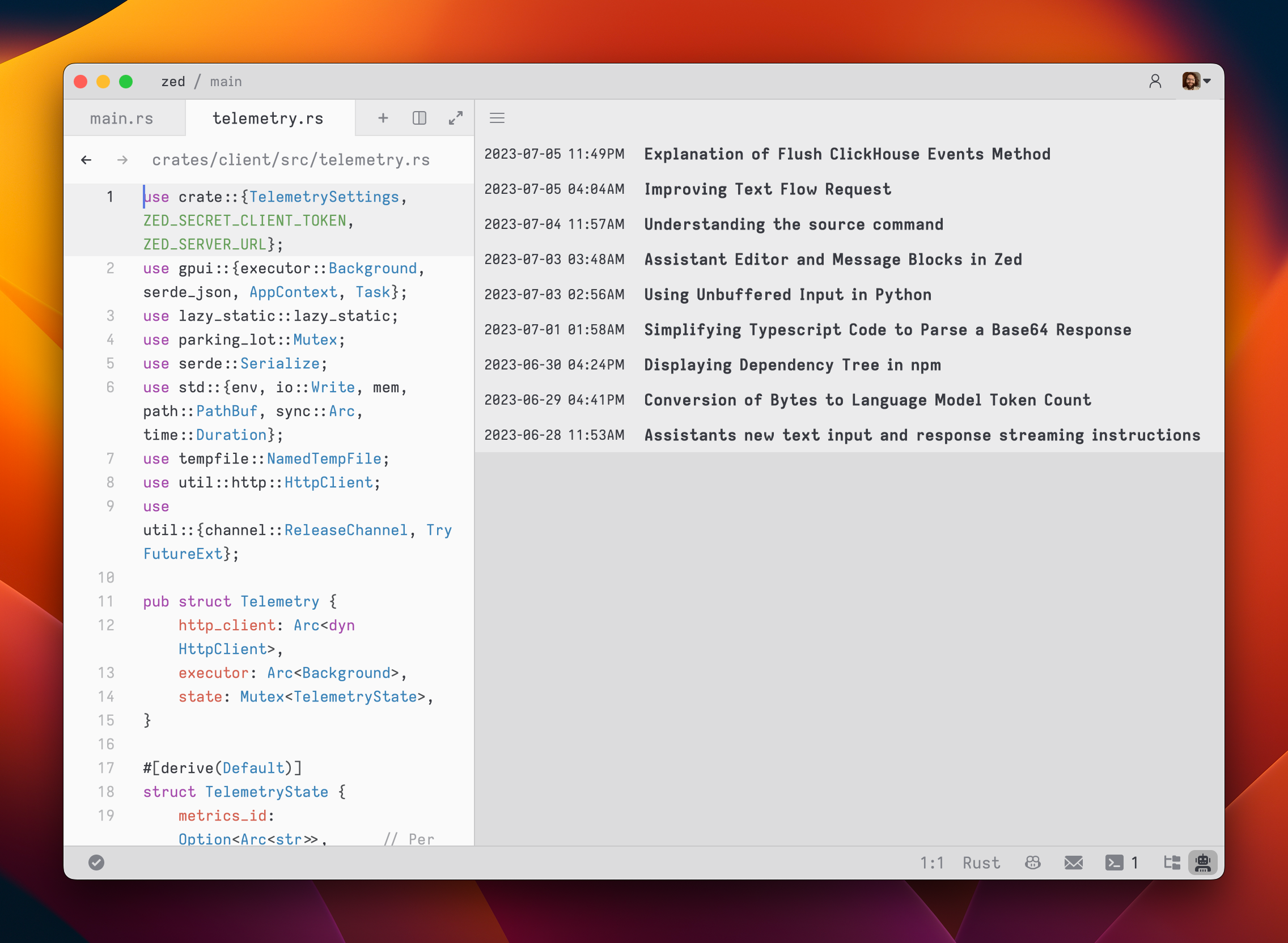
260You can access and load previous contexts by clicking on the history button in the top-left corner of the agent panel.
261
262