1# Tab Switcher
2
3The Tab Switcher provides a quick way to navigate between open tabs in Zed. It
4displays a list of your open tabs sorted by recent usage, making it easy to jump
5back to whatever you were just working on.
6
7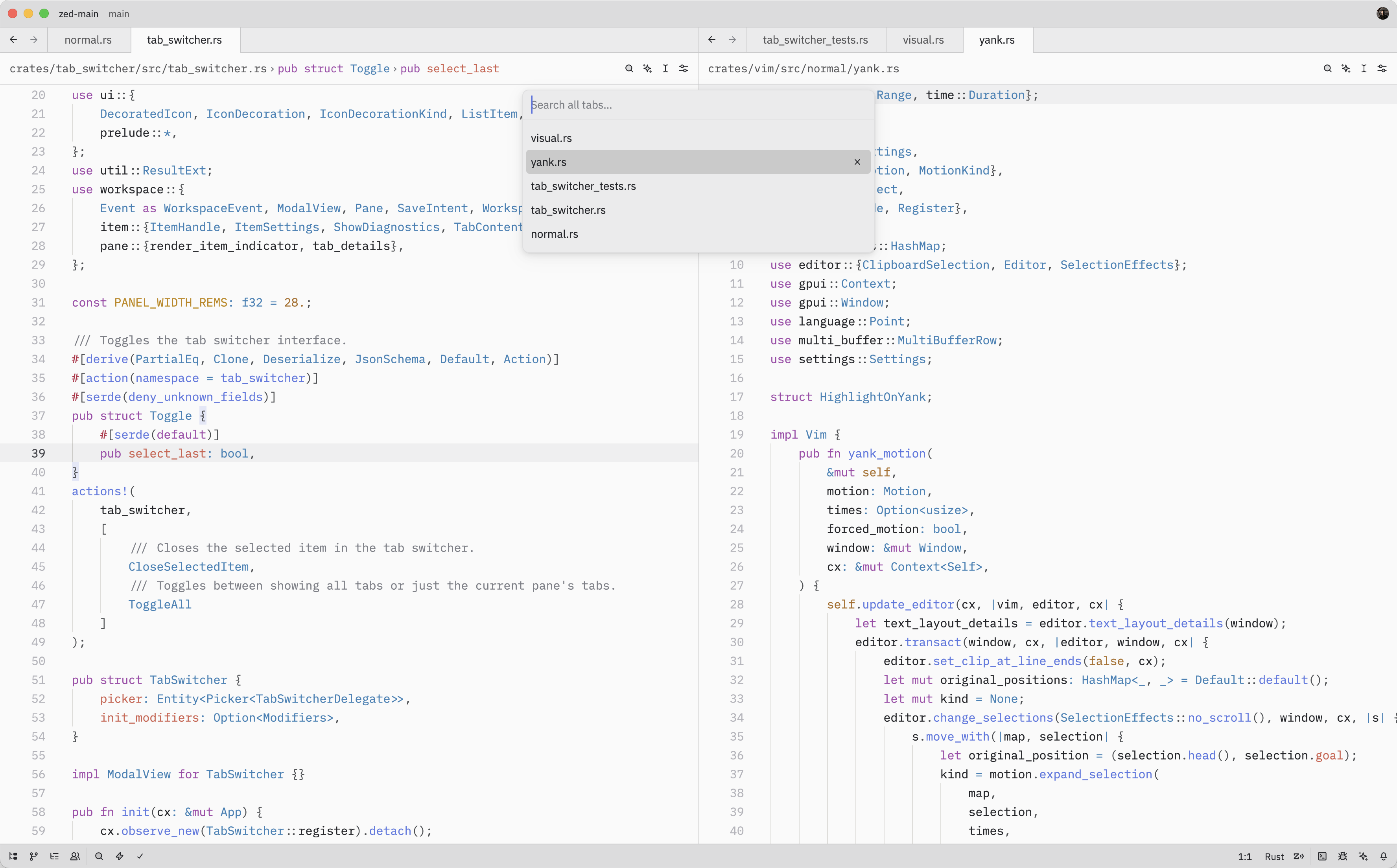
8
9## Quick Switching
10
11When the Tab Switcher is opened using {#kb tab_switcher::Toggle}, instead of
12running the {#action tab_switcher::Toggle} from the command palette, it'll stay
13active as long as the <kbd class="keybinding">ctrl</kbd> key is held down.
14
15While holding down <kbd class="keybinding">ctrl</kbd>, each subsequent <kbd
16class="keybinding">tab</kbd> press cycles to the next item (<kbd
17class="keybinding">shift</kbd> to cycle backwards) and, when <kbd
18class="keybinding">ctrl</kbd> is released, the selected item is confirmed and
19the switcher is closed.
20
21## Opening the Tab Switcher
22
23The Tab Switcher can also be opened with either {#action tab_switcher::Toggle} ({#kb tab_switcher::Toggle})
24or {#action tab_switcher::ToggleAll}.
25
26While the Tab Switcher is open, you can:
27
28- Press {#kb menu::SelectNext} to move to the next tab in the list
29- Press {#kb menu::SelectPrevious} to move to the previous tab
30- Press <kbd class="keybinding">enter</kbd> to confirm the selected tab and close the switcher
31- Press <kbd class="keybinding">escape</kbd> to close the switcher and return to the original tab from which
32 the switcher was opened
33- Press {#kb tab_switcher::CloseSelectedItem} to close the currently selected tab
34
35As you navigate through the list, Zed will update the pane's active item to
36match the selected tab.
37
38## Action Reference
39
40| Action | Description |
41| ----------------------------------------- | ------------------------------------------------- |
42| {#action tab_switcher::Toggle} | Open the Tab Switcher for the current pane |
43| {#action tab_switcher::ToggleAll} | Open the Tab Switcher showing tabs from all panes |
44| {#action tab_switcher::CloseSelectedItem} | Close the selected tab in the Tab Switcher |