1# Language model integration
2
3## Assistant Panel
4
5The assistant panel provides you with a way to interact with large language models. The assistant is good for various tasks, such as generating code, asking questions about existing code, and even writing plaintext, such as emails and documentation. To open the assistant panel, toggle the right dock by using the `workspace: toggle right dock` action in the command palette or by using the `cmd-r` (Mac) or `ctrl-alt-b` (Linux) shortcut.
6
7> **Note**: A custom [key binding](./key-bindings.md) can be set to toggle the right dock.
8
9## Setup
10
11- [OpenAI API Setup Instructions](#openai)
12- [OpenAI API Custom Endpoint](#openai-custom-endpoint)
13- [Ollama Setup Instructions](#ollama)
14- [Anthropic API Setup Instructions](#anthropic)
15- [Google Gemini API Setup Instructions](#google-gemini)
16- [GitHub Copilot Chat](#github-copilot)
17
18### Having a conversation
19
20The assistant editor in Zed functions similarly to any other editor. You can use custom key bindings and work with multiple cursors, allowing for seamless transitions between coding and engaging in discussions with the language models. However, the assistant editor differs with the inclusion of message blocks. These blocks serve as containers for text that correspond to different roles within the conversation. These roles include:
21
22- `You`
23- `Assistant`
24- `System`
25
26To begin, select a model and type a message in a `You` block.
27
28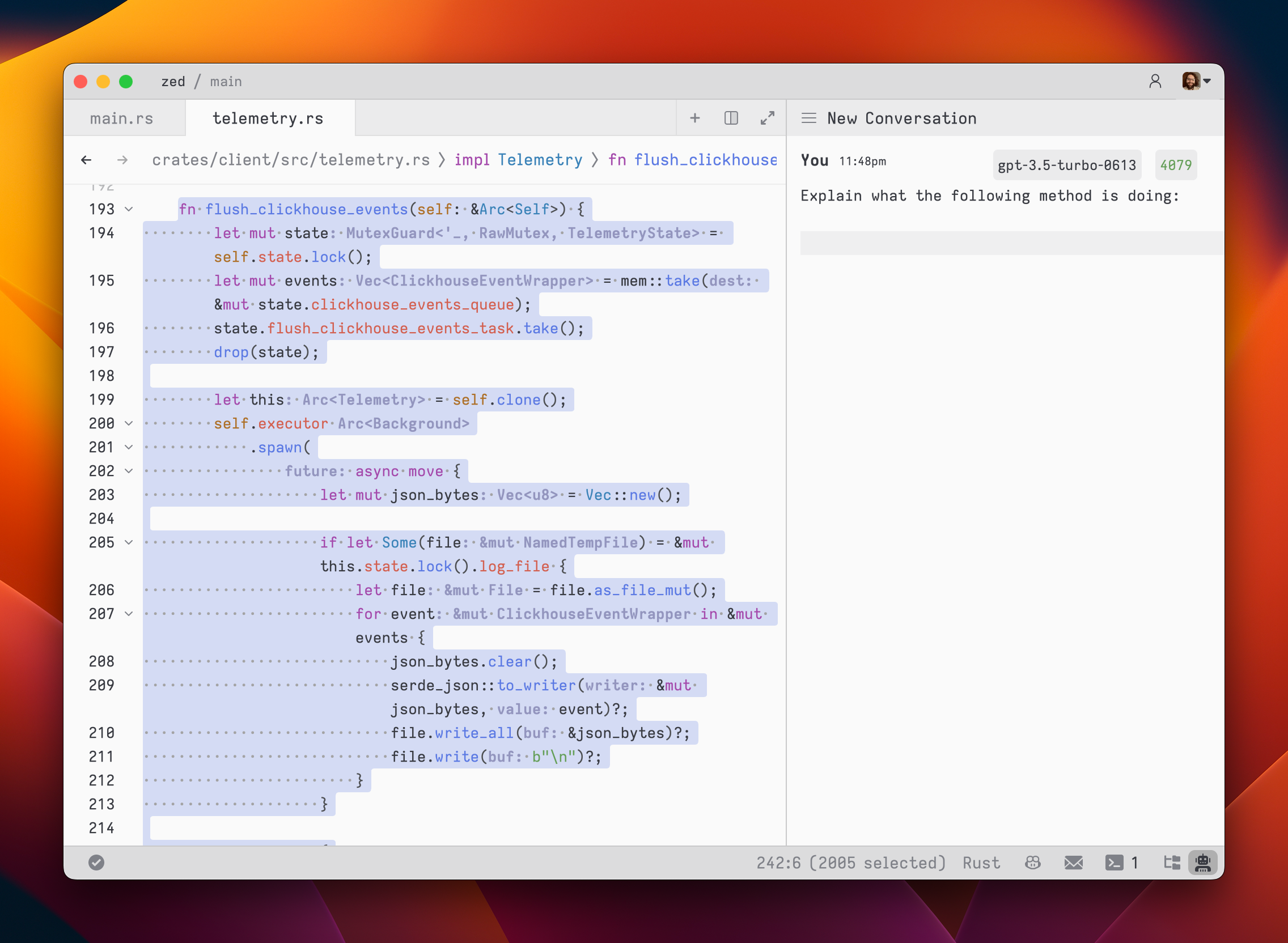
29
30As you type, the remaining tokens count for the selected model is updated.
31
32Inserting text from an editor is as simple as highlighting the text and running `cmd->` (`assistant: quote selection`); Zed will wrap it in a fenced code block if it is code.
33
34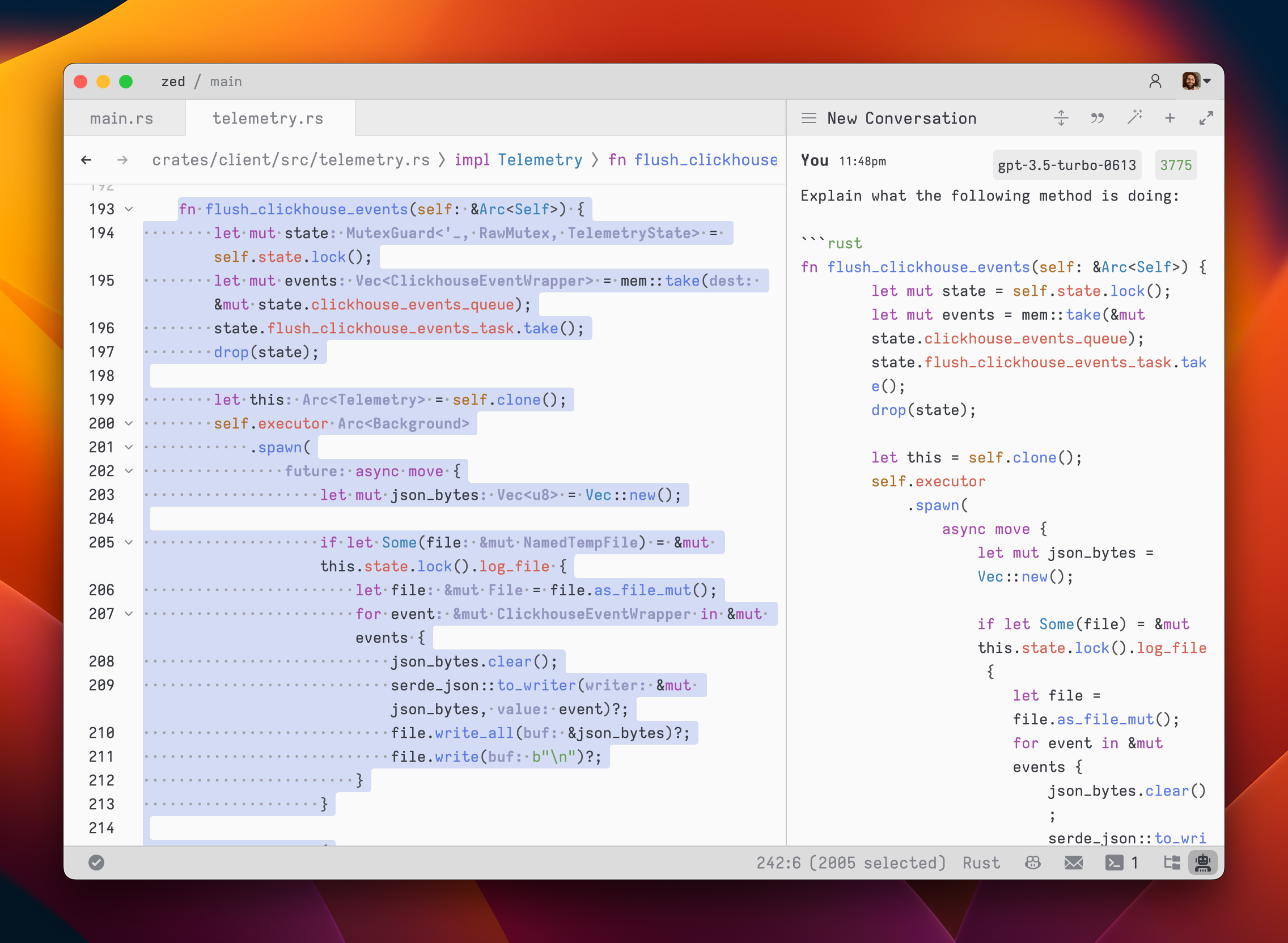
35
36To submit a message, use `cmd-enter` (`assistant: assist`). Unlike typical chat applications where pressing `enter` would submit the message, in the assistant editor, our goal was to make it feel as close to a regular editor as possible. So, pressing `enter` simply inserts a new line.
37
38After submitting a message, the assistant's response will be streamed below, in an `Assistant` message block.
39
40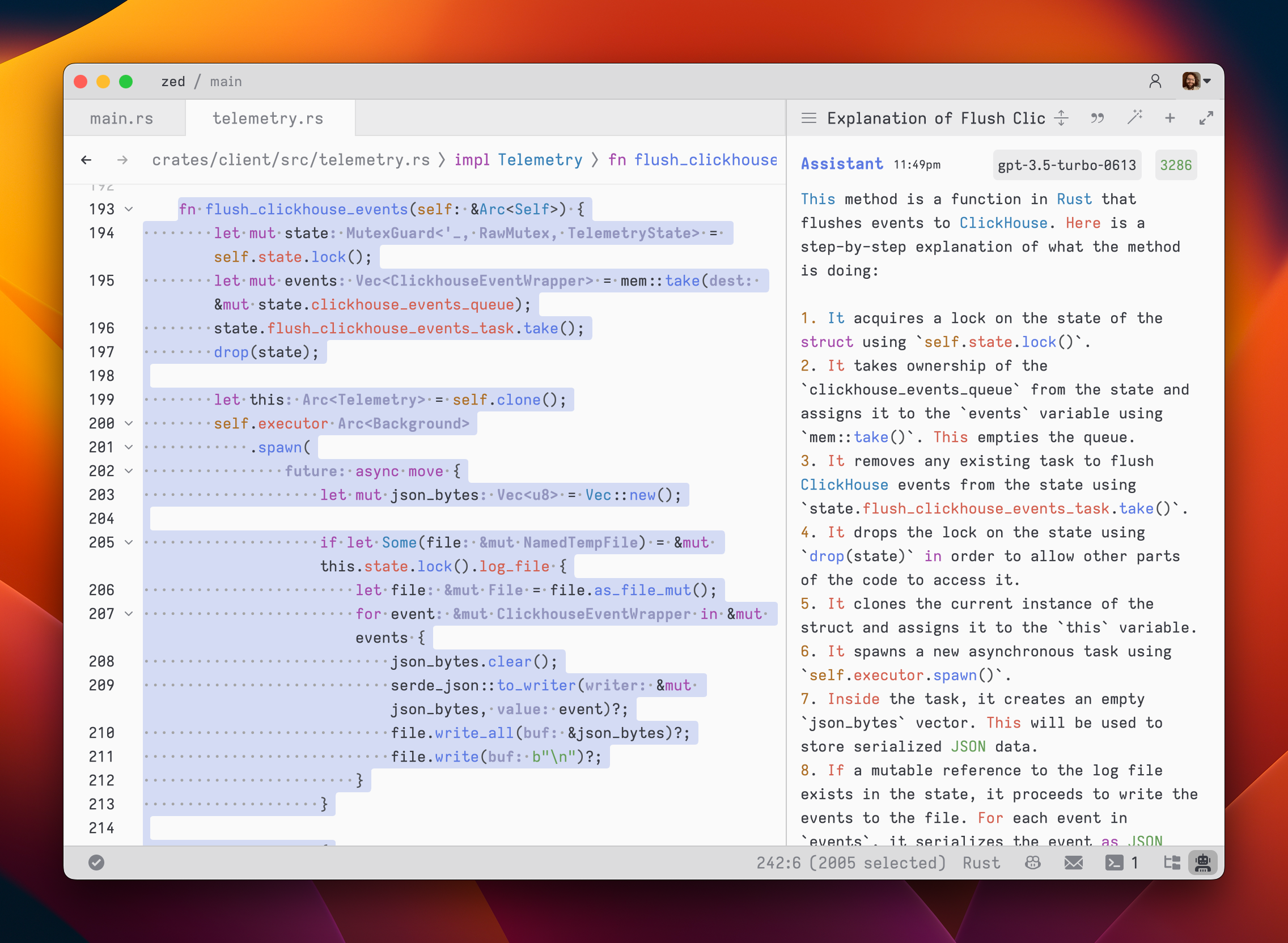
41
42The stream can be canceled at any point with `escape`. This is useful if you realize early on that the response is not what you were looking for.
43
44If you want to start a new conversation at any time, you can hit `cmd-n` or use the `New Context` menu option in the hamburger menu at the top left of the panel.
45
46Simple back-and-forth conversations work well with the assistant. However, there may come a time when you want to modify the previous text in the conversation and steer it in a different direction.
47
48### Editing a conversation
49
50The assistant gives you the flexibility to have control over the conversation. You can freely edit any previous text, including the responses from the assistant. If you want to remove a message block entirely, simply place your cursor at the beginning of the block and use the `delete` key. A typical workflow might involve making edits and adjustments throughout the conversation to refine your inquiry or provide additional context. Here's an example:
51
521. Write text in a `You` block.
532. Submit the message with `cmd-enter`
543. Receive an `Assistant` response that doesn't meet your expectations
554. Cancel the response with `escape`
565. Erase the content of the `Assistant` message block and remove the block entirely
576. Add additional context to your original message
587. Submit the message with `cmd-enter`
59
60Being able to edit previous messages gives you control over how tokens are used. You don't need to start up a new context to correct a mistake or to add additional context and you don't have to waste tokens by submitting follow-up corrections.
61
62Some additional points to keep in mind:
63
64- You are free to change the model type at any point in the conversation.
65- You can cycle the role of a message block by clicking on the role, which is useful when you receive a response in an `Assistant` block that you want to edit and send back up as a `You` block.
66
67### Saving and loading conversations
68
69After you submit your first message, a name for your conversation is generated by the language model, and the conversation is automatically saved to your file system in `~/.config/zed/conversations`. You can access and load previous messages by clicking on the hamburger button in the top-left corner of the assistant panel.
70
71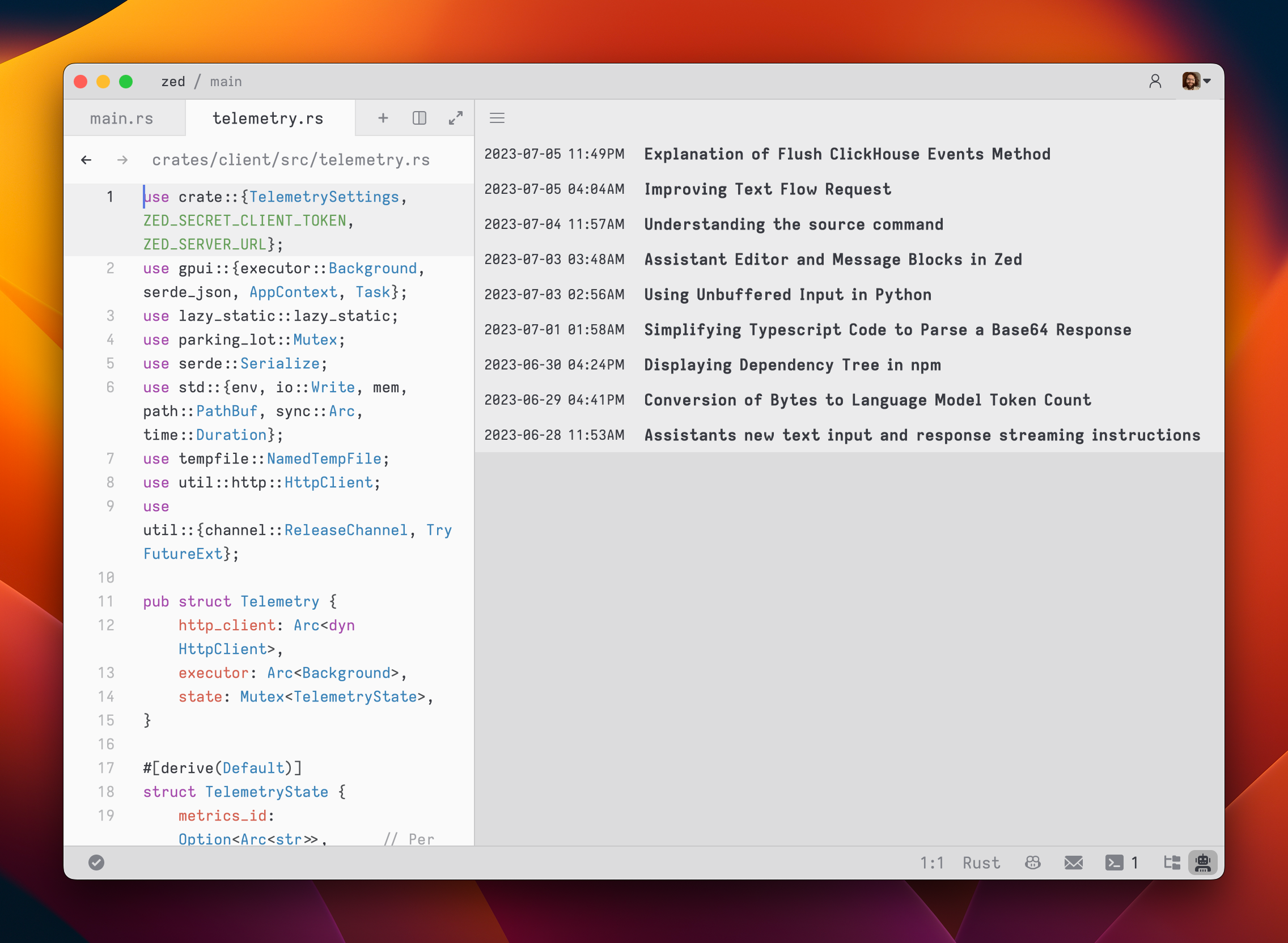
72
73## Inline generation
74
75You can generate and transform text in any editor by selecting text and pressing `ctrl-enter`.
76You can also perform multiple generation requests in parallel by pressing `ctrl-enter` with multiple cursors, or by pressing `ctrl-enter` with a selection that spans multiple excerpts in a multibuffer.
77To create a custom keybinding that prefills a prompt, you can add the following format in your keymap:
78
79```json
80[
81 {
82 "context": "Editor && mode == full",
83 "bindings": {
84 "ctrl-shift-enter": [
85 "assistant::InlineAssist",
86 { "prompt": "Build a snake game" }
87 ]
88 }
89 }
90]
91```
92
93## Advanced: Overriding prompt templates
94
95Zed allows you to override the default prompts used for various assistant features by placing custom Handlebars (.hbs) templates in your `~/.config/zed/prompts/templates` directory. The following templates can be overridden:
96
971. `content_prompt.hbs`: Used for generating content in the editor.
98 Format:
99
100 ```handlebars
101 You are an AI programming assistant. Your task is to
102 {{#if is_insert}}insert{{else}}rewrite{{/if}}
103 {{content_type}}{{#if language_name}} in {{language_name}}{{/if}}
104 based on the following context and user request. Context:
105 {{#if is_truncated}}
106 [Content truncated...]
107 {{/if}}
108 {{document_content}}
109 {{#if is_truncated}}
110 [Content truncated...]
111 {{/if}}
112
113 User request:
114 {{user_prompt}}
115
116 {{#if rewrite_section}}
117 Please rewrite the section enclosed in
118 <rewrite_this></rewrite_this>
119 tags.
120 {{else}}
121 Please insert your response at the
122 <insert_here></insert_here>
123 tag.
124 {{/if}}
125
126 Provide only the
127 {{content_type}}
128 content in your response, without any additional explanation.
129 ```
130
1312. `terminal_assistant_prompt.hbs`: Used for the terminal assistant feature.
132 Format:
133
134 ```handlebars
135 You are an AI assistant for a terminal emulator. Provide helpful responses to
136 user queries about terminal commands, file systems, and general computer
137 usage. System information: - Operating System:
138 {{os}}
139 - Architecture:
140 {{arch}}
141 {{#if shell}}
142 - Shell:
143 {{shell}}
144 {{/if}}
145 {{#if working_directory}}
146 - Current Working Directory:
147 {{working_directory}}
148 {{/if}}
149
150 Latest terminal output:
151 {{#each latest_output}}
152 {{this}}
153 {{/each}}
154
155 User query:
156 {{user_prompt}}
157
158 Provide a clear and concise response to the user's query, considering the
159 given system information and latest terminal output if relevant.
160 ```
161
1623. `edit_workflow.hbs`: Used for generating the edit workflow prompt.
163
1644. `step_resolution.hbs`: Used for generating the step resolution prompt.
165
166You can customize these templates to better suit your needs while maintaining the core structure and variables used by Zed. Zed will automatically reload your prompt overrides when they change on disk. Consult Zed's assets/prompts directory for current versions you can play with.
167
168Be sure you want to override these, as you'll miss out on iteration on our built in features. This should be primarily used when developing Zed.
169
170## Setup Instructions
171
172### OpenAI
173
174<!--
175TBD: OpenAI Setup flow: Review/Correct/Simplify
176-->
177
1781. Create an [OpenAI API key](https://platform.openai.com/account/api-keys)
1792. Make sure that your OpenAI account has credits
1803. Open the assistant panel, using either the `assistant: toggle focus` or the `workspace: toggle right dock` action in the command palette (`cmd-shift-p`).
1814. Make sure the assistant panel is focused:
182
183 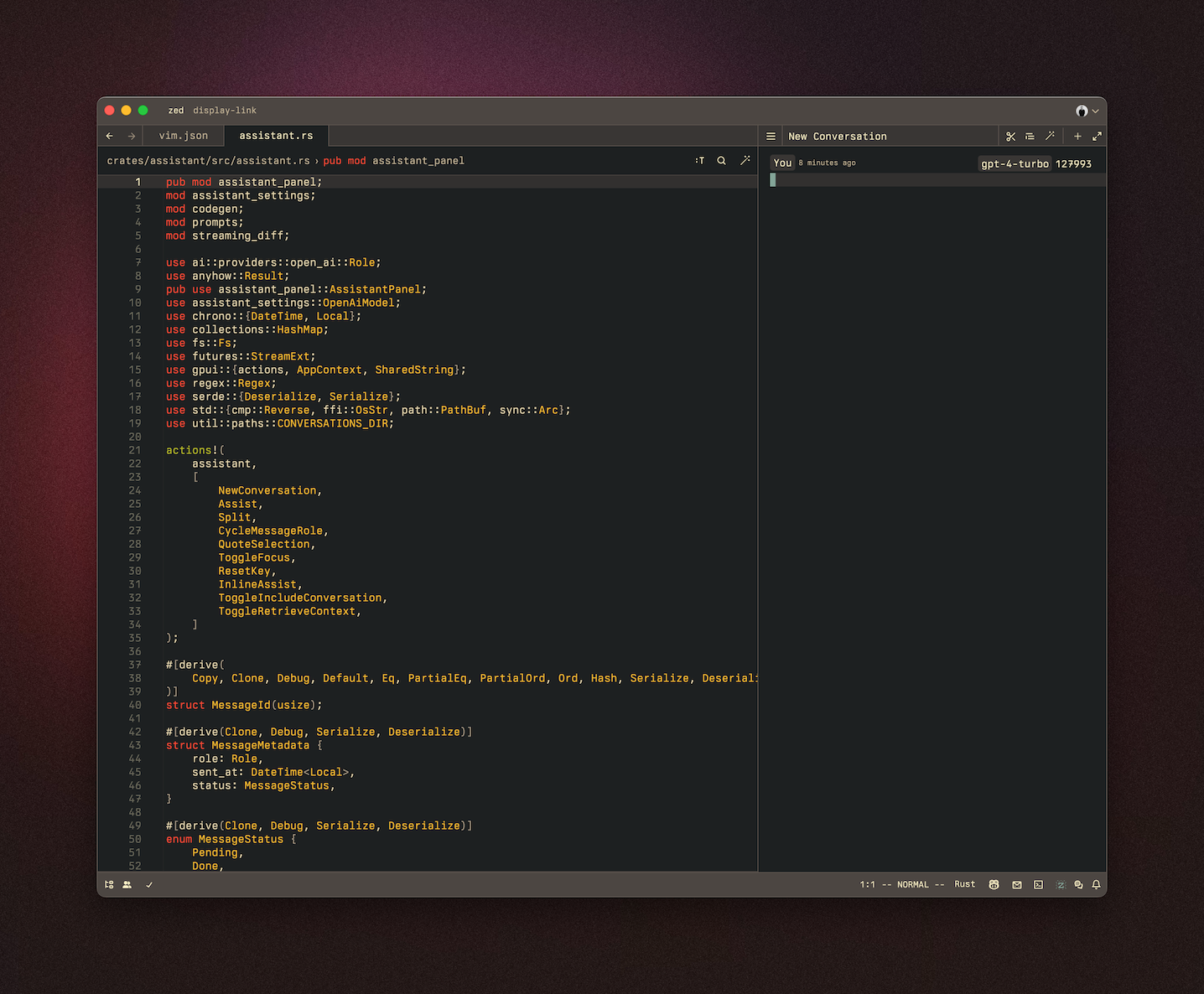
184
185The OpenAI API key will be saved in your keychain.
186
187Zed will also use the `OPENAI_API_KEY` environment variable if it's defined.
188
189#### OpenAI Custom Endpoint
190
191You can use a custom API endpoint for OpenAI, as long as it's compatible with the OpenAI API structure.
192
193To do so, add the following to your Zed `settings.json`:
194
195```json
196{
197 "language_models": {
198 "openai": {
199 "api_url": "http://localhost:11434/v1"
200 }
201 }
202}
203```
204
205The custom URL here is `http://localhost:11434/v1`.
206
207### Ollama
208
209Download and install ollama from [ollama.com/download](https://ollama.com/download) (Linux or MacOS) and ensure it's running with `ollama --version`.
210
211You can use Ollama with the Zed assistant by making Ollama appear as an OpenAPI endpoint.
212
2131. Download, for example, the `mistral` model with Ollama:
214
215 ```sh
216 ollama pull mistral
217 ```
218
2192. Make sure that the Ollama server is running. You can start it either via running the Ollama app, or launching:
220
221 ```sh
222 ollama serve
223 ```
224
2253. In the assistant panel, select one of the Ollama models using the model dropdown.
2264. (Optional) If you want to change the default url that is used to access the Ollama server, you can do so by adding the following settings:
227
228```json
229{
230 "language_models": {
231 "ollama": {
232 "api_url": "http://localhost:11434"
233 }
234 }
235}
236```
237
238### Anthropic
239
240You can use Claude 3.5 Sonnet with the Zed assistant by choosing it via the model dropdown in the assistant panel.
241
242You can obtain an API key [here](https://console.anthropic.com/settings/keys).
243
244Even if you pay for Claude Pro, you will still have to [pay for additional credits](https://console.anthropic.com/settings/plans) to use it via the API.
245
246### Google Gemini
247
248You can use Gemini 1.5 Pro/Flash with the Zed assistant by choosing it via the model dropdown in the assistant panel.
249
250You can obtain an API key [here](https://aistudio.google.com/app/apikey).
251
252### GitHub Copilot
253
254You can use GitHub Copilot chat with the Zed assistant by choosing it via the model dropdown in the assistant panel.