1# REPL
2
3## Getting started
4
5Bring the power of [Jupyter kernels](https://docs.jupyter.org/en/latest/projects/kernels.html) to your editor! The built-in REPL for Zed allows you to run code interactively in your editor similarly to a notebook with your own text files.
6
7
8
9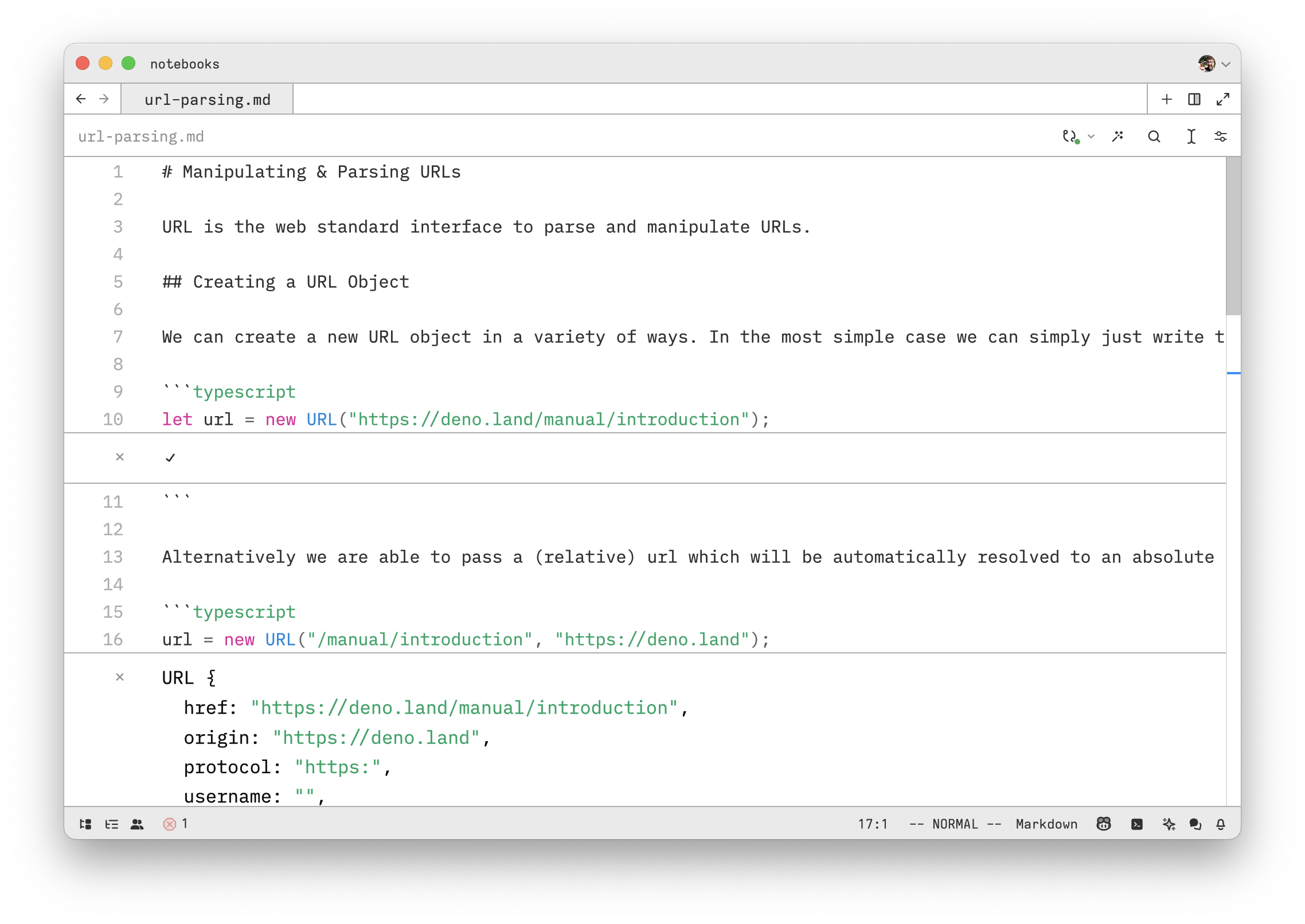
10
11## Installation
12
13Zed supports running code in multiple languages. To get started, you need to install a kernel for the language you want to use.
14
15**Currently supported languages:**
16
17* [Python (ipykernel)](#python)
18* [TypeScript (Deno)](#typescript-deno)
19
20Once installed, you can start using the REPL in the respective language files, or other places those languages are supported, such as Markdown. If you recently added the kernels, run the `repl: refresh kernelspecs` command to make them available in the editor.
21
22## Using the REPL
23
24To start the REPL, open a file with the language you want to use and use the `repl: run` command (defaults to `ctrl-shift-enter` on macOS) to run a block, selection, or line. You can also click on the REPL icon in the toolbar.
25
26The `repl: run` command will be executed on your selection(s), and the result will be displayed below the selection.
27
28Outputs can be cleared with the `repl: clear outputs` command, or from the REPL menu in the toolbar.
29
30### Cell mode
31
32Zed supports [notebooks as scripts](https://jupytext.readthedocs.io/en/latest/formats-scripts.html) using the `# %%` cell separator in Python and `// %%` in TypeScript. This allows you to write code in a single file and run it as if it were a notebook, cell by cell.
33
34The `repl: run` command will run each block of code between the `# %%` markers as a separate cell.
35
36```python
37# %% Cell 1
38import time
39import numpy as np
40
41# %% Cell 2
42import matplotlib.pyplot as plt
43import matplotlib.pyplot as plt
44from matplotlib import style
45style.use('ggplot')
46```
47
48## Language specific instructions
49
50### Python {#python}
51
52#### Global environment
53
54<div class="warning">
55
56On MacOS, your system Python will _not_ work. Either set up [pyenv](https://github.com/pyenv/pyenv?tab=readme-ov-file#installation) or use a virtual environment.
57
58</div>
59
60To setup your current python to have an available kernel, run:
61
62```
63pip install ipykernel
64python -m ipykernel install --user
65```
66
67#### Conda Environment
68
69```
70source activate myenv
71conda install ipykernel
72python -m ipykernel install --user --name myenv --display-name "Python (myenv)"
73```
74
75#### Virtualenv with pip
76
77```
78source activate myenv
79pip install ipykernel
80python -m ipykernel install --user --name myenv --display-name "Python (myenv)"
81```
82
83### Typescript: Deno {#typescript-deno}
84
85[Install Deno](https://docs.deno.com/runtime/manual/getting_started/installation/) and then install the Deno jupyter kernel:
86
87```
88deno jupyter --install
89```
90
91### Other languages
92
93The following languages and kernels are also supported. You can help us out by expanding their installation instructions and configuration:
94
95* [Julia (IJulia)](https://github.com/JuliaLang/IJulia.jl)
96* R
97 - [Ark Kernel](https://github.com/posit-dev/ark) - via Positron, formerly RStudio
98 - [Xeus-R](https://github.com/jupyter-xeus/xeus-r)
99* [Scala (almond)](https://almond.sh/docs/quick-start-install)
100
101## Changing which kernel is used per language {#changing-kernels}
102
103Zed automatically detects the available kernels on your system. If you need to configure a different default kernel for a
104language, you can assign a kernel for any supported language in your `settings.json`.
105
106```jsonc
107{
108 "jupyter": {
109 "kernel_selections": {
110 "python": "conda-env",
111 "typescript": "deno",
112 "javascript": "deno"
113 }
114 }
115}
116```
117
118## Debugging Kernelspecs
119
120Available kernels are shown via the `repl: sessions` command. To refresh the kernels you can run, use the `repl: refresh kernelspecs` command.
121
122If you have `jupyter` installed, you can run `jupyter kernelspec list` to see the available kernels.
123
124```
125$ jupyter kernelspec list
126Available kernels:
127 ark /Users/z/Library/Jupyter/kernels/ark
128 conda-base /Users/z/Library/Jupyter/kernels/conda-base
129 deno /Users/z/Library/Jupyter/kernels/deno
130 python-chatlab-dev /Users/z/Library/Jupyter/kernels/python-chatlab-dev
131 python3 /Users/z/Library/Jupyter/kernels/python3
132 ruby /Users/z/Library/Jupyter/kernels/ruby
133 rust /Users/z/Library/Jupyter/kernels/rust
134```
135
136Note: Zed makes best effort usage of `sys.prefix` and `CONDA_PREFIX` to find kernels in Python environments. If you want explicitly control run `python -m ipykernel install --user --name myenv --display-name "Python (myenv)"` to install the kernel directly while in the environment.