1---
2title: Outline Panel - Zed
3description: Navigate code structure with Zed's outline panel. View symbols, jump to definitions, and browse file outlines.
4---
5
6# Outline Panel
7
8In addition to the modal outline (`cmd-shift-o`), Zed offers an outline panel. The outline panel can be deployed via `cmd-shift-b` (`outline panel: toggle focus` via the command palette), or by clicking the `Outline Panel` button in the status bar.
9
10> **Changed in Preview (v0.225).** See [release notes](/releases#0.225).
11
12When viewing a "singleton" buffer (i.e., a single file on a tab), the outline panel works similarly to that of the outline modal-it displays the outline of the current buffer's symbols. Each symbol entry shows its type prefix (such as "struct", "fn", "mod", "impl") along with the symbol name, helping you quickly identify what kind of symbol you're looking at. Clicking on an entry allows you to jump to the associated section in the file. The outline view will also automatically scroll to the section associated with the current cursor position within the file.
13
14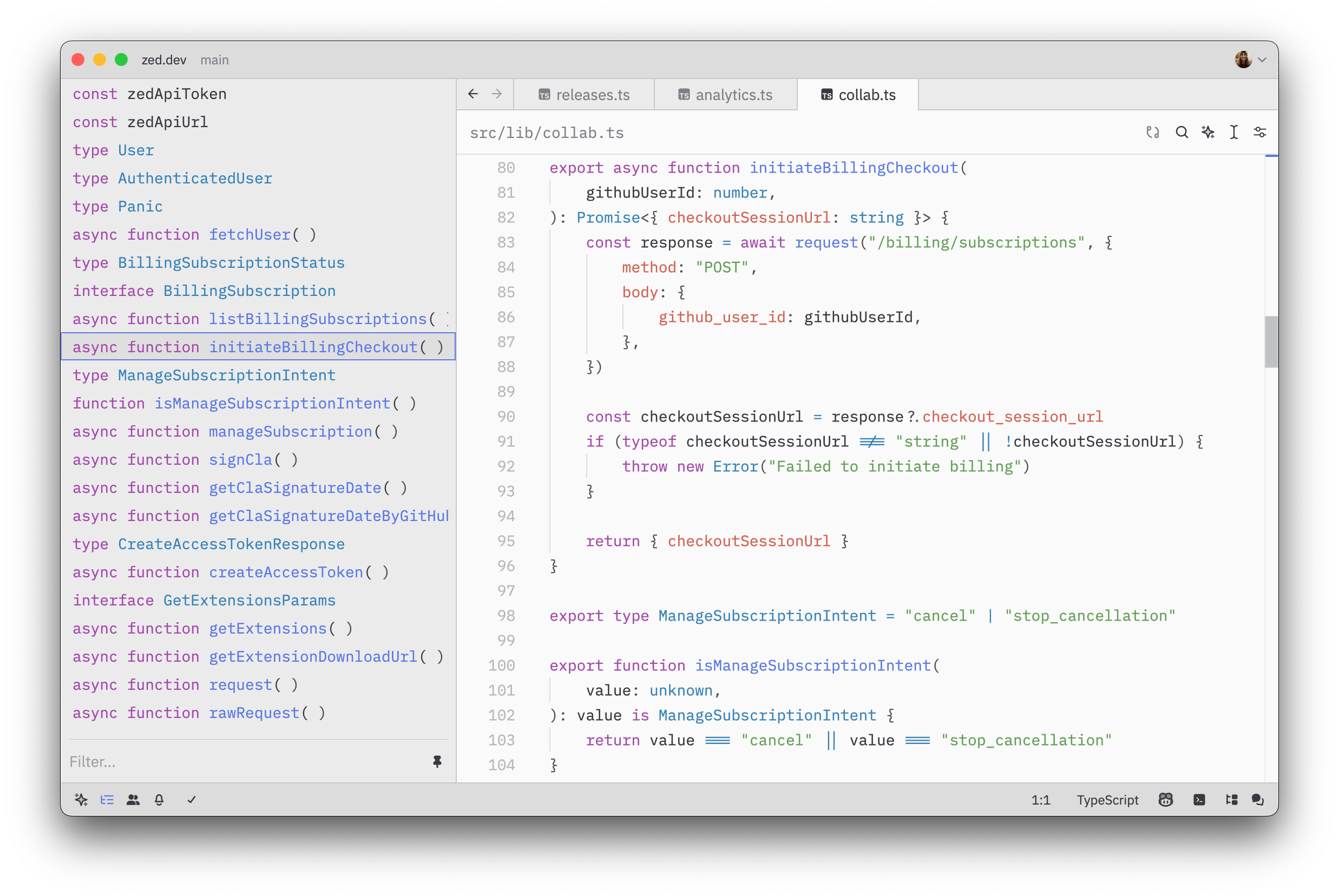
15
16## Usage with multibuffers
17
18The outline panel truly excels when used with multi-buffers. Here are some examples of its versatility:
19
20### Project Search Results
21
22Get an overview of search results across your project.
23
24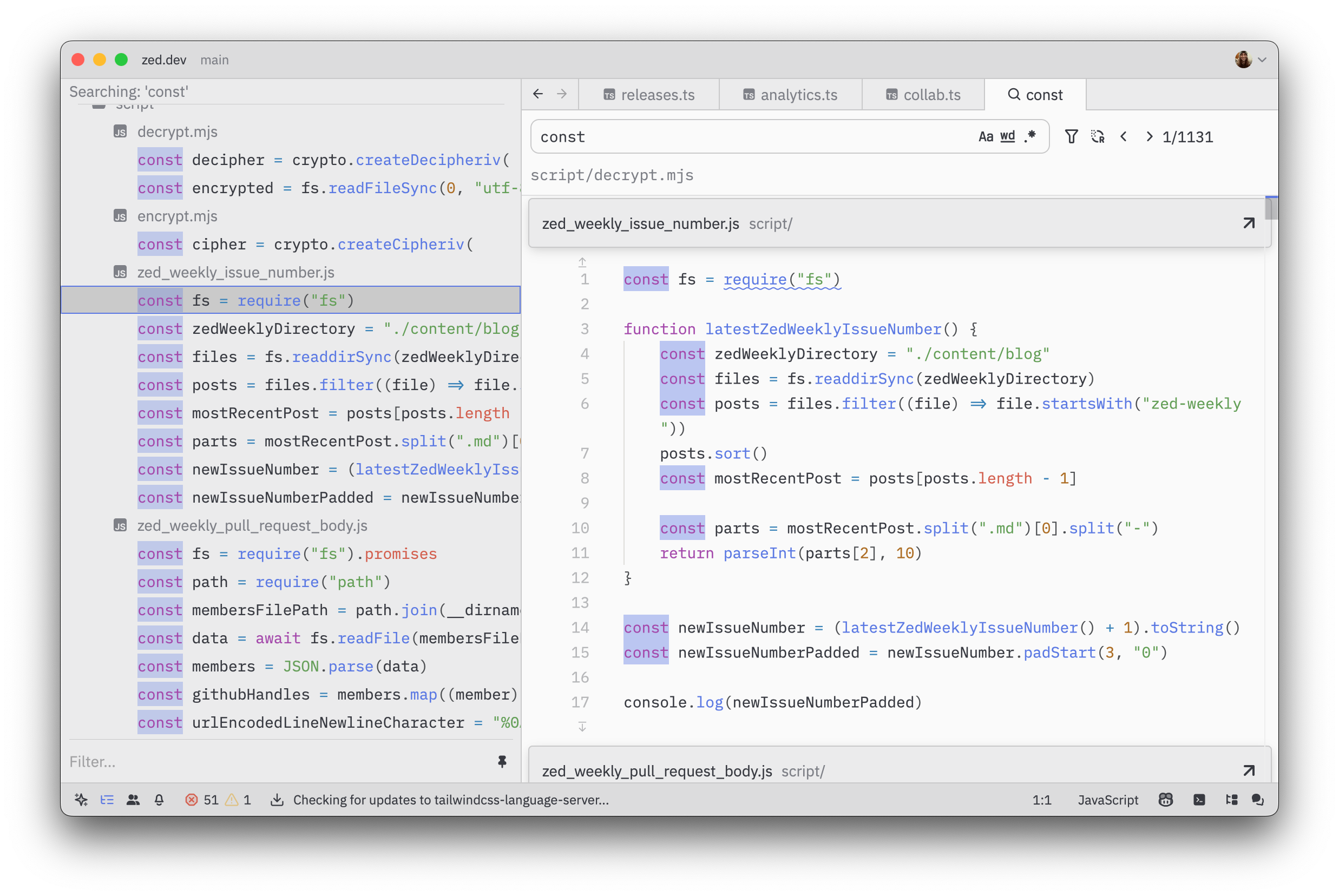
25
26### Project Diagnostics
27
28View a summary of all errors and warnings reported by the language server.
29
30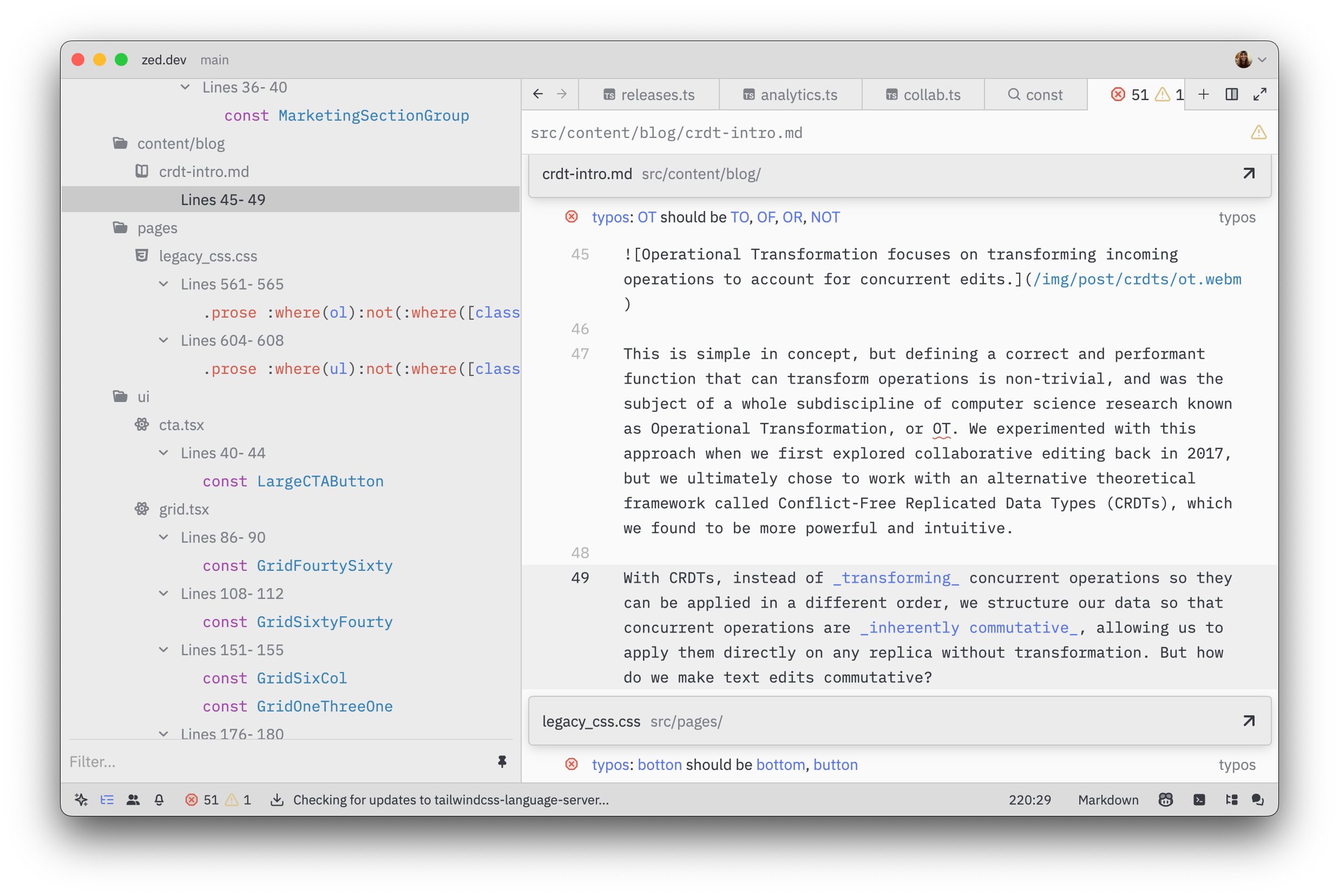
31
32### Find All References
33
34Quickly navigate through all references when using the `editor: find all references` action.
35
36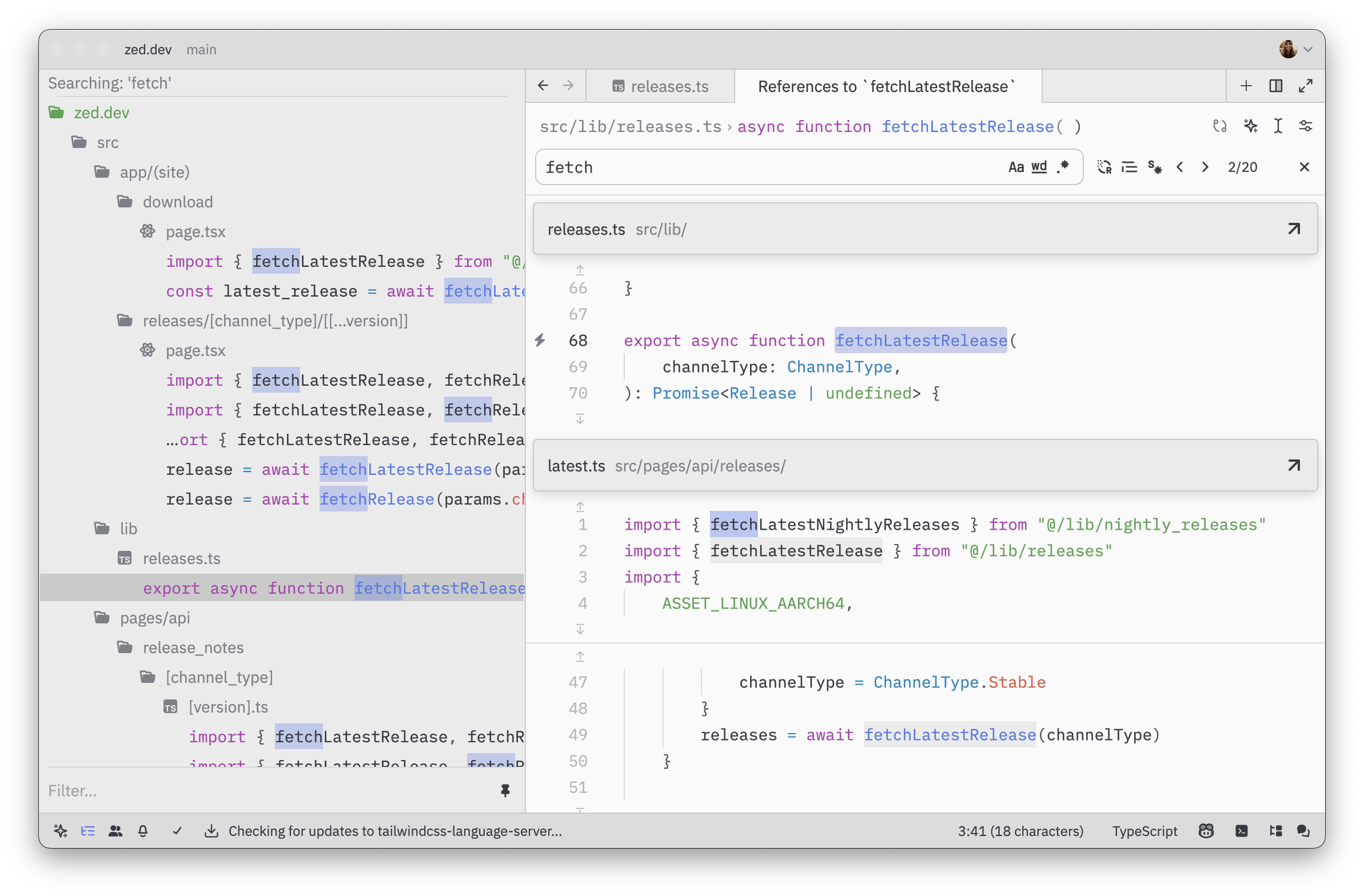
37
38The outline view provides a great way to quickly navigate to specific parts of your code and helps you maintain context when working with large result sets in multi-buffers.