1# Assistant Panel
2
3The assistant panel provides you with a way to interact with OpenAI's large language models. The assistant is good for various tasks, such as generating code, asking questions about existing code, and even writing plaintext, such as emails and documentation. To open the assistant panel, toggle the right dock by using the `workspace: toggle right dock` action in the command palette (`cmd-shift-p`).
4
5> **Note**: A default binding can be set to toggle the right dock via the settings.
6
7## Setup
8
91. Create an [OpenAI API key](https://platform.openai.com/account/api-keys)
102. Make sure that your OpenAI account has credits
113. Open the assistant panel, using either the `assistant: toggle focus` or the `workspace: toggle right dock` action in the command palette (`cmd-shift-p`).
124. Make sure the assistant panel is focused:
13
14 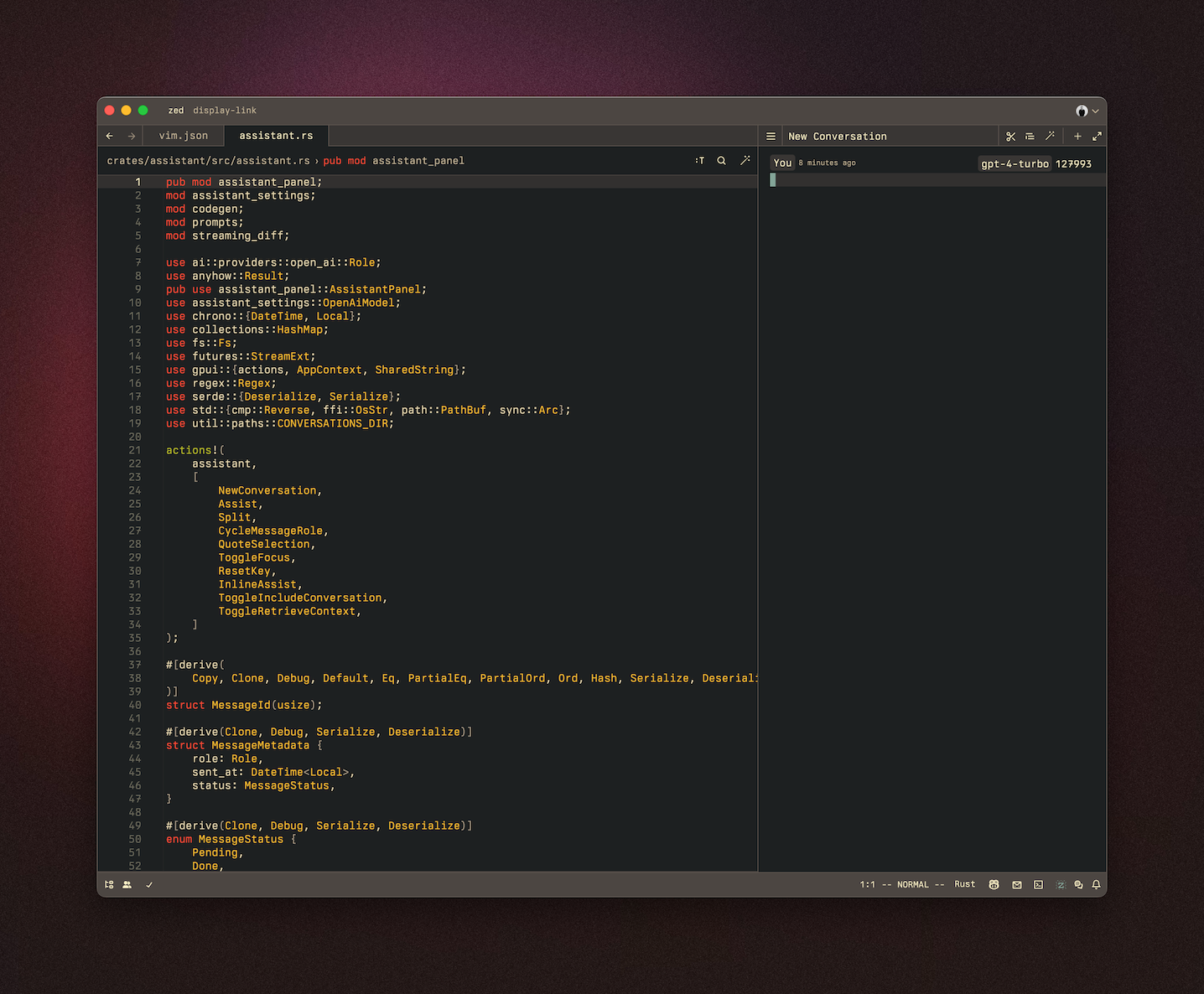
15
165. Open the command palette (`cmd-shift-p`) and use the now-available `assistant: reset key` action to set your OpenAI API key:
17 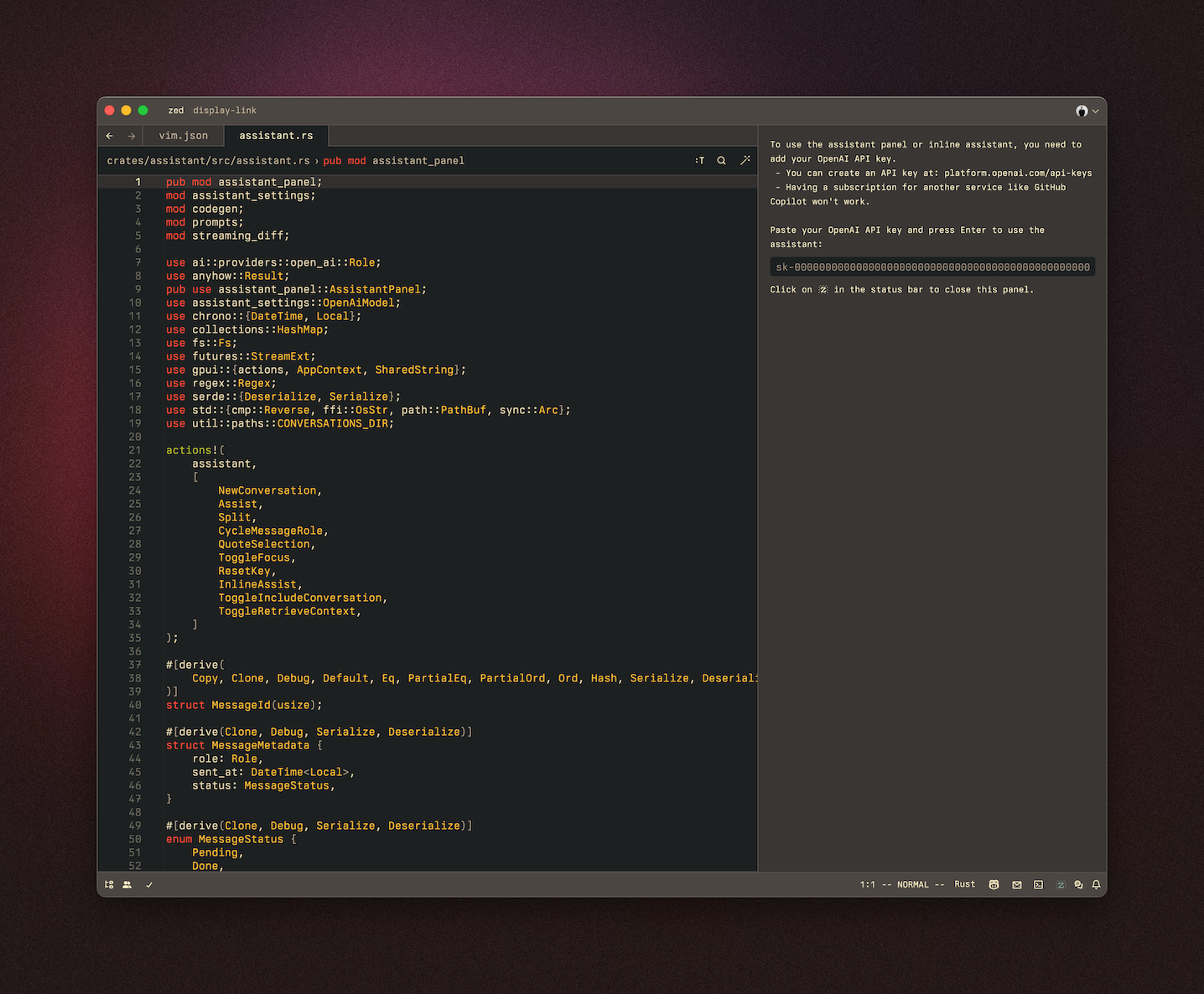
18
19The OpenAI API key will be saved in your keychain.
20
21Zed will also use the `OPENAI_API_KEY` environment variable if it's defined. If you need to reset your OpenAI API key, focus on the assistant panel and run the command palette action `assistant: reset key`.
22
23## Having a conversation
24
25The assistant editor in Zed functions similarly to any other editor. You can use custom key bindings and work with multiple cursors, allowing for seamless transitions between coding and engaging in discussions with the language models. However, the assistant editor differs with the inclusion of message blocks. These blocks serve as containers for text that correspond to different roles within the conversation. These roles include:
26
27- `You`
28- `Assistant`
29- `System`
30
31To begin, select a model and type a message in a `You` block.
32
33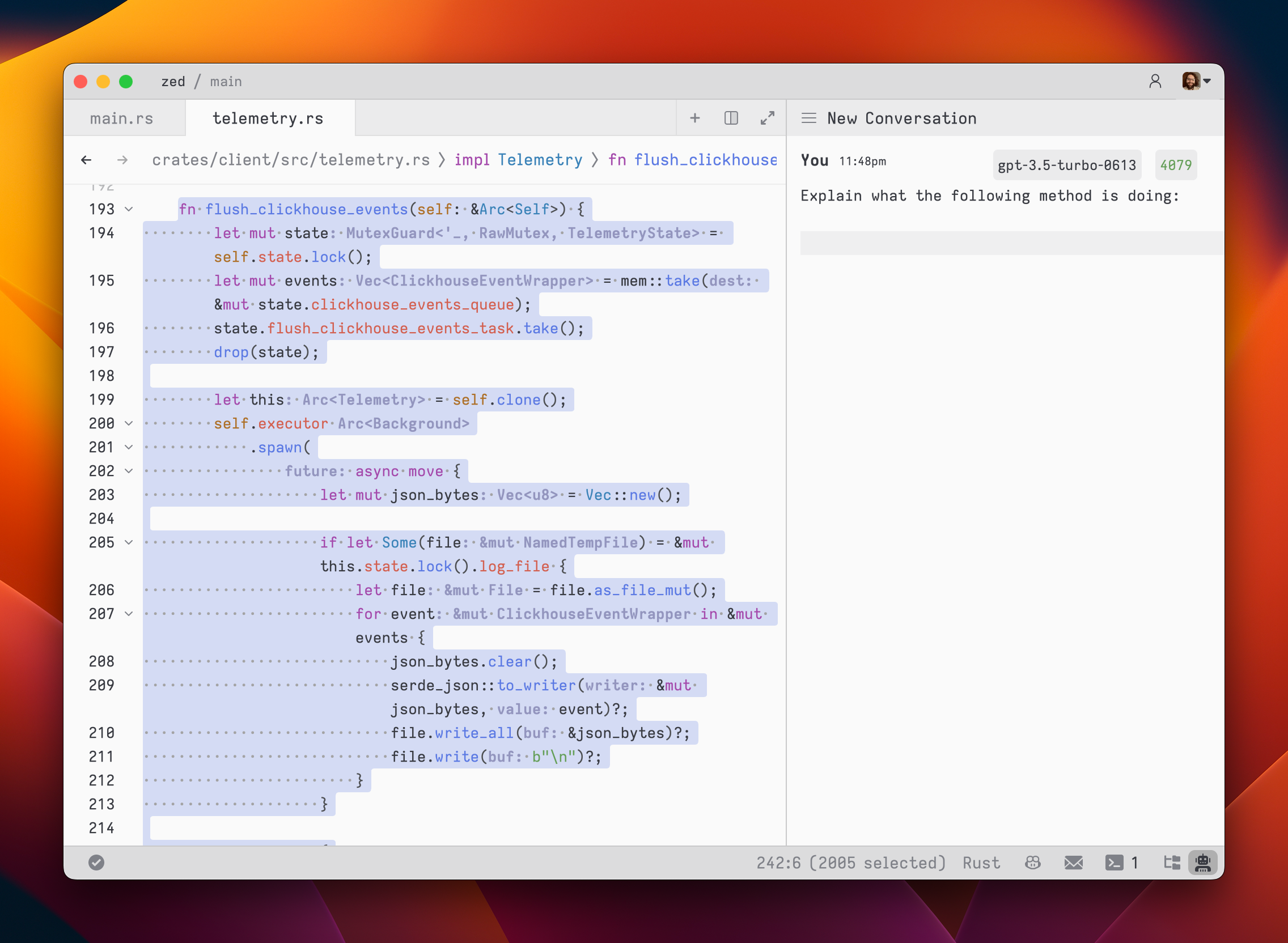
34
35As you type, the remaining tokens count for the selected model is updated.
36
37Inserting text from an editor is as simple as highlighting the text and running `cmd->` (`assistant: quote selection`); Zed will wrap it in a fenced code block if it is code.
38
39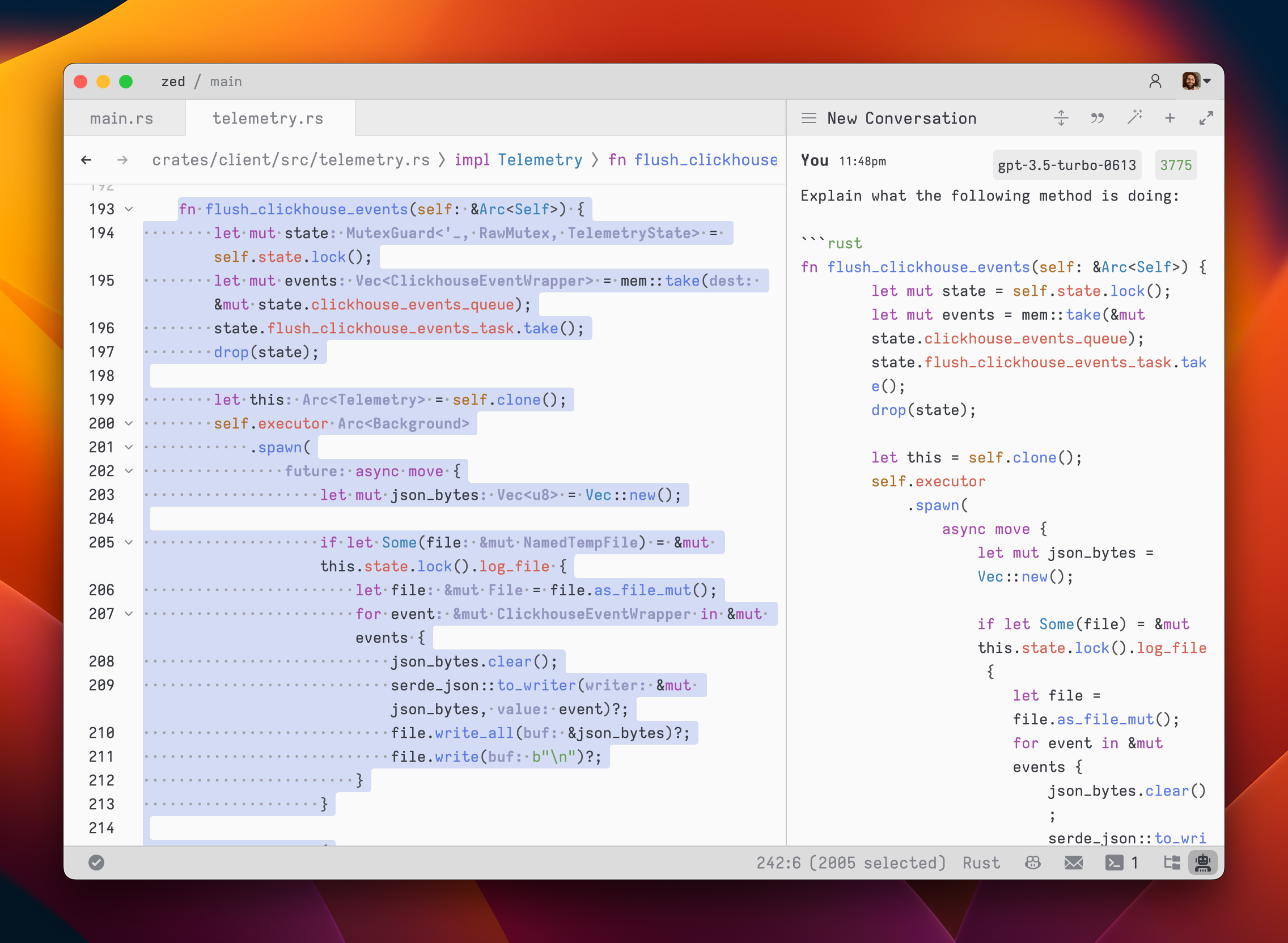
40
41To submit a message, use `cmd-enter` (`assistant: assist`). Unlike typical chat applications where pressing `enter` would submit the message, in the assistant editor, our goal was to make it feel as close to a regular editor as possible. So, pressing `enter` simply inserts a new line.
42
43After submitting a message, the assistant's response will be streamed below, in an `Assistant` message block.
44
45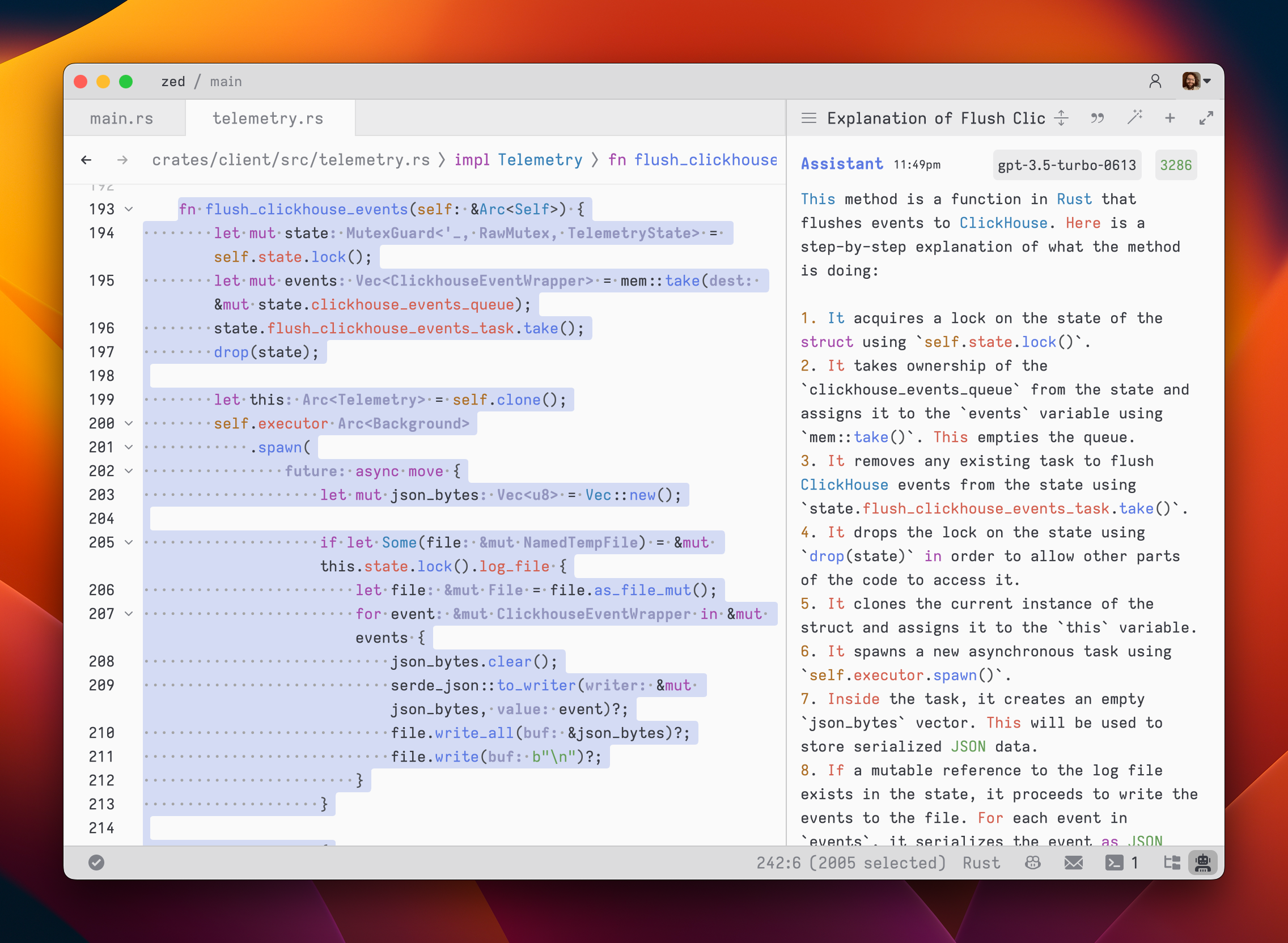
46
47The stream can be canceled at any point with `escape`. This is useful if you realize early on that the response is not what you were looking for.
48
49If you want to start a new conversation at any time, you can hit `cmd-n` or use the `New Context` menu option in the hamburger menu at the top left of the panel.
50
51Simple back-and-forth conversations work well with the assistant. However, there may come a time when you want to modify the previous text in the conversation and steer it in a different direction.
52
53## Editing a conversation
54
55The assistant gives you the flexibility to have control over the conversation. You can freely edit any previous text, including the responses from the assistant. If you want to remove a message block entirely, simply place your cursor at the beginning of the block and use the `delete` key. A typical workflow might involve making edits and adjustments throughout the conversation to refine your inquiry or provide additional context. Here's an example:
56
571. Write text in a `You` block.
582. Submit the message with `cmd-enter`
593. Receive an `Assistant` response that doesn't meet your expectations
604. Cancel the response with `escape`
615. Erase the content of the `Assistant` message block and remove the block entirely
626. Add additional context to your original message
637. Submit the message with `cmd-enter`
64
65Being able to edit previous messages gives you control over how tokens are used. You don't need to start up a new context to correct a mistake or to add additional context and you don't have to waste tokens by submitting follow-up corrections.
66
67Some additional points to keep in mind:
68
69- You are free to change the model type at any point in the conversation.
70- You can cycle the role of a message block by clicking on the role, which is useful when you receive a response in an `Assistant` block that you want to edit and send back up as a `You` block.
71
72## Saving and loading conversations
73
74After you submit your first message, a name for your conversation is generated by the language model, and the conversation is automatically saved to your file system in `~/.config/zed/conversations`. You can access and load previous messages by clicking on the hamburger button in the top-left corner of the assistant panel.
75
76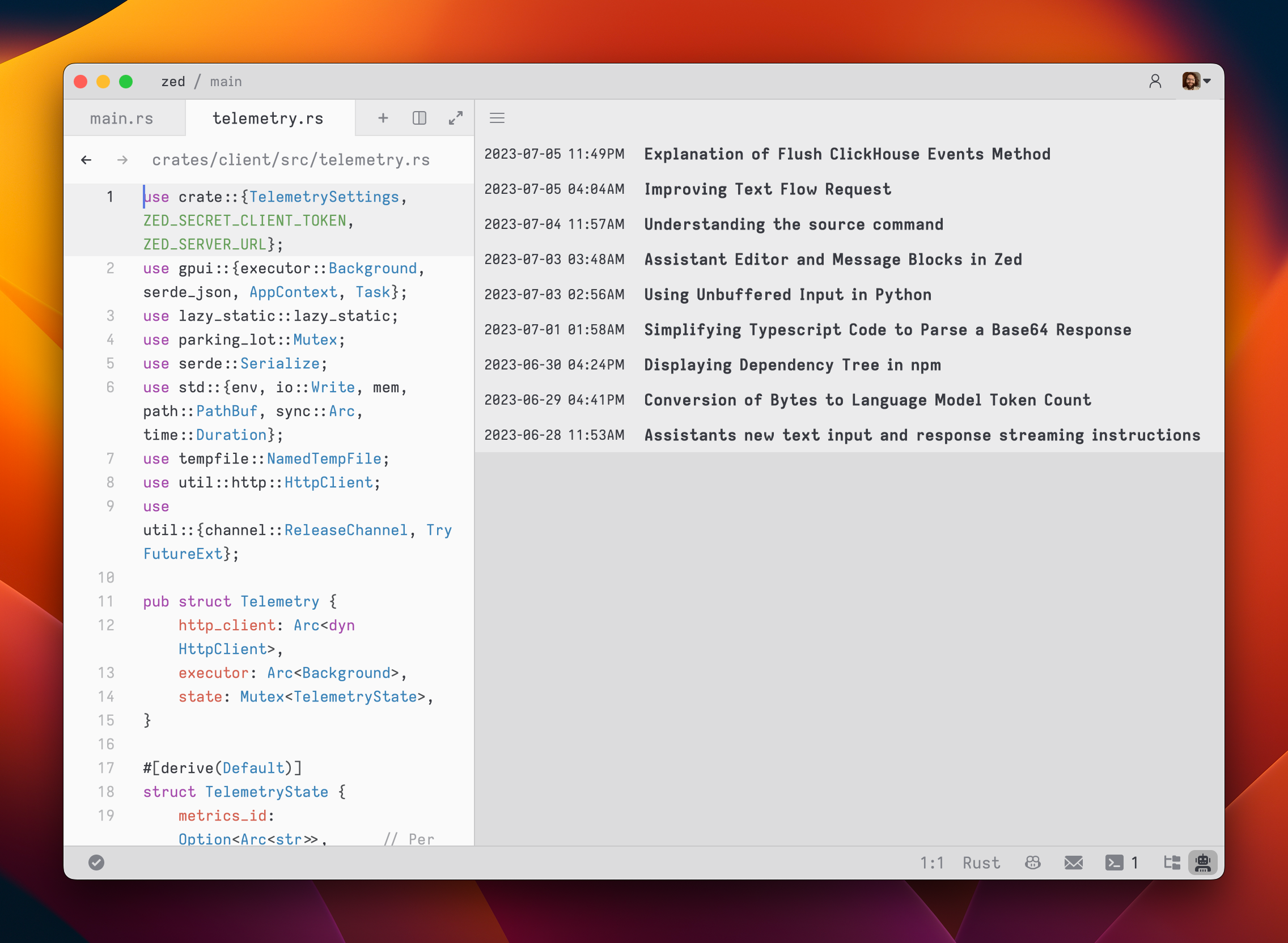
77
78## Multiple cursor demo
79
80The assistant is capable of sending multiple requests, and receiving multiple responses, in parallel. [Here's a demo](https://zed.dev/img/post/assistant/demo.webm).
81
82## Using a custom API endpoint for OpenAI
83
84You can use a custom API endpoint for OpenAI, as long as it's compatible with the OpenAI API structure.
85
86To do so, add the following to your Zed `settings.json`:
87
88```json
89{
90 "assistant": {
91 "version": "1",
92 "provider": {
93 "name": "openai",
94 "type": "openai",
95 "default_model": "gpt-4-turbo-preview",
96 "api_url": "http://localhost:11434/v1"
97 }
98 }
99}
100```
101
102The custom URL here is `http://localhost:11434/v1`.
103
104## Using Ollama on macOS
105
106You can use Ollama with the Zed assistant by making Ollama appear as an OpenAPI endpoint.
107
1081. Add the following to your Zed `settings.json`:
109
110 ```json
111 {
112 "assistant": {
113 "version": "1",
114 "provider": {
115 "name": "openai",
116 "type": "openai",
117 "default_model": "gpt-4-turbo-preview",
118 "api_url": "http://localhost:11434/v1"
119 }
120 }
121 }
122 ```
1232. Download, for example, the `mistral` model with Ollama:
124 ```
125 ollama run mistral
126 ```
1273. Copy the model and change its name to match the model in the Zed `settings.json`:
128 ```
129 ollama cp mistral gpt-4-turbo-preview
130 ```
1314. Use `assistant: reset key` (see the [Setup](#setup) section above) and enter the following API key:
132 ```
133 ollama
134 ```
1355. Restart Zed
136
137## Using Claude 3.5 Sonnet
138
139You can use Claude with the Zed assistant by adding the following settings:
140
141```json
142"assistant": {
143 "version": "1",
144 "provider": {
145 "default_model": "claude-3-5-sonnet",
146 "name": "anthropic"
147 }
148},
149```
150
151When you save the settings, the assistant panel will open and ask you to add your Anthropic API key.
152You need can obtain this key [here](https://console.anthropic.com/settings/keys).
153
154Even if you pay for Claude Pro, you will still have to [pay for additional credits](https://console.anthropic.com/settings/plans) to use it via the API.
155
156## Prompt Library
157
158**Warning: This feature is experimental and the format of prompts is _highly_ likely to change. Use at your own risk!**
159
160Zed has a prompt library that allows you to manage prompts.
161
162These are useful for:
163
164- Creating a "default prompt" - a super prompt that includes a collection of things you want the assistant to know in every conversation.
165- Adding single prompts to your current context to help guide the assistant's responses.
166- (In the future) dynamically adding certain prompts to the assistant based on the current context, such as the presence of Rust code or a specific async runtime you want to work with.
167
168You can access the prompt manager by selecting `Prompt Library...` from the assistant panel's more menu.
169
170By default when opening the assistant, the prompt manager will load any custom prompts present in your `~/.config/zed/prompts` directory.
171
172Checked prompts are included in your "default prompt", which can be inserted into the assistant by running `assistant: insert default prompt` or clicking the `Insert Default Prompt` button in the assistant panel's more menu.
173
174### Creating a custom prompt
175
176Prompts have a simple format:
177
178```md
179---
180title: Foo
181version: 1.0
182author: Jane Kim <jane@kim.com
183languages: ["*"]
184dependencies: []
185---
186
187Foo and bar are terms used in programming to describe generic concepts.
188```
189
190In the future we'll allow creating and editing prompts directly in the prompt manager.