1# Language model integration
2
3## Assistant Panel
4
5The assistant panel provides you with a way to interact with OpenAI's large language models. The assistant is good for various tasks, such as generating code, asking questions about existing code, and even writing plaintext, such as emails and documentation. To open the assistant panel, toggle the right dock by using the `workspace: toggle right dock` action in the command palette (`cmd-shift-p`).
6
7> **Note**: A default binding can be set to toggle the right dock via the settings.
8
9### Setup
10
111. Create an [OpenAI API key](https://platform.openai.com/account/api-keys)
122. Make sure that your OpenAI account has credits
133. Open the assistant panel, using either the `assistant: toggle focus` or the `workspace: toggle right dock` action in the command palette (`cmd-shift-p`).
144. Make sure the assistant panel is focused:
15
16 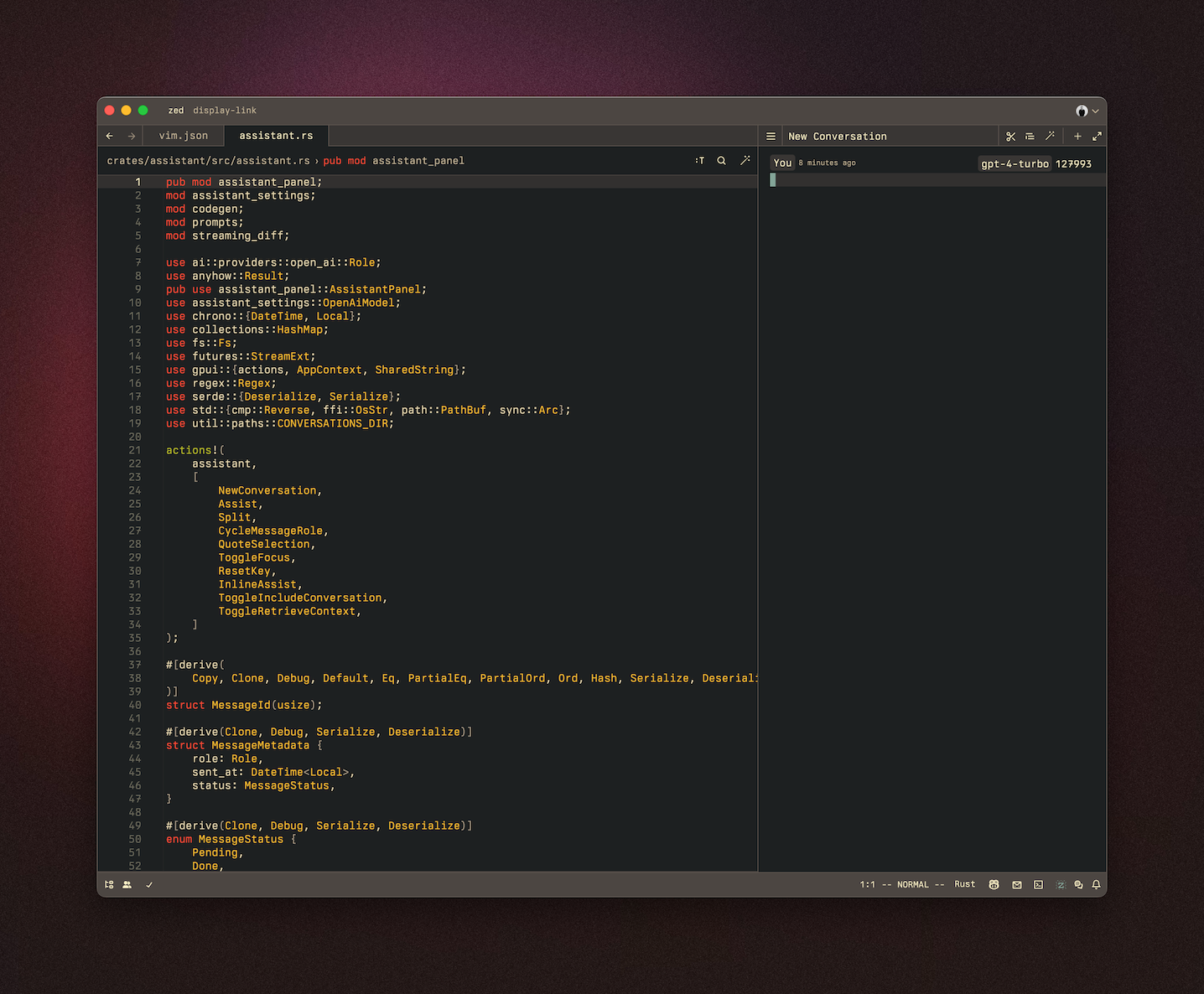
17
185. Open the command palette (`cmd-shift-p`) and use the now-available `assistant: reset key` action to set your OpenAI API key:
19 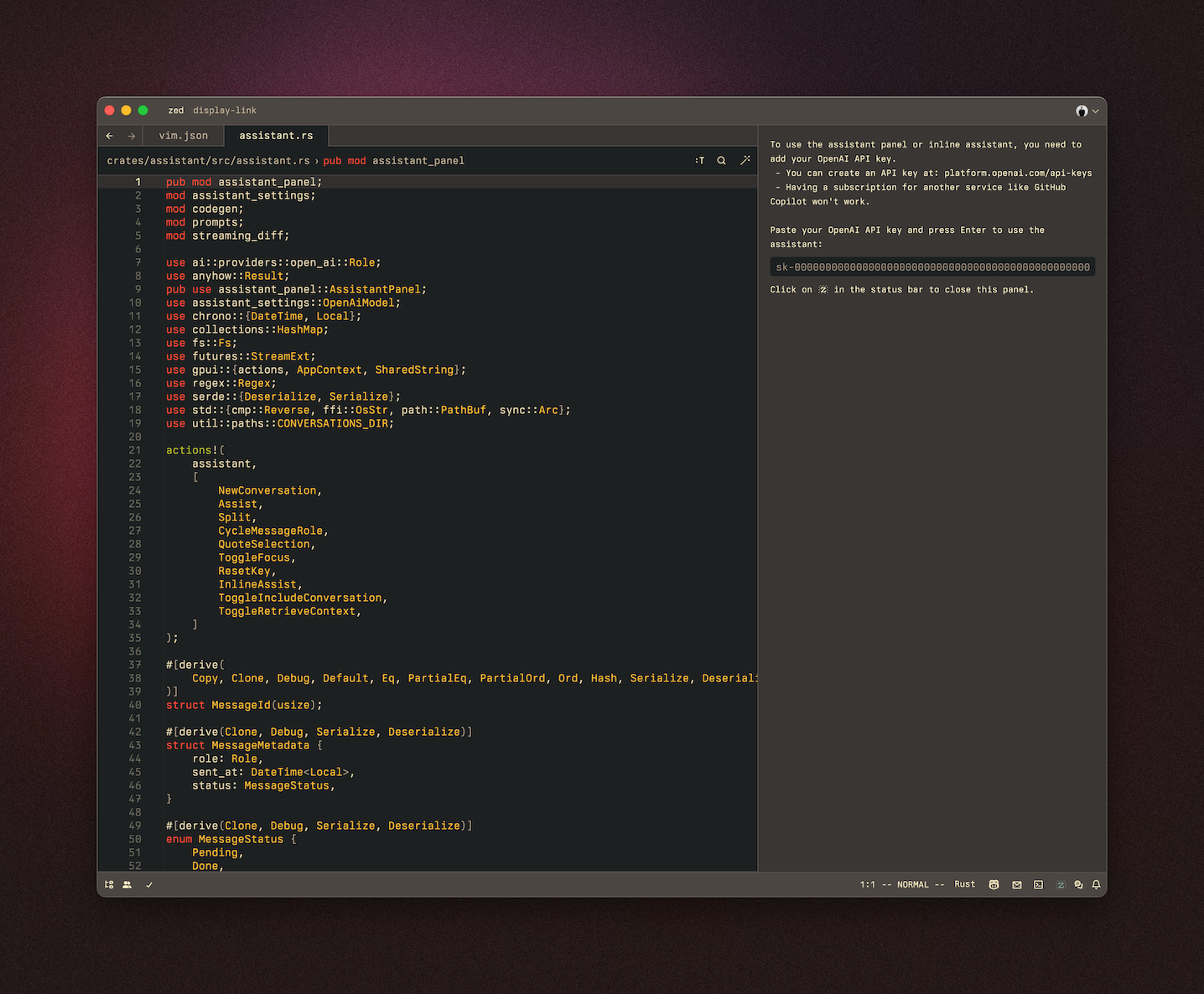
20
21The OpenAI API key will be saved in your keychain.
22
23Zed will also use the `OPENAI_API_KEY` environment variable if it's defined. If you need to reset your OpenAI API key, focus on the assistant panel and run the command palette action `assistant: reset key`.
24
25### Having a conversation
26
27The assistant editor in Zed functions similarly to any other editor. You can use custom key bindings and work with multiple cursors, allowing for seamless transitions between coding and engaging in discussions with the language models. However, the assistant editor differs with the inclusion of message blocks. These blocks serve as containers for text that correspond to different roles within the conversation. These roles include:
28
29- `You`
30- `Assistant`
31- `System`
32
33To begin, select a model and type a message in a `You` block.
34
35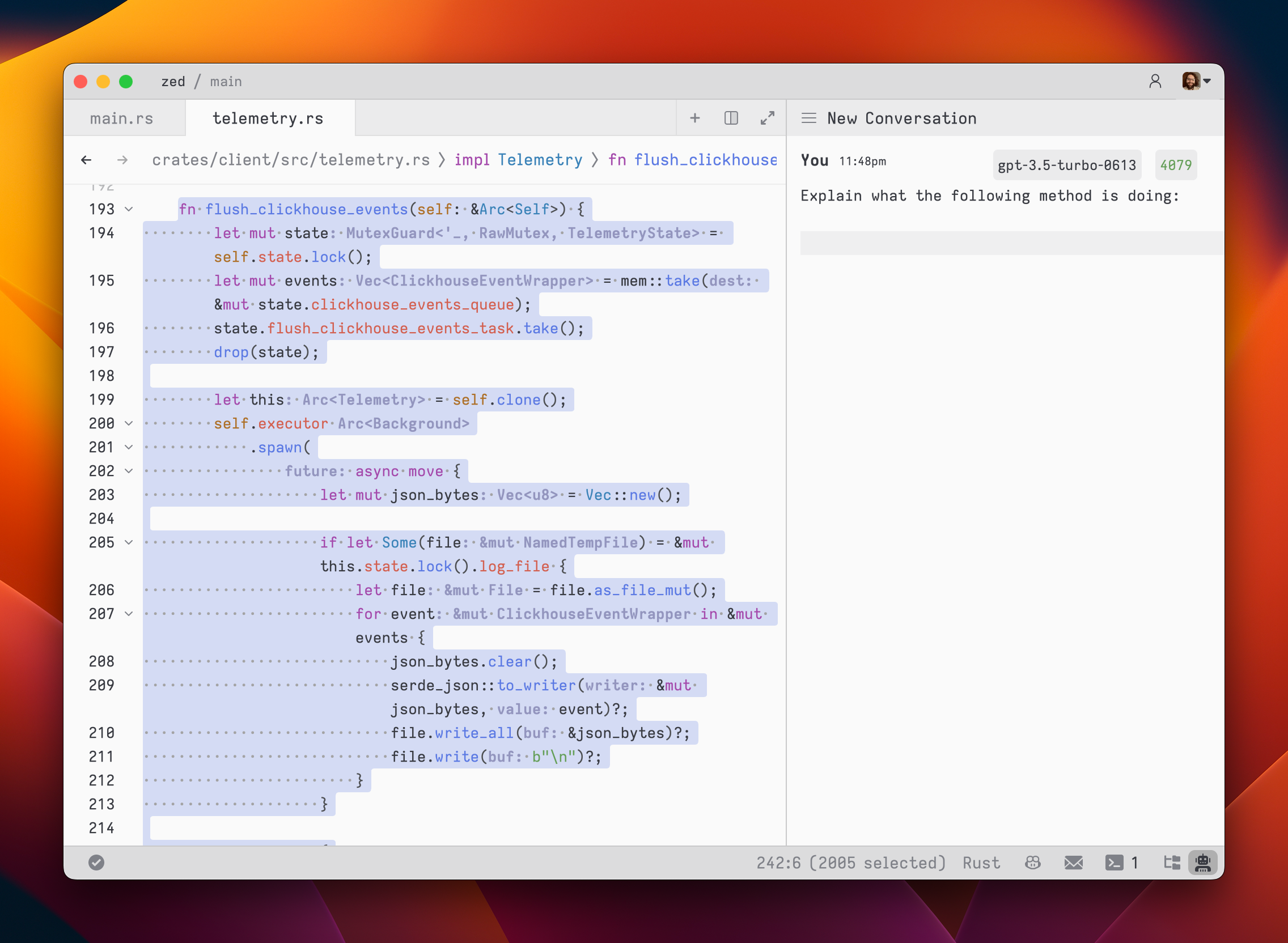
36
37As you type, the remaining tokens count for the selected model is updated.
38
39Inserting text from an editor is as simple as highlighting the text and running `cmd->` (`assistant: quote selection`); Zed will wrap it in a fenced code block if it is code.
40
41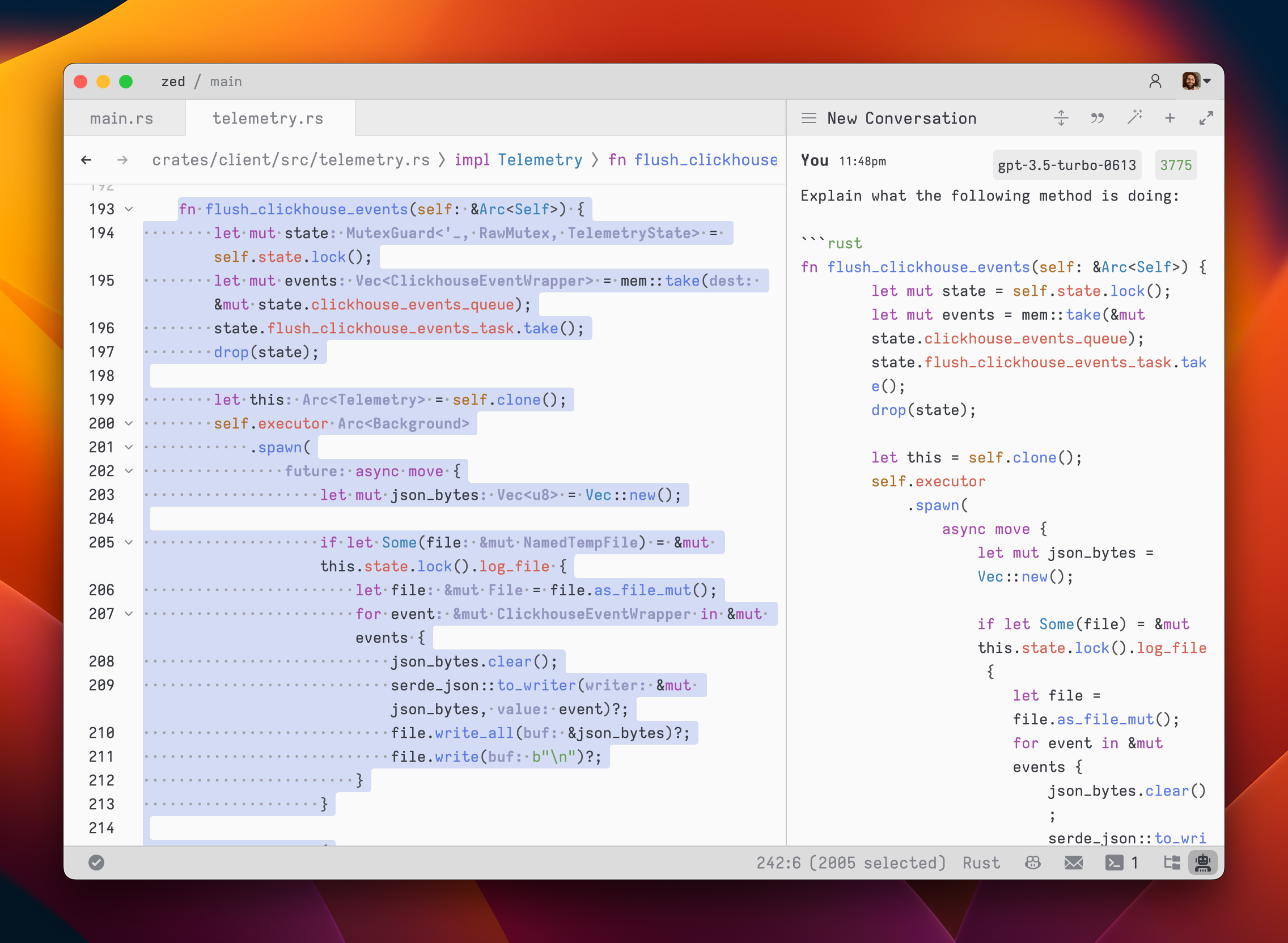
42
43To submit a message, use `cmd-enter` (`assistant: assist`). Unlike typical chat applications where pressing `enter` would submit the message, in the assistant editor, our goal was to make it feel as close to a regular editor as possible. So, pressing `enter` simply inserts a new line.
44
45After submitting a message, the assistant's response will be streamed below, in an `Assistant` message block.
46
47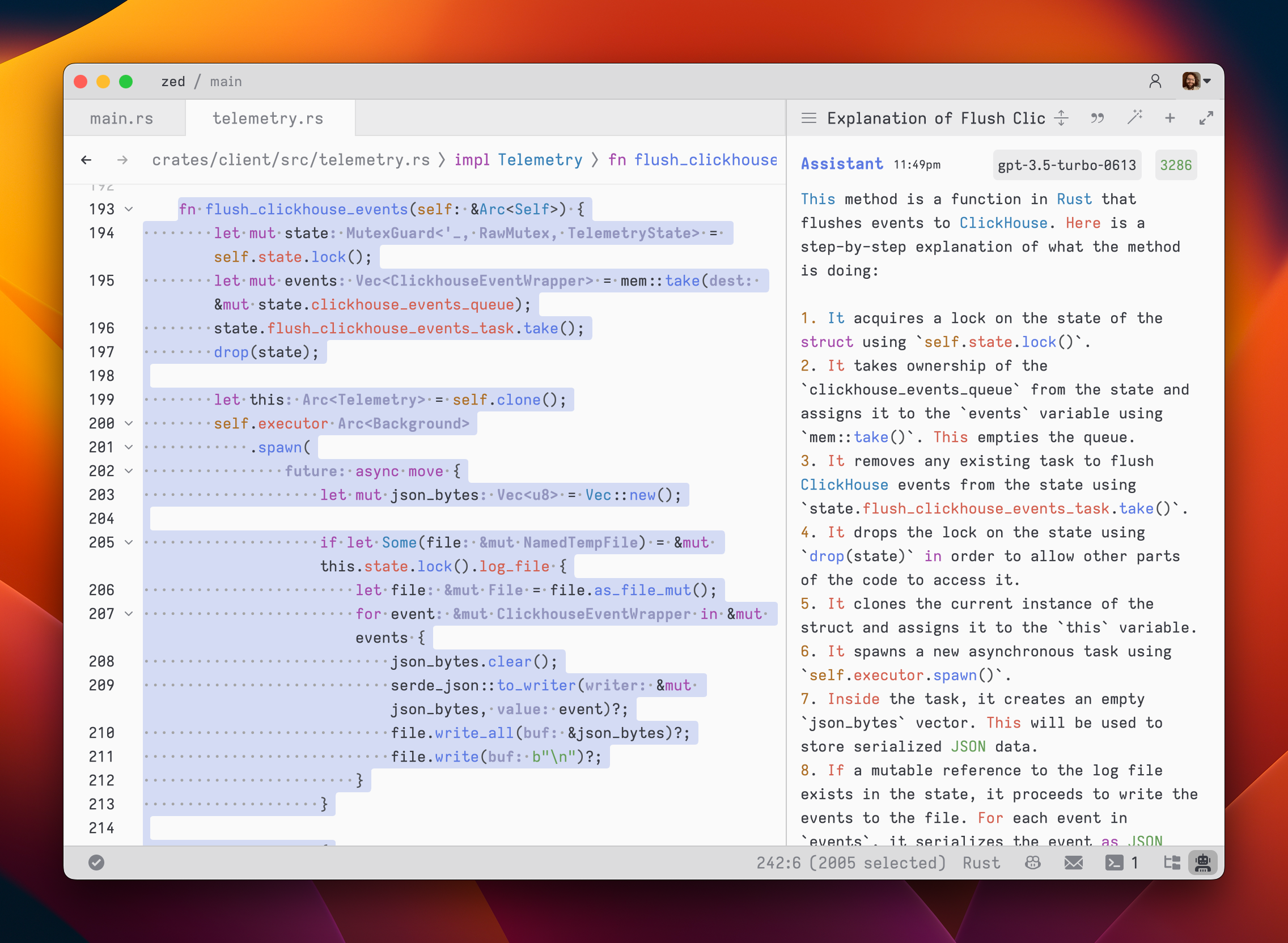
48
49The stream can be canceled at any point with `escape`. This is useful if you realize early on that the response is not what you were looking for.
50
51If you want to start a new conversation at any time, you can hit `cmd-n` or use the `New Context` menu option in the hamburger menu at the top left of the panel.
52
53Simple back-and-forth conversations work well with the assistant. However, there may come a time when you want to modify the previous text in the conversation and steer it in a different direction.
54
55### Editing a conversation
56
57The assistant gives you the flexibility to have control over the conversation. You can freely edit any previous text, including the responses from the assistant. If you want to remove a message block entirely, simply place your cursor at the beginning of the block and use the `delete` key. A typical workflow might involve making edits and adjustments throughout the conversation to refine your inquiry or provide additional context. Here's an example:
58
591. Write text in a `You` block.
602. Submit the message with `cmd-enter`
613. Receive an `Assistant` response that doesn't meet your expectations
624. Cancel the response with `escape`
635. Erase the content of the `Assistant` message block and remove the block entirely
646. Add additional context to your original message
657. Submit the message with `cmd-enter`
66
67Being able to edit previous messages gives you control over how tokens are used. You don't need to start up a new context to correct a mistake or to add additional context and you don't have to waste tokens by submitting follow-up corrections.
68
69Some additional points to keep in mind:
70
71- You are free to change the model type at any point in the conversation.
72- You can cycle the role of a message block by clicking on the role, which is useful when you receive a response in an `Assistant` block that you want to edit and send back up as a `You` block.
73
74### Saving and loading conversations
75
76After you submit your first message, a name for your conversation is generated by the language model, and the conversation is automatically saved to your file system in `~/.config/zed/conversations`. You can access and load previous messages by clicking on the hamburger button in the top-left corner of the assistant panel.
77
78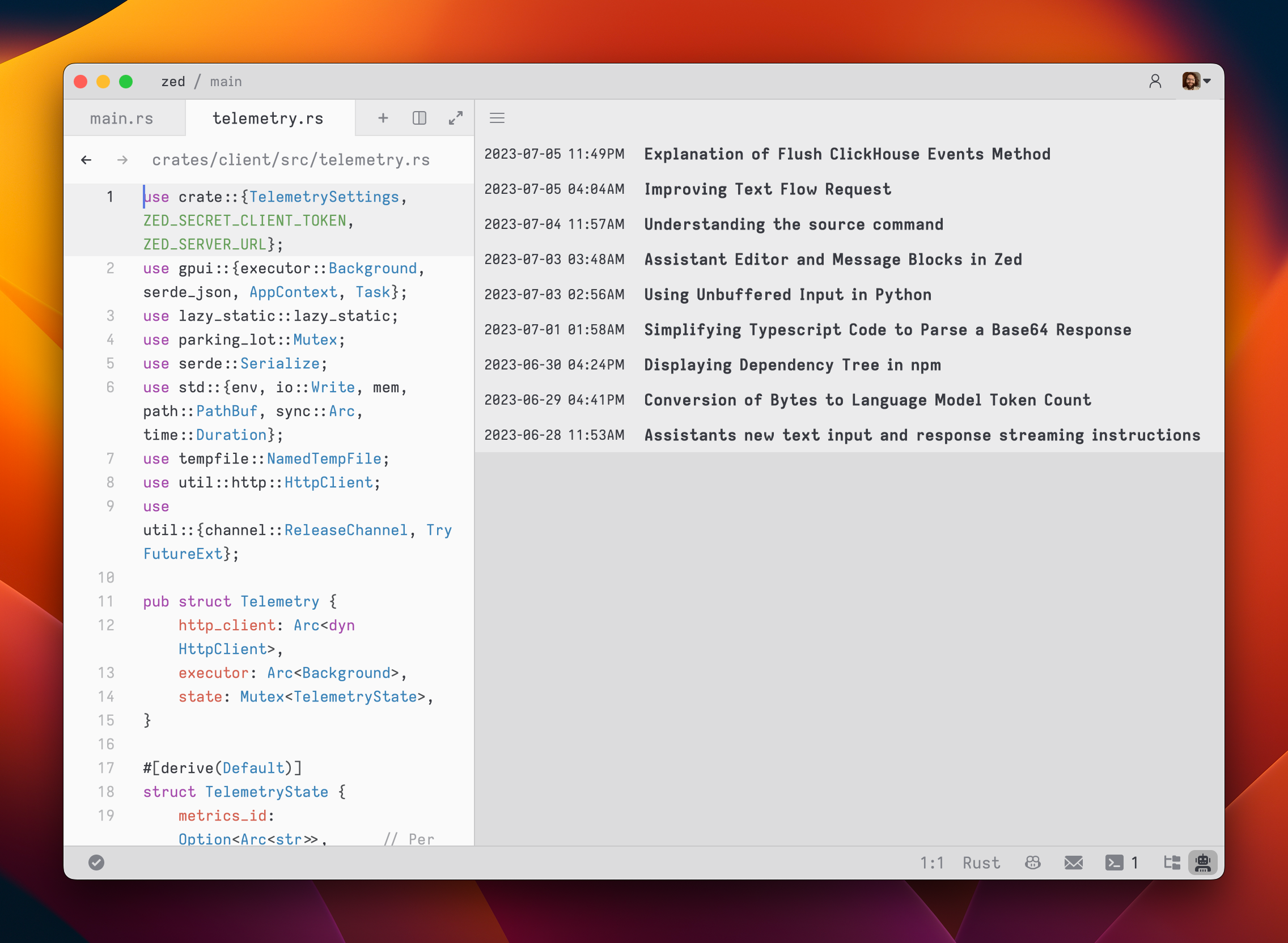
79
80### Using a custom API endpoint for OpenAI
81
82You can use a custom API endpoint for OpenAI, as long as it's compatible with the OpenAI API structure.
83
84To do so, add the following to your Zed `settings.json`:
85
86```json
87{
88 "language_models": {
89 "openai": {
90 "api_url": "http://localhost:11434/v1"
91 }
92 }
93}
94```
95
96The custom URL here is `http://localhost:11434/v1`.
97
98### Using Ollama on macOS
99
100You can use Ollama with the Zed assistant by making Ollama appear as an OpenAPI endpoint.
101
1021. Download, for example, the `mistral` model with Ollama:
103 ```
104 ollama pull mistral
105 ```
1062. Make sure that the Ollama server is running. You can start it either via running the Ollama app, or launching:
107 ```
108 ollama serve
109 ```
1103. In the assistant panel, select one of the Ollama models using the model dropdown.
1114. (Optional) If you want to change the default url that is used to access the Ollama server, you can do so by adding the following settings:
112
113```json
114{
115 "language_models": {
116 "ollama": {
117 "api_url": "http://localhost:11434"
118 }
119 }
120}
121```
122
123### Using Claude 3.5 Sonnet
124
125You can use Claude with the Zed assistant by choosing it via the model dropdown in the assistant panel.
126
127You need can obtain an API key [here](https://console.anthropic.com/settings/keys).
128
129Even if you pay for Claude Pro, you will still have to [pay for additional credits](https://console.anthropic.com/settings/plans) to use it via the API.
130
131## Inline generation
132
133You can generate and transform text in any editor by selecting text and pressing `ctrl-enter`.
134You can also perform multiple generation requests in parallel by pressing `ctrl-enter` with multiple cursors, or by pressing `ctrl-enter` with a selection that spans multiple excerpts in a multibuffer.
135To create a custom keybinding that prefills a prompt, you can add the following format in your keymap:
136
137```json
138[
139 {
140 "context": "Editor && mode == full",
141 "bindings": {
142 "ctrl-shift-enter": [
143 "assistant::InlineAssist",
144 { "prompt": "Build a snake game" }
145 ]
146 }
147 }
148]
149```