1---
2title: Use Claude Agent, Gemini CLI, and Codex in Zed
3description: Run Claude Agent, Gemini CLI, Codex, and other AI coding agents directly in Zed via the Agent Client Protocol (ACP).
4---
5
6# External Agents
7
8Zed supports many external agents, including CLI-based ones, through the [Agent Client Protocol (ACP)](https://agentclientprotocol.com).
9
10Zed supports [Gemini CLI](https://github.com/google-gemini/gemini-cli) (the reference ACP implementation), [Claude Agent](https://platform.claude.com/docs/en/agent-sdk/overview), [Codex](https://developers.openai.com/codex), [GitHub Copilot](https://github.com/github/copilot-language-server-release), and [additional agents](#add-more-agents) you can configure.
11
12> Note that Zed's interaction with external agents is strictly UI-based; the billing, legal, and terms arrangement is directly between you and the agent provider.
13> Zed does not charge for use of external agents, and our [zero-data retention agreements/privacy guarantees](./ai-improvement.md) are **_only_** applicable for Zed's hosted models.
14
15## Gemini CLI {#gemini-cli}
16
17Zed provides the ability to run [Gemini CLI](https://github.com/google-gemini/gemini-cli) directly in the [agent panel](./agent-panel.md).
18Under the hood we run Gemini CLI in the background, and talk to it over ACP.
19
20### Getting Started
21
22First open the agent panel with {#kb agent::ToggleFocus}, and then use the `+` button in the top right to start a new Gemini CLI thread.
23
24If you'd like to bind this to a keyboard shortcut, you can do so by editing your `keymap.json` file via the `zed: open keymap file` command to include:
25
26```json [keymap]
27[
28 {
29 "bindings": {
30 "cmd-alt-g": ["agent::NewExternalAgentThread", { "agent": "gemini" }]
31 }
32 }
33]
34```
35
36#### Installation
37
38The first time you create a Gemini CLI thread, Zed will install [@google/gemini-cli](https://github.com/google-gemini/gemini-cli).
39This installation is only available to Zed and is kept up to date as you use the agent.
40
41By default, Zed will use this managed version of Gemini CLI even if you have it installed globally.
42However, you can configure it to use a version in your `PATH` by adding this to your settings:
43
44```json [settings]
45{
46 "agent_servers": {
47 "gemini": {
48 "ignore_system_version": false
49 }
50 }
51}
52```
53
54#### Authentication
55
56After you have Gemini CLI running, you'll be prompted to choose your authentication method.
57
58Most users should click the "Log in with Google".
59This will cause a browser window to pop-up and auth directly with Gemini CLI.
60Zed does not see your OAuth or access tokens in this case.
61
62You can also use the "Gemini API Key".
63If you select this, and have the `GEMINI_API_KEY` set, then we will use that.
64Otherwise Zed will prompt you for an API key which will be stored securely in your keychain, and used to start Gemini CLI from within Zed.
65
66The "Vertex AI" option is for those who are using [Vertex AI](https://cloud.google.com/vertex-ai), and have already configured their environment correctly.
67
68For more information, see the [Gemini CLI docs](https://github.com/google-gemini/gemini-cli/blob/main/docs/index.md).
69
70### Usage
71
72Gemini CLI supports the same workflows as Zed's first-party agent: code generation, refactoring, debugging, and Q&A. Add context by @-mentioning files, recent threads, or symbols.
73
74> Some agent panel features are not yet available with Gemini CLI: editing past messages, resuming threads from history, and checkpointing.
75
76## Claude Agent
77
78Similar to Gemini CLI, you can also run [Claude Agent](https://platform.claude.com/docs/en/agent-sdk/overview) directly via Zed's [agent panel](./agent-panel.md).
79Under the hood, Zed runs the Claude Agent SDK, which runs Claude Code under the hood, and communicates to it over ACP, through [a dedicated adapter](https://github.com/zed-industries/claude-agent-acp).
80
81### Getting Started
82
83Open the agent panel with {#kb agent::ToggleFocus}, and then use the `+` button in the top right to start a new Claude Agent thread.
84
85If you'd like to bind this to a keyboard shortcut, you can do so by editing your `keymap.json` file via the `zed: open keymap file` command to include:
86
87```json [keymap]
88[
89 {
90 "bindings": {
91 "cmd-alt-c": ["agent::NewExternalAgentThread", { "agent": "claude_code" }]
92 }
93 }
94]
95```
96
97### Authentication
98
99As of version `0.202.7`, authentication to Zed's Claude Agent installation is decoupled entirely from Zed's agent.
100That is to say, an Anthropic API key added via the [Zed Agent's settings](./llm-providers.md#anthropic) will _not_ be utilized by Claude Agent for authentication and billing.
101
102To ensure you're using your billing method of choice, [open a new Claude Agent thread](./agent-panel.md#new-thread).
103Then, run `/login`, and authenticate either via API key, or via `Log in with Claude Code` to use a Claude Pro/Max subscription.
104
105#### Installation
106
107The first time you create a Claude Agent thread, Zed will install [@zed-industries/claude-agent-acp](https://github.com/zed-industries/claude-agent-acp).
108This installation is only available to Zed and is kept up to date as you use the agent.
109
110Zed will always use this managed version of the Claude Agent adapter, which includes a vendored version of the Claude Code CLI, even if you have it installed globally.
111
112If you want to override the executable used by the adapter, you can set the `CLAUDE_CODE_EXECUTABLE` environment variable in your settings to the path of your preferred executable.
113
114```json
115{
116 "agent_servers": {
117 "claude": {
118 "env": {
119 "CLAUDE_CODE_EXECUTABLE": "/path/to/alternate-claude-code-executable"
120 }
121 }
122 }
123}
124```
125
126### Usage
127
128Claude Agent supports the same workflows as Zed's first-party agent. Add context by @-mentioning files, recent threads, diagnostics, or symbols.
129
130In complement to talking to it [over ACP](https://agentclientprotocol.com), Zed relies on the [Claude Agent SDK](https://platform.claude.com/docs/en/agent-sdk/overview) to support some of its specific features.
131However, the SDK doesn't yet expose everything needed to fully support all of them:
132
133- Slash Commands: [Custom slash commands](https://code.claude.com/docs/en/slash-commands#custom-slash-commands) are fully supported, and have been merged into skills. A subset of [built-in commands](https://code.claude.com/docs/en/slash-commands#built-in-slash-commands) are supported.
134- [Subagents](https://code.claude.com/docs/en/sub-agents) are supported.
135- [Agent teams](https://code.claude.com/docs/en/agent-teams) are currently _not_ supported.
136- [Hooks](https://code.claude.com/docs/en/hooks-guide) are currently _not_ supported.
137
138> Some [agent panel](./agent-panel.md) features are not yet available with Claude Agent: editing past messages, resuming threads from history, and checkpointing.
139
140#### CLAUDE.md
141
142Claude Agent in Zed will automatically use any `CLAUDE.md` file found in your project root, project subdirectories, or root `.claude` directory.
143
144If you don't have a `CLAUDE.md` file, you can ask Claude Agent to create one for you through the `init` slash command.
145
146## Codex CLI
147
148You can also run [Codex CLI](https://github.com/openai/codex) directly via Zed's [agent panel](./agent-panel.md).
149Under the hood, Zed runs Codex CLI and communicates to it over ACP, through [a dedicated adapter](https://github.com/zed-industries/codex-acp).
150
151### Getting Started
152
153As of version `0.208`, you should be able to use Codex directly from Zed.
154Open the agent panel with {#kb agent::ToggleFocus}, and then use the `+` button in the top right to start a new Codex thread.
155
156If you'd like to bind this to a keyboard shortcut, you can do so by editing your `keymap.json` file via the `zed: open keymap file` command to include:
157
158```json
159[
160 {
161 "bindings": {
162 "cmd-alt-c": ["agent::NewExternalAgentThread", { "agent": "codex" }]
163 }
164 }
165]
166```
167
168### Authentication
169
170Authentication to Zed's Codex installation is decoupled entirely from Zed's agent.
171That is to say, an OpenAI API key added via the [Zed Agent's settings](./llm-providers.md#openai) will _not_ be utilized by Codex for authentication and billing.
172
173To ensure you're using your billing method of choice, [open a new Codex thread](./agent-panel.md#new-thread).
174The first time you will be prompted to authenticate with one of three methods:
175
1761. Login with ChatGPT - allows you to use your existing, paid ChatGPT subscription. _Note: This method isn't currently supported in remote projects_
1772. `CODEX_API_KEY` - uses an API key you have set in your environment under the variable `CODEX_API_KEY`.
1783. `OPENAI_API_KEY` - uses an API key you have set in your environment under the variable `OPENAI_API_KEY`.
179
180If you are already logged in and want to change your authentication method, type `/logout` in the thread and authenticate again.
181
182If you want to use a third-party provider with Codex, you can configure that with your [Codex config.toml](https://github.com/openai/codex/blob/main/docs/config.md#model-selection) or pass extra [args/env variables](https://github.com/openai/codex/blob/main/docs/config.md#model-selection) to your Codex agent servers settings.
183
184#### Installation
185
186The first time you create a Codex thread, Zed will install [codex-acp](https://github.com/zed-industries/codex-acp).
187This installation is only available to Zed and is kept up to date as you use the agent.
188
189Zed will always use this managed version of Codex even if you have it installed globally.
190
191### Usage
192
193Codex supports the same workflows as Zed's first-party agent. Add context by @-mentioning files or symbols.
194
195> Some agent panel features are not yet available with Codex: editing past messages, resuming threads from history, and checkpointing.
196
197## Add More Agents {#add-more-agents}
198
199### Via Agent Server Extensions
200
201<div class="warning">
202
203Starting from `v0.221.x`, [the ACP Registry](https://agentclientprotocol.com/registry) is the preferred way to install external agents in Zed.
204Learn more about it in [the release blog post](https://zed.dev/blog/acp-registry).
205At some point in the near future, Agent Server extensions will be deprecated.
206
207</div>
208
209Add more external agents to Zed by installing [Agent Server extensions](../extensions/agent-servers.md).
210
211See what agents are available by filtering for "Agent Servers" in the extensions page, which you can access via the command palette with `zed: extensions`, or the [Zed website](https://zed.dev/extensions?filter=agent-servers).
212
213### Via The ACP Registry
214
215#### Overview
216
217As mentioned above, the Agent Server extensions will be deprecated in the near future to give room to the ACP Registry.
218
219[The ACP Registry](https://github.com/agentclientprotocol/registry) lets developers distribute ACP-compatible agents to any client that implements the protocol. Agents installed from the registry update automatically.
220
221At the moment, the registry is a curated set of agents, including only the ones that [support authentication](https://agentclientprotocol.com/rfds/auth-methods).
222
223#### Using it in Zed
224
225Use the `zed: acp registry` command to quickly go to the ACP Registry page.
226There's also a button ("Add Agent") that takes you there in the agent panel's configuration view.
227
228From there, you can click to install your preferred agent and it will become available right away in the `+` icon button in the agent panel.
229
230> If you installed the same agent through both the extension and the registry, the registry version takes precedence.
231
232### Custom Agents
233
234You can also add agents through your settings file ([how to edit](../configuring-zed.md#settings-files)) by specifying certain fields under `agent_servers`, like so:
235
236```json [settings]
237{
238 "agent_servers": {
239 "My Custom Agent": {
240 "type": "custom",
241 "command": "node",
242 "args": ["~/projects/agent/index.js", "--acp"],
243 "env": {}
244 }
245 }
246}
247```
248
249This can be useful if you're in the middle of developing a new agent that speaks the protocol and you want to debug it.
250
251It's also possible to specify a custom path, arguments, or environment for the builtin integrations by using the `claude` and `gemini` names.
252
253## Debugging Agents
254
255When using external agents in Zed, you can access the debug view via with `dev: open acp logs` from the Command Palette.
256This lets you see the messages being sent and received between Zed and the agent.
257
258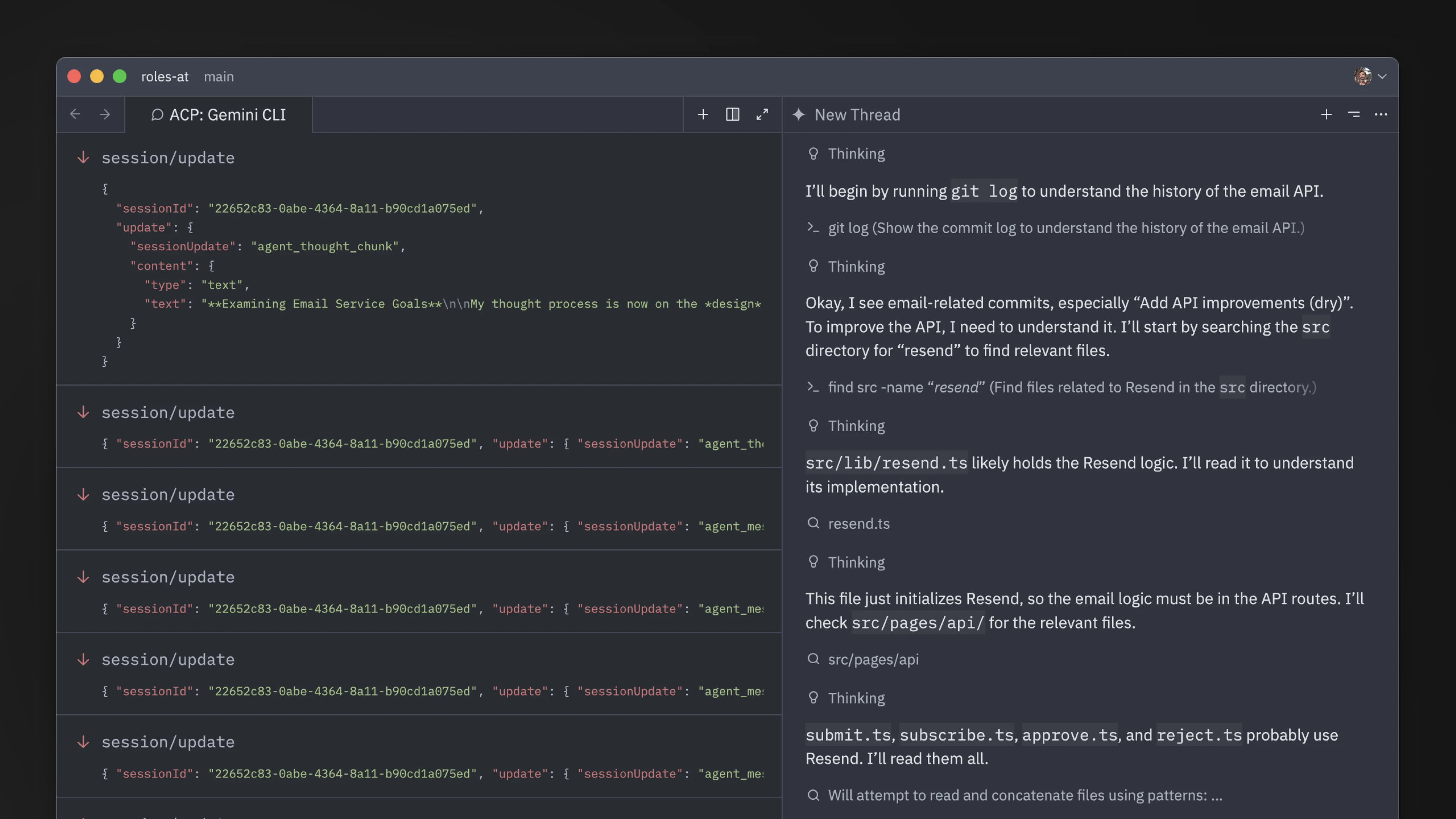
259
260It's helpful to attach data from this view if you're opening issues about problems with external agents like Claude Agent, Codex, OpenCode, etc.
261
262## MCP Servers
263
264Note that for external agents, access to MCP servers [installed from Zed](./mcp.md) may vary depending on the ACP implementation.
265For example, Claude Agent and Codex both support it, but Gemini CLI does not yet.