Configuring the Assistant
Settings
| key | type | default | description |
|---|---|---|---|
| version | string | "2" | The version of the assistant. |
| default_model | object | {} | The default model to use. |
Configuring the default model
The default_model object can contain the following keys:
// settings.json
{
  "assistant": {
    "default_model": {
      "provider": "zed.dev",
      "model": "claude-3-5-sonnet"
    }
  }
}
Common Panel Settings
| key | type | default | description |
|---|---|---|---|
| enabled | boolean | true | Disabling this will completely disable the assistant |
| button | boolean | true | Show the assistant icon |
| dock | string | "right" | The default dock position for the assistant panel. Can be ["left", "right", "bottom"] |
| default_height | string | null | The pixel height of the assistant panel when docked to the bottom |
| default_width | string | null | The pixel width of the assistant panel when docked to the left or right |
Example Configuration
// settings.json
{
  "assistant": {
    "default_model": {
      "provider": "zed.dev",
      "model": "claude-3-5-sonnet-20240620"
    },
    "version": "2",
    "button": true,
    "default_width": 480,
    "dock": "right",
    "enabled": true
  }
}
Providers {#providers}
The following providers are supported:
- Zed AI (Configured by default when signed in)
- Anthropic
- GitHub Copilot Chat
- Google Gemini
- Ollama
- OpenAI
- OpenAI Custom Endpoint
Zed AI {#zed-ai}
A hosted service providing convenient and performant support for AI-enabled coding in Zed, powered by Anthropic's Claude 3.5 Sonnet and accessible just by signing in.
Anthropic {#anthropic}
You can use Claude 3.5 Sonnet via Zed AI for free. To use other Anthropic models you will need to configure it by providing your own API key.
You can obtain an API key here.
Even if you pay for Claude Pro, you will still have to pay for additional credits to use it via the API.
GitHub Copilot Chat {#github-copilot-chat}
You can use GitHub Copilot chat with the Zed assistant by choosing it via the model dropdown in the assistant panel.
Google Gemini {#google-gemini}
You can use Gemini 1.5 Pro/Flash with the Zed assistant by choosing it via the model dropdown in the assistant panel.
You can obtain an API key here.
Ollama {#ollama}
Download and install Ollama from ollama.com/download (Linux or macOS) and ensure it's running with ollama --version.
You can use Ollama with the Zed assistant by making Ollama appear as an OpenAPI endpoint.
-
Download, for example, the
mistralmodel with Ollama:ollama pull mistral -
Make sure that the Ollama server is running. You can start it either via running the Ollama app, or launching:
ollama serve -
In the assistant panel, select one of the Ollama models using the model dropdown.
-
(Optional) If you want to change the default URL that is used to access the Ollama server, you can do so by adding the following settings:
{
  "language_models": {
    "ollama": {
      "api_url": "http://localhost:11434"
    }
  }
}
OpenAI {#openai}
-
Create an OpenAI API key
-
Make sure that your OpenAI account has credits
-
Open the assistant panel, using either the
assistant: toggle focusor theworkspace: toggle right dockaction in the command palette (cmd-shift-p). -
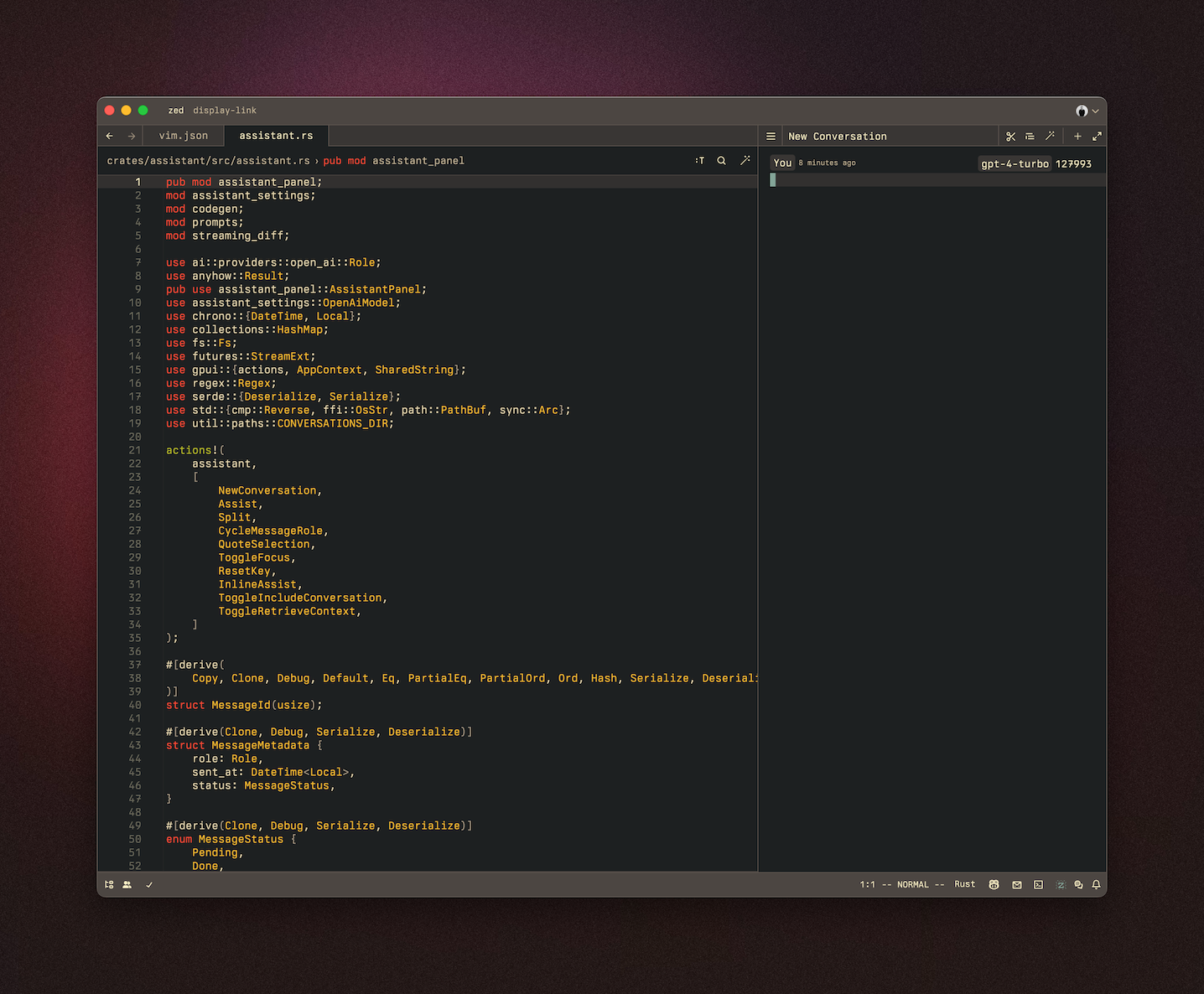
Make sure the assistant panel is focused:
The OpenAI API key will be saved in your keychain.
Zed will also use the OPENAI_API_KEY environment variable if it's defined.
OpenAI Custom Endpoint {#openai-custom-endpoint}
You can use a custom API endpoint for OpenAI, as long as it's compatible with the OpenAI API structure.
To do so, add the following to your Zed settings.json:
{
  "language_models": {
    "openai": {
      "api_url": "http://localhost:11434/v1"
    }
  }
}
The custom URL here is http://localhost:11434/v1.